
Test Integration: Ads + Inplay Game (React Native)
Quick-start test integration combining StreamLayer advertising and gamification on React Native. Deploy contextual ads alongside interactive polls, trivia, predictions, and Highlights content with overlay and L-bar delivery.
Test Advertising and Games
This integration combines StreamLayer's advertising and gamification capabilities. A moderator can manually or automatically insert contextual ads and game prompts — polls, trivia, predictions, insights, and Highlights social content — relevant to game action or on a pre-determined cadence (for example, every five minutes).
Ads, game questions, and insights can be delivered with or without a notification and in a StreamLayer Element or squeeze-back L-bar format. From ads, depending on the format, viewers can take actions such as saving a promotion to their digital wallet, scanning a QR code, or linking out to another application or web page.
During testing the standard StreamLayer Launch Button and other feature sub-menus are hidden. However, you have the option to add a custom button that opens the Games home tab so viewers can access missed questions or view the leaderboard.
A moderator uses StreamLayer Studio to create and activate ads or game questions. The StreamLayer team will provide your team with Studio access so you can create, post, and moderate content.
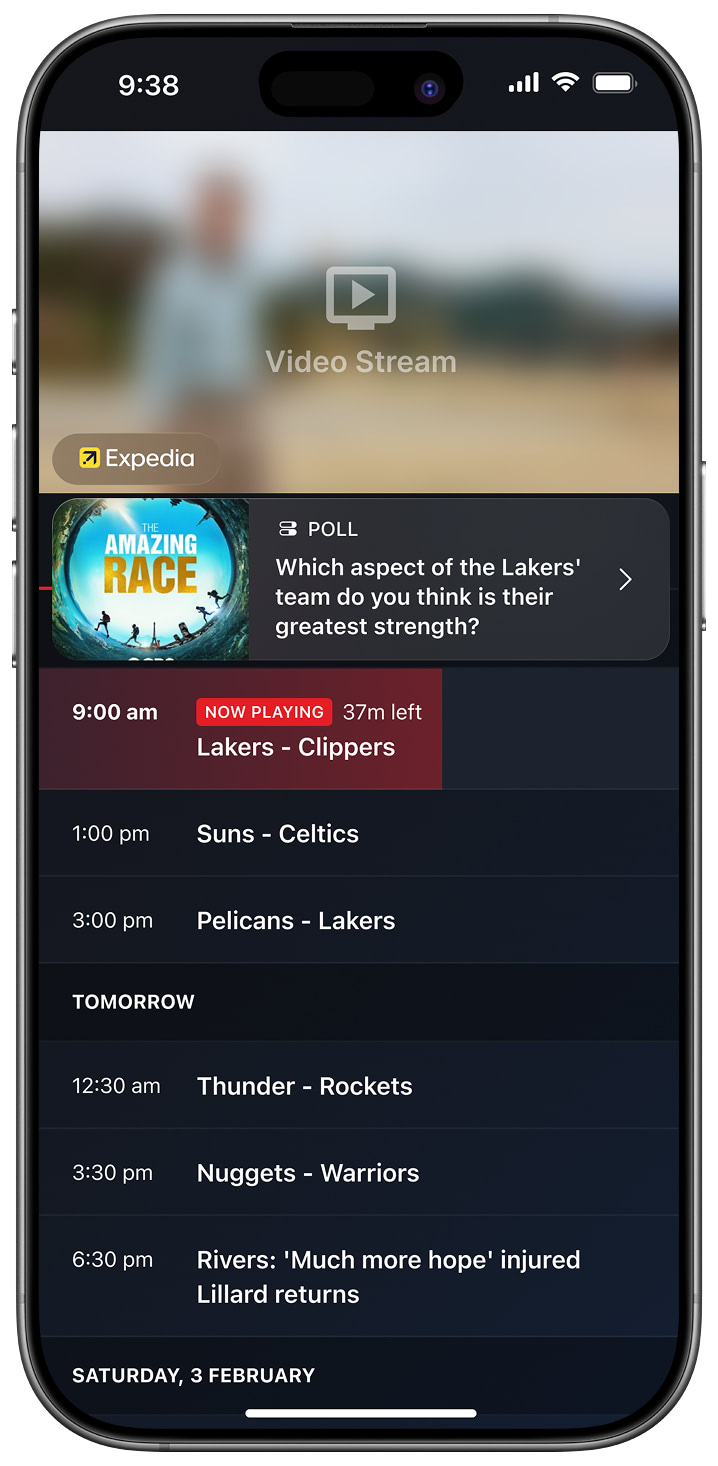
Branded Notification
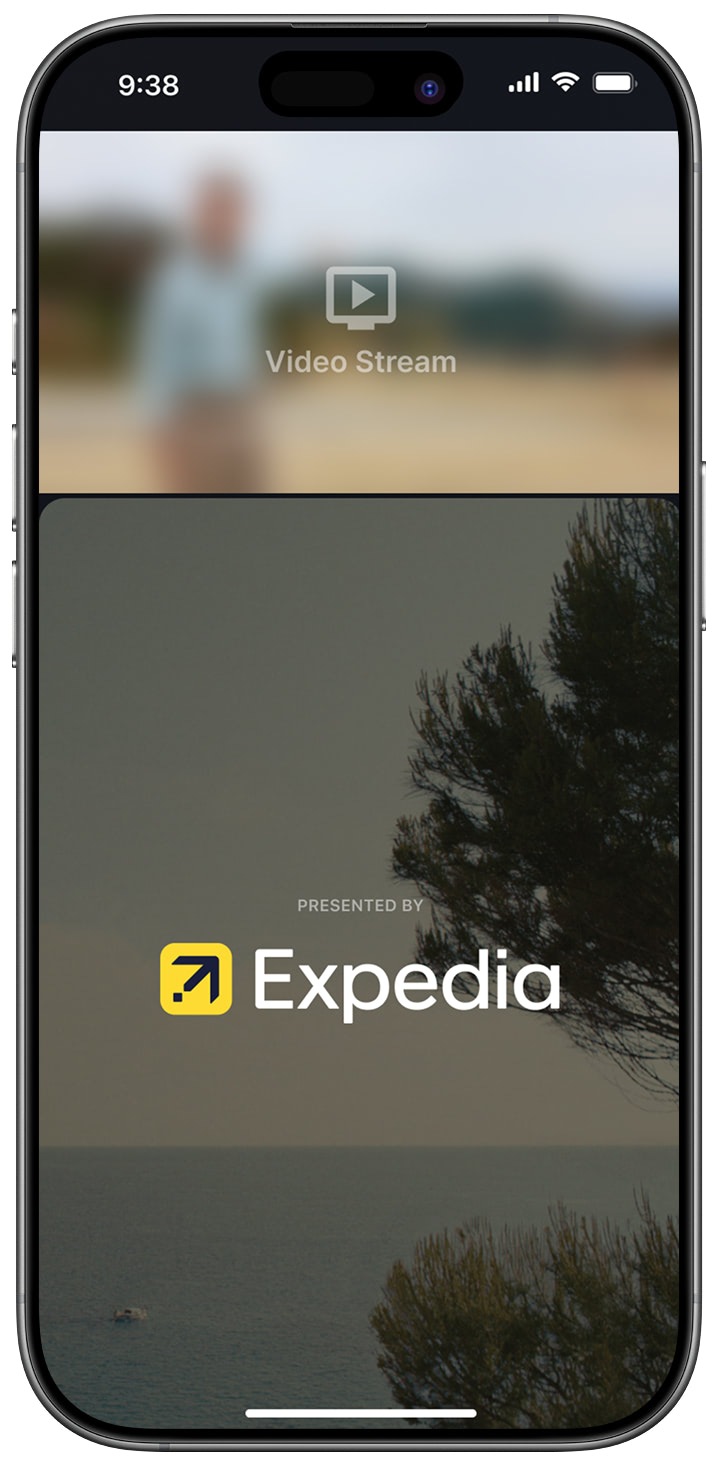
Animated Sponsor Logo
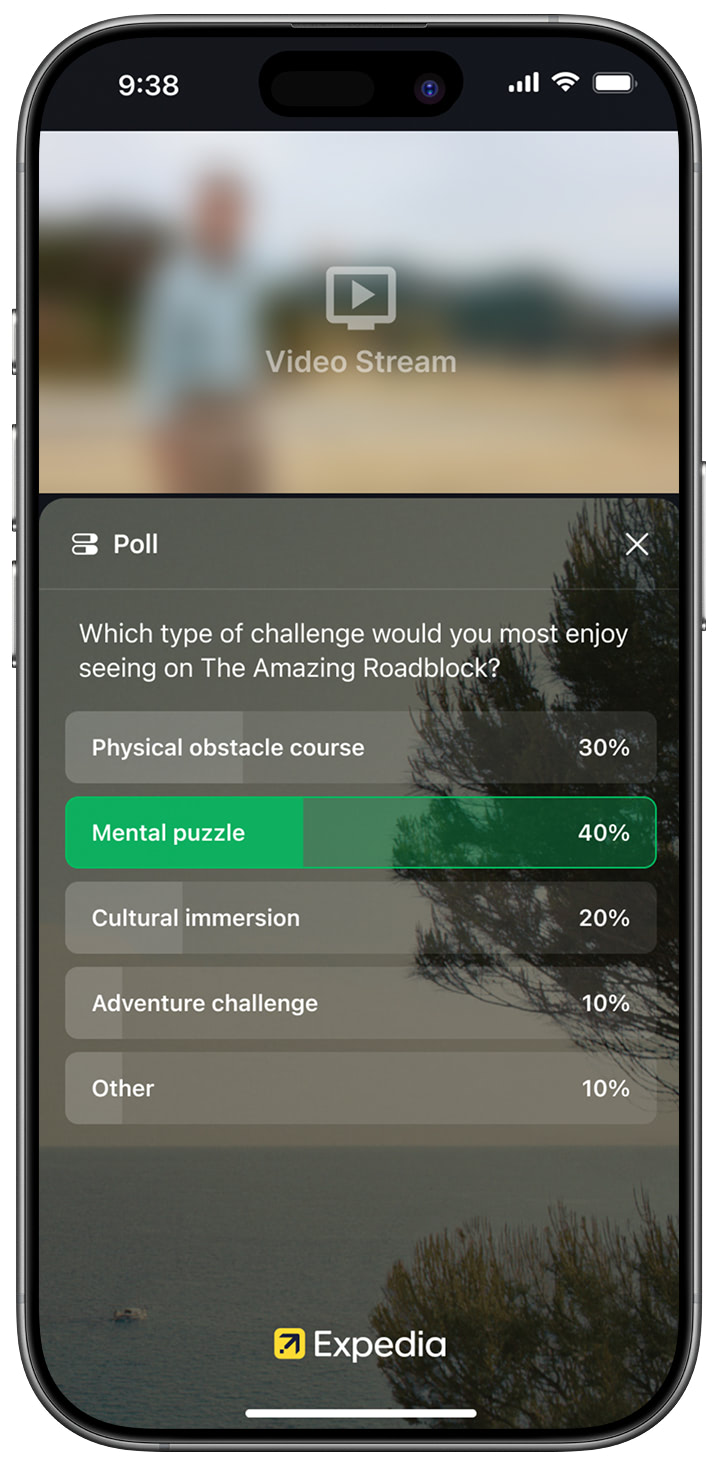
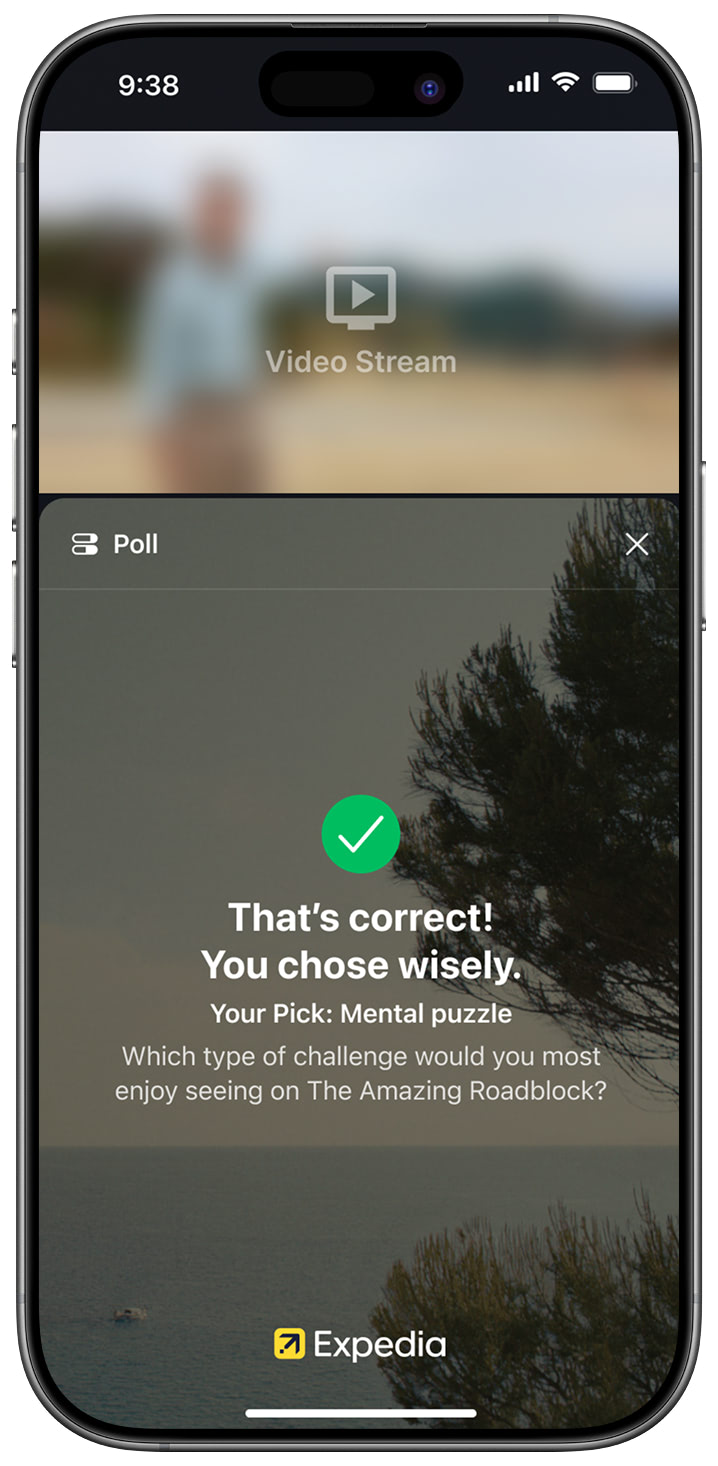
Poll Question
Prerequisites
Obtain an SDK API Key
Provide your email address to the StreamLayer team. We will create an organization for you on our platform including a personal dashboard. You will receive an invitation email with a link to StreamLayer Studio and your authentication credentials. After gaining access, you can generate an API key in the development section of StreamLayer Studio. This key authenticates your application with StreamLayer servers and is required for all interactions.
Once authenticated, you can view, create content for, and moderate events using StreamLayer Studio. See About StreamLayer Studio for an overview.
Integration Steps
1. Complete the Core Integration
To enable a partial integration such as ads + gamification mode, you must first complete the full core integration. Follow the setup instructions for your architecture:
Only after completing the base integration should you proceed with the customization below.
2. Configure the StreamLayer View for Ads + Games
Add the following keys inside the getViewConfig() function's return object in your integration:
function getViewConfig(): StreamLayerViewConfiguration {
  return {
    viewNotificationFeatures: new Array(
      StreamLayerViewNotificationFeature.Games,
      StreamLayerViewNotificationFeature.Chat,
      StreamLayerViewNotificationFeature.Twitter
    ),
    isGamesPointsEnabled: true,
    isGamesPointsStartSide: false,
    isLaunchButtonEnabled: true,
    isMenuAlwaysOpened: false,
    isMenuLabelsVisible: true,
    isMenuProfileEnabled: true,
    isTooltipsEnabled: false,             // disables tooltip overlays (set to true to enable)
    isWhoIsWatchingViewEnabled: false,    // disables the "who is watching" panel
    isOverlayExpandable: true,
    overlayHeightSpace: 300,
    overlayWidth: 0,
    overlayLandscapeMode: StreamLayerViewOverlayLandscapeMode.Start,

    // 🔽 Additional optional view configuration:
    integrationMode: "ADS_INPLAY",         // indicate your part integration mode
    phoneContactsSyncEnabled: false,       // disables uploading/syncing user's contact list
    shouldIncludeTopGestureZone: false,    // disables top swipe zone to open overlay
    notificationsMode: "SILENT",           // disables sounds/vibrations on notifications
    isLBarEnabled: true,                   // enables L-bar by default for all ads
    lbarMode: "FULL"               // Choose "FULL" or "FULLFLEXIBLE"; see the mode descriptions below
  }
}
3. Configure L-Bar Mode
If L-bar squeeze-back formats are desired, set the lbarMode property in your view configuration:
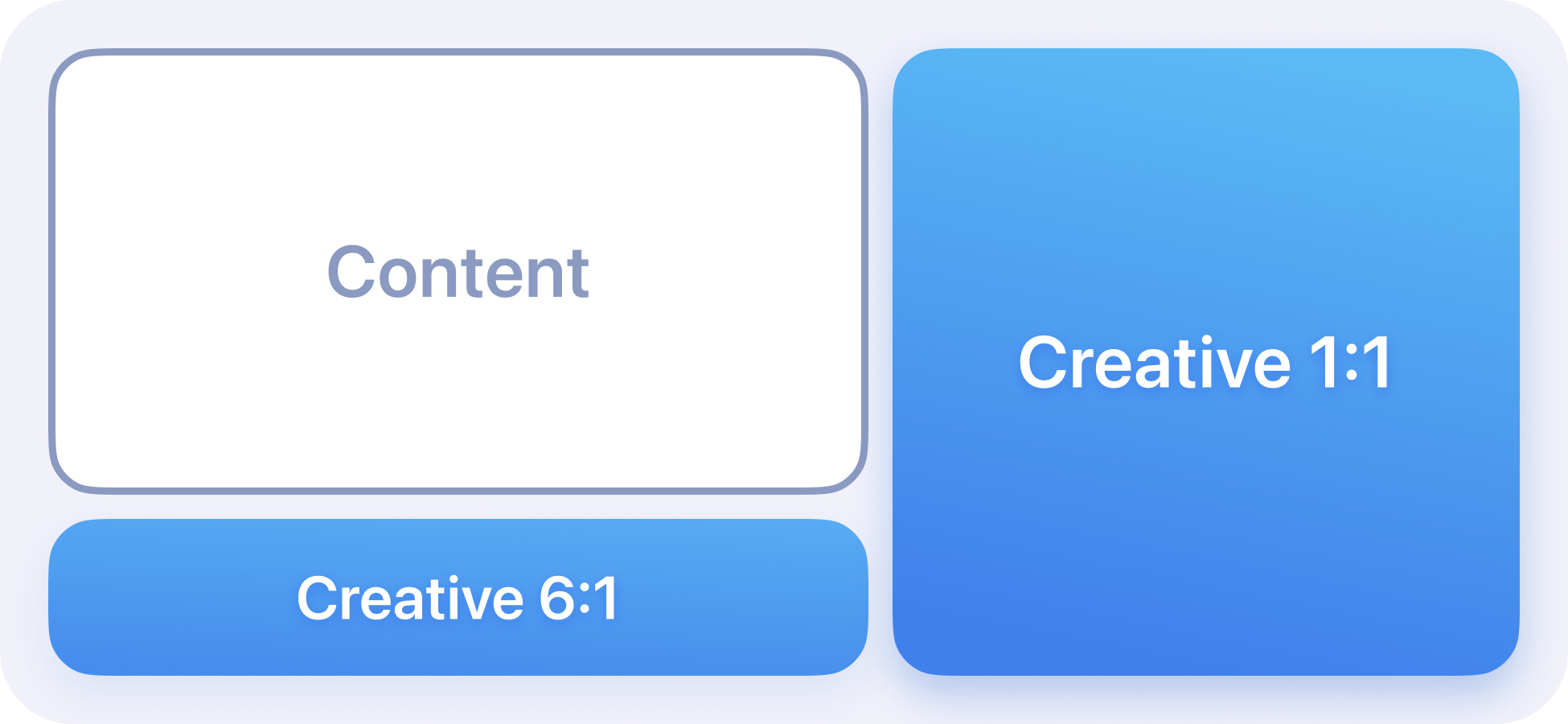
lbarMode: "FULL"FULL mode — The L-bar always occupies the lower space regardless of whether a banner is present. This keeps the reserved space constant even when no banner is displayed.
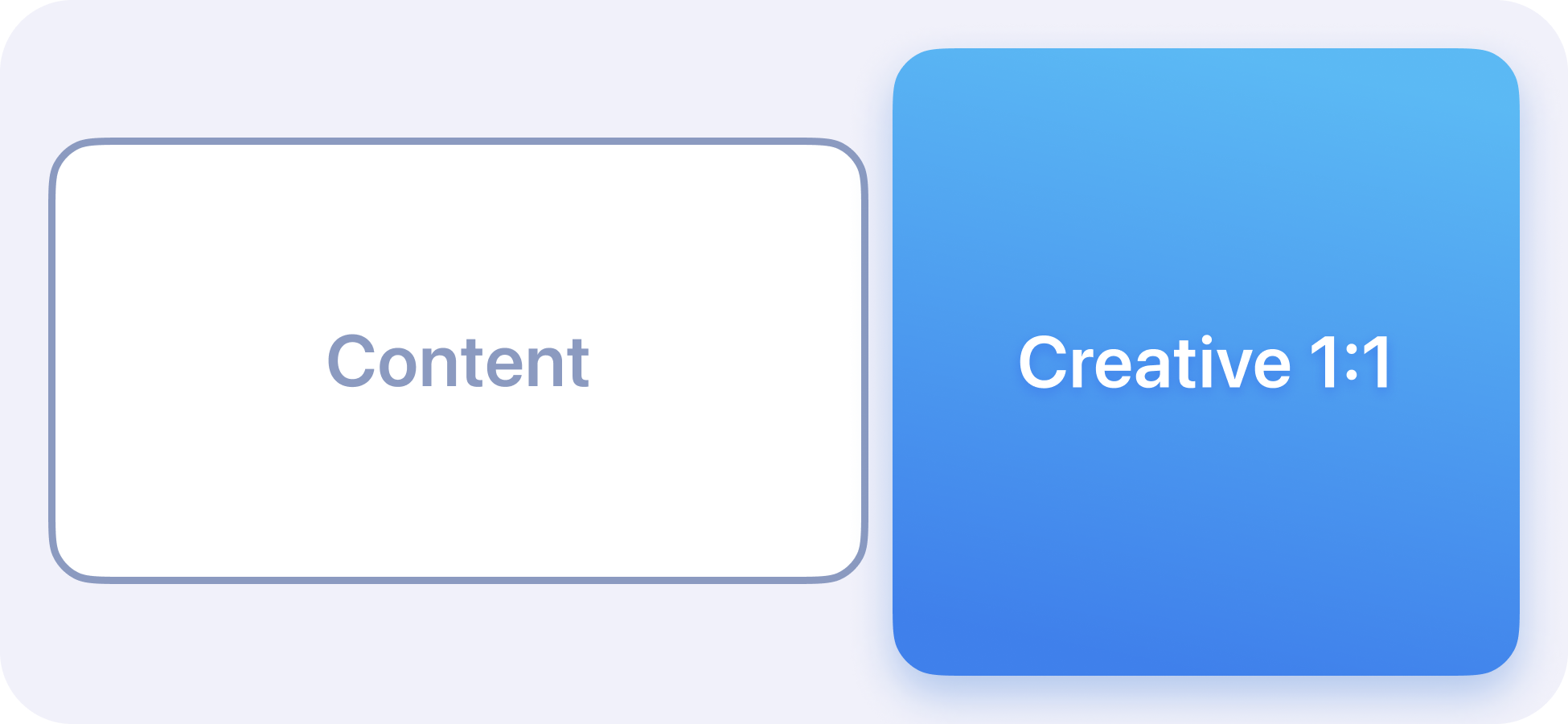
FULLFLEXIBLE mode — The L-bar only occupies space when a banner is present. If no banner is displayed, the content fully utilizes the available space.
4. Handle Player Layout and Orientation
Follow the React Native Fullscreen Guide for the host player's layout and orientation callbacks. Complete the New Architecture integration before applying this feature-specific configuration.
5. Validate Timing and Playback
Activate test content for the configured event in StreamLayer Studio. Check ad placement, dismissal, and restoration of the player's layout. For timestamp-based content synchronization, confirm the supported React Native API and SDK version with [email protected].
Related
- Integration Guide — Complete SDK setup instructions
- Test Integration: Advertising — Advertising-only test setup
The current integration guide covers React Native New Architecture. For an existing Old Architecture app, contact [email protected] to confirm the supported SDK and migration path before following those steps.
Updated about 1 month ago