
Moderation - Games
Create and manage polls, trivia, predictions, insights, and social highlights in the StreamLayer Studio Moderation tab. Covers templates, scheduling, and activation.
This guide outlines the functionalities available under the Moderation tab for event administrators.
Game Content Types
Moderation is designed to enhance viewer interaction through gamification elements integrated into your stream. Here, admins can engage audiences with interactive content such as polls, trivia, and prediction games that are straightforward, engaging, and enjoyable.
Poll questions: Polls gather viewer opinions and foster community interaction. Example questions might include:
Will Mike Trout lead the league in home runs this season?
Will the Chicago Fire win the MLS this season?
Trivia questions: Trivia presents multiple-choice questions with one correct answer, aiming to educate and entertain simultaneously. Examples include:
How many championships have the Lakers won?
How many career home runs did Babe Ruth hit?
Prediction questions: Predictions engage viewers by asking them to anticipate future outcomes in the event. Examples include:
Who will win the next hole: Player X or Player Y?
Will Player Z make a birdie on the next hole?
Will Player A hit a home run during the current at-bat?
Moderation also gives the ability to send interesting fast facts or highlight specific social posts relevant to video content.
Insights and Social Highlights
Insights: Share fascinating facts or general statistics related to the event. These can be simple notifications or detailed StreamLayer Elements with more information on viewer interaction. Examples:
The 11th hole was the hardest in the 2020 Masters.
Tigers pitcher Max Scherzer won the 2021 Cy Young award.
Social Highlights: Feature pertinent social posts related to the event's current activities. Examples:
LeBron James posts about Tiger Woods' tee shot on the 10th hole.
A media partner promotes a new TV series debuting this weekend.
Promotions
StreamLayer Elements: Send ads in IAB compliant 1:1 or 2:1 formats via notification to appear on top of the video.
L-bar Squeeze back: Configure ads in IAB compliant 1:1 or 2:1 formats to squeeze the video player upon activation. Moderators can choose if this format is activated automatically or via notification.
Moderation Tab Components
Administrators can pre-create content for polls, trivia, predictions, insights, and social highlights ahead of the event to streamline live operations.
Apply Settings
Navigate to the ‘Settings’ option, located in the middle right of your screen, to customize default colors, set notification languages for correct or incorrect answers, upload sponsorship logos, and select notification icons. These settings will be applied to all created content.
Create Questions or Advertisements
While in the Moderation tab, click CREATE NEW to initiate new interactive content such as polls, trivia questions, predictions, insights, social highlights, or advertisements.
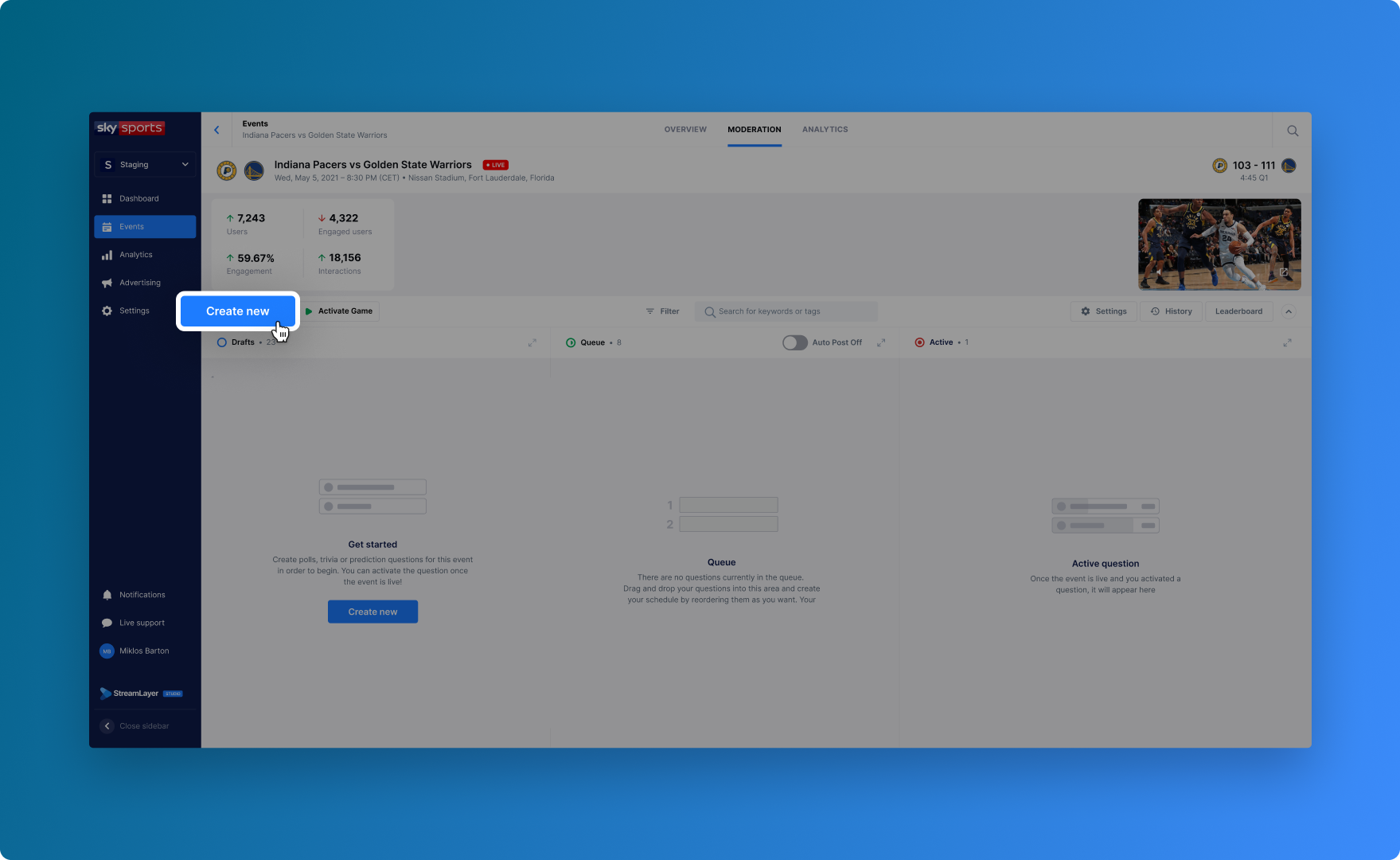
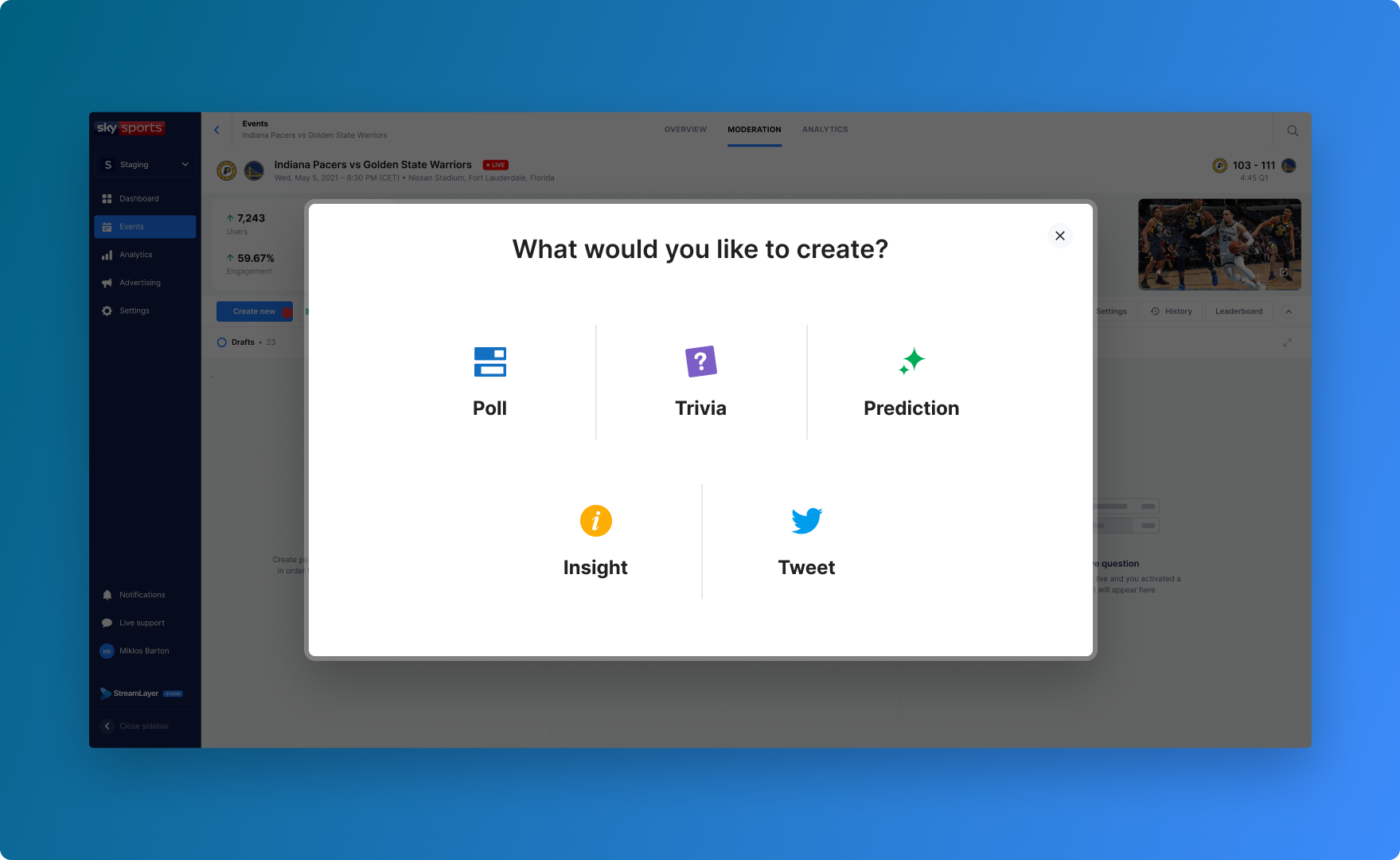
Choose the Template
Now that you have clicked CREATE NEW, you will be prompted to choose a template - Poll, Trivia, Prediction, Insight, Social Highlight, or Promotion.
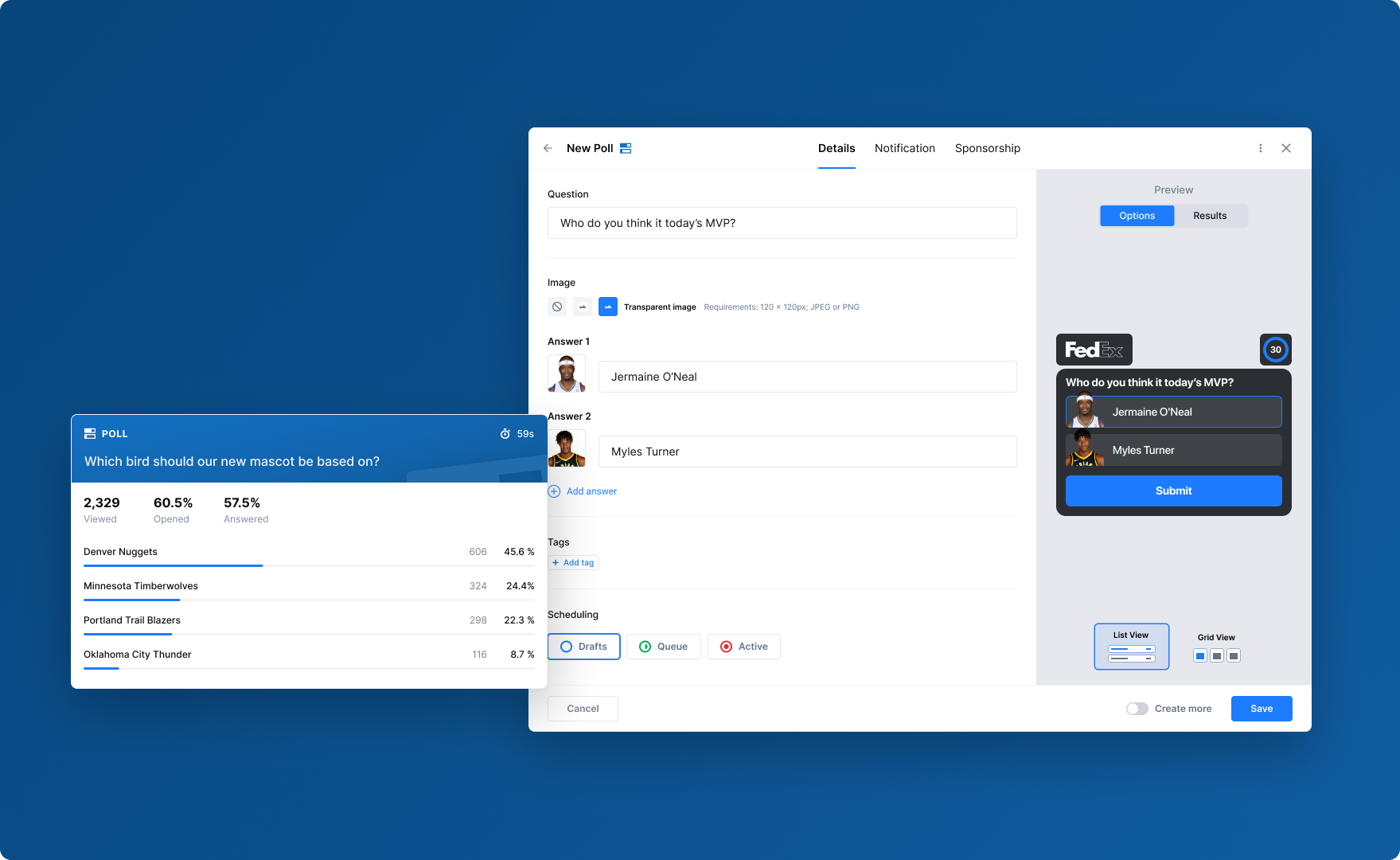
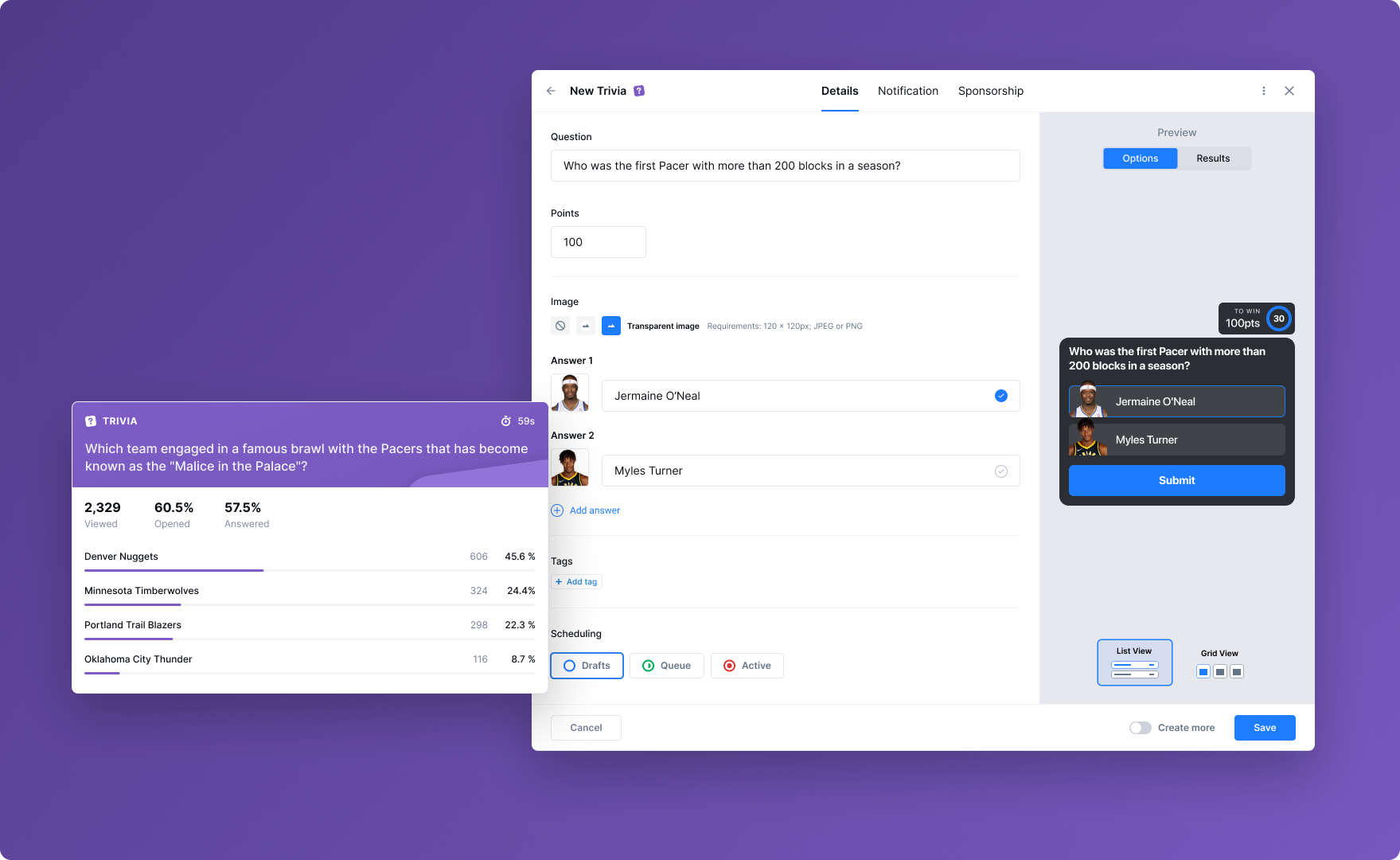
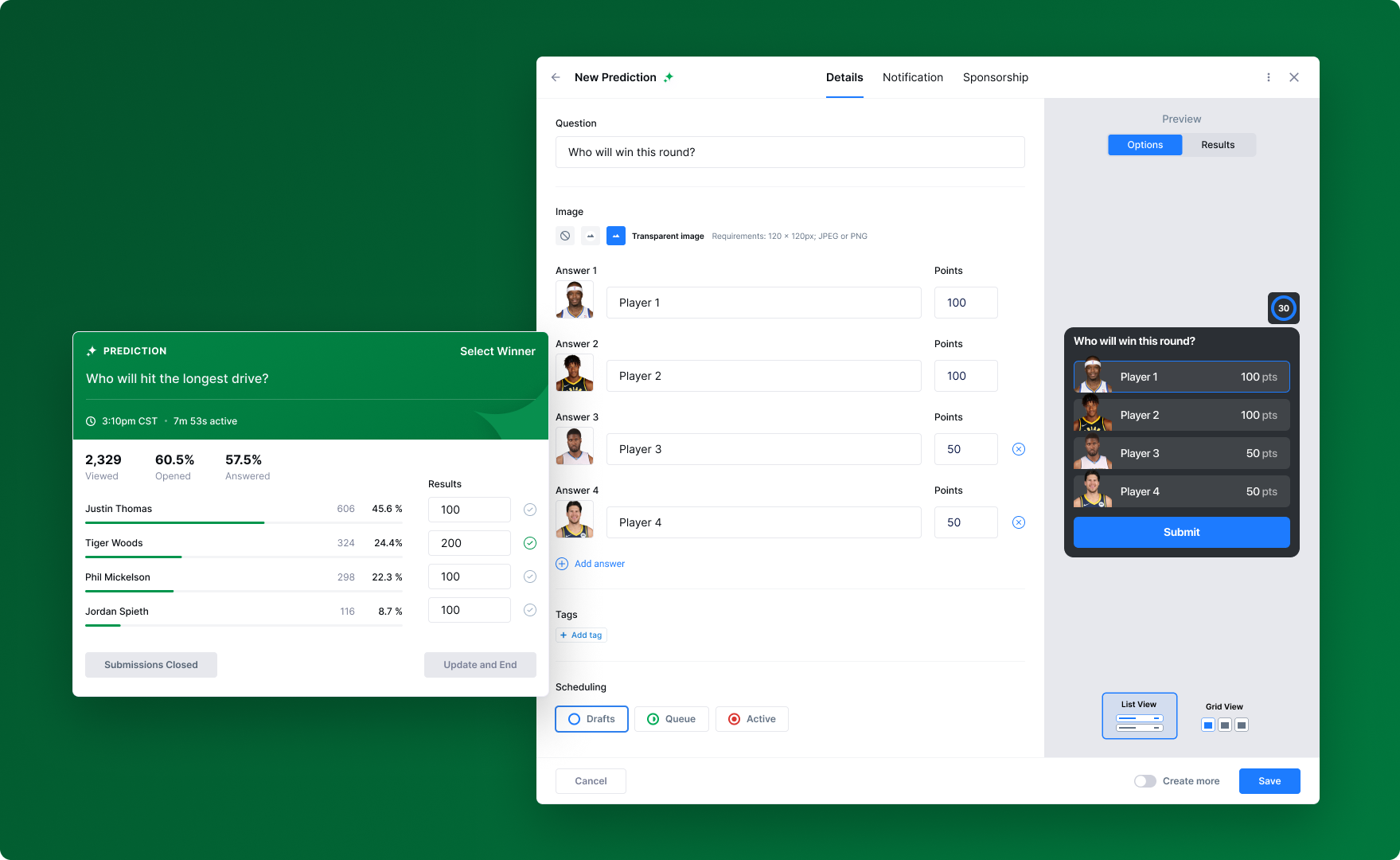
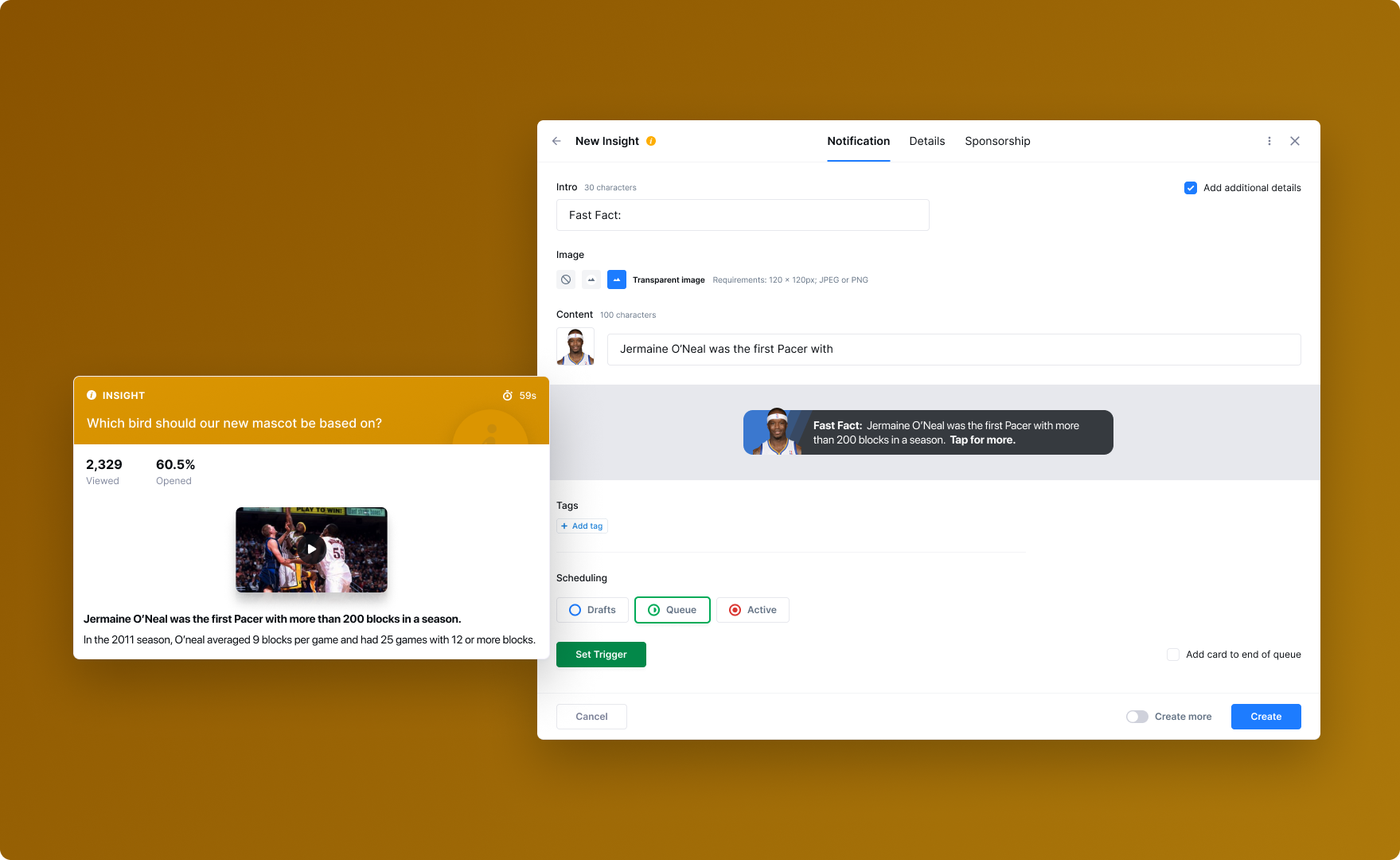
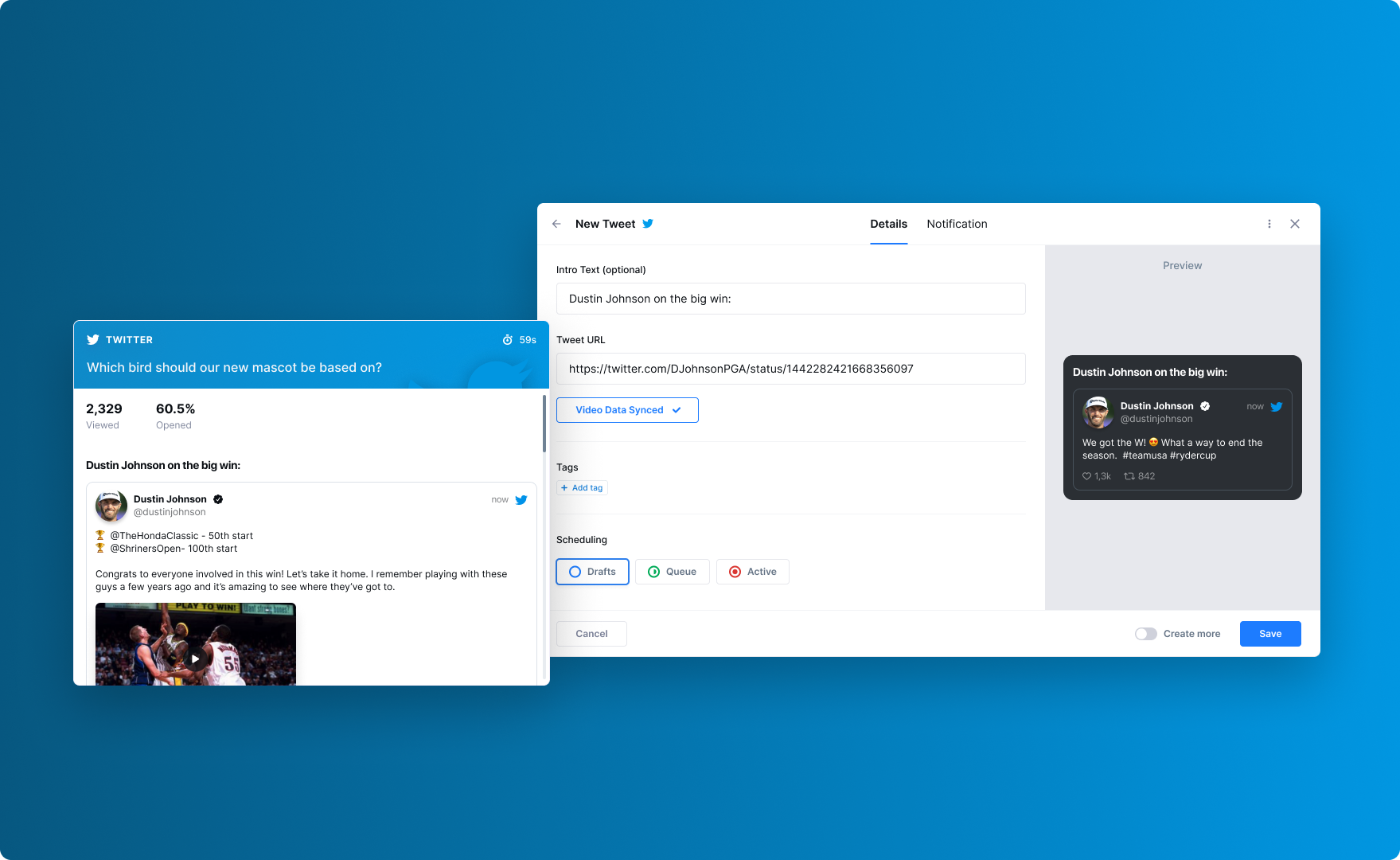
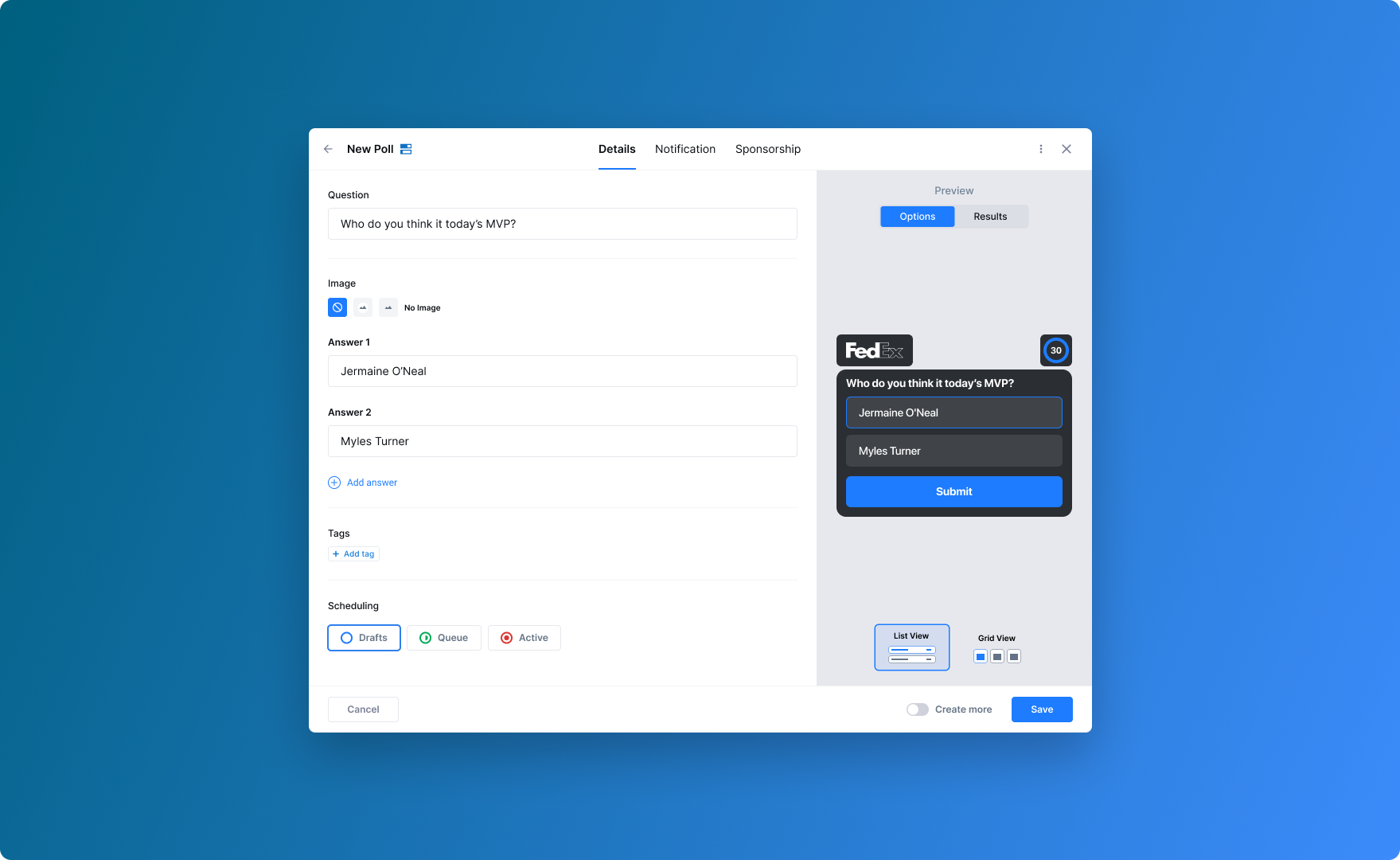
Once you have selected your template, you will have the opportunity to enter the question, available answers, the correct answer (for trivia questions only), and all Advertisement components on the Details tab. By default, the content will default as a Draft unless scheduled to another status otherwise. StreamLayer Studio will show you a preview of how the question will appear in the app.
Poll:
Trivia:
Prediction:
Insight:
Social Highlight:
Apply Different Image Types
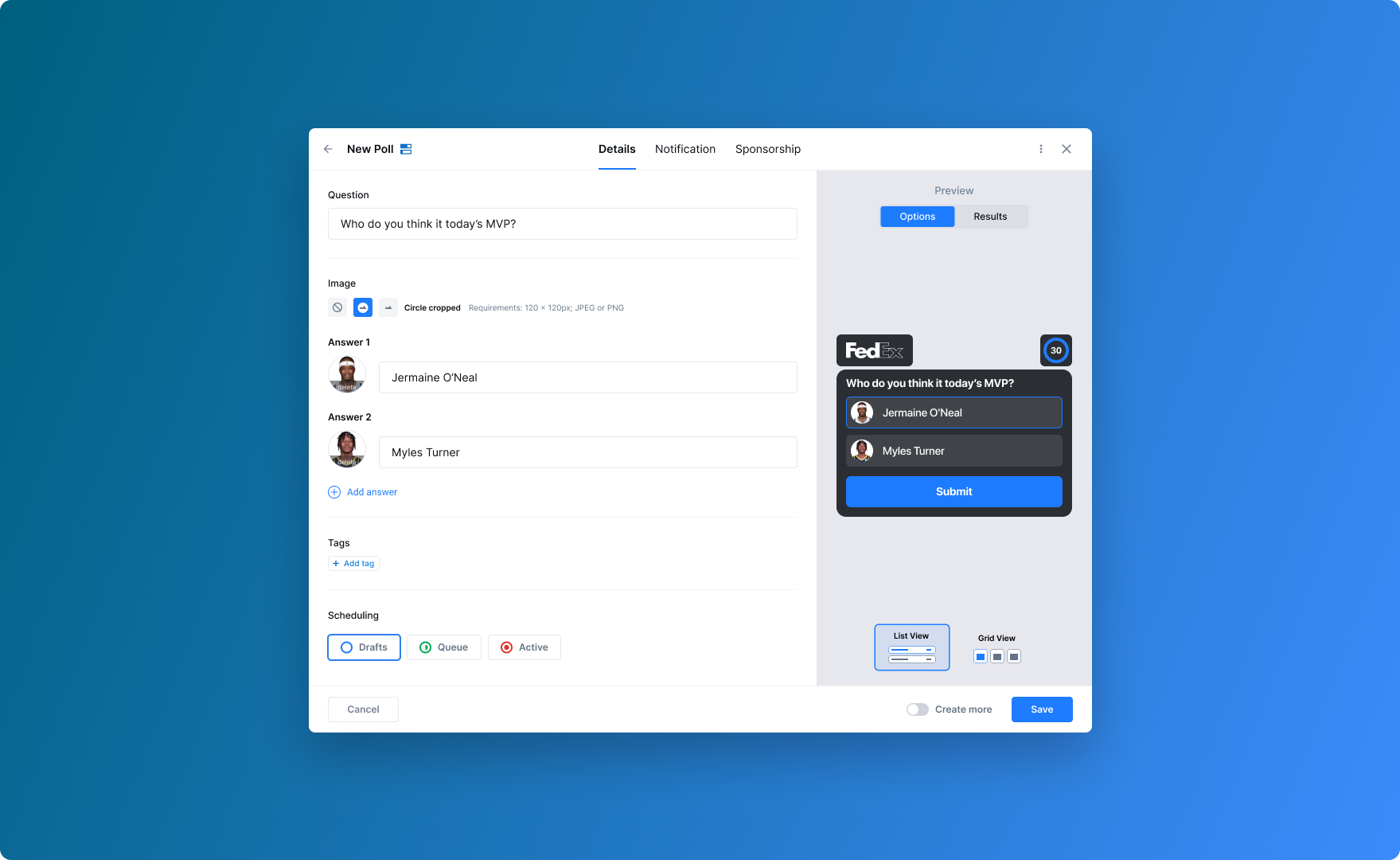
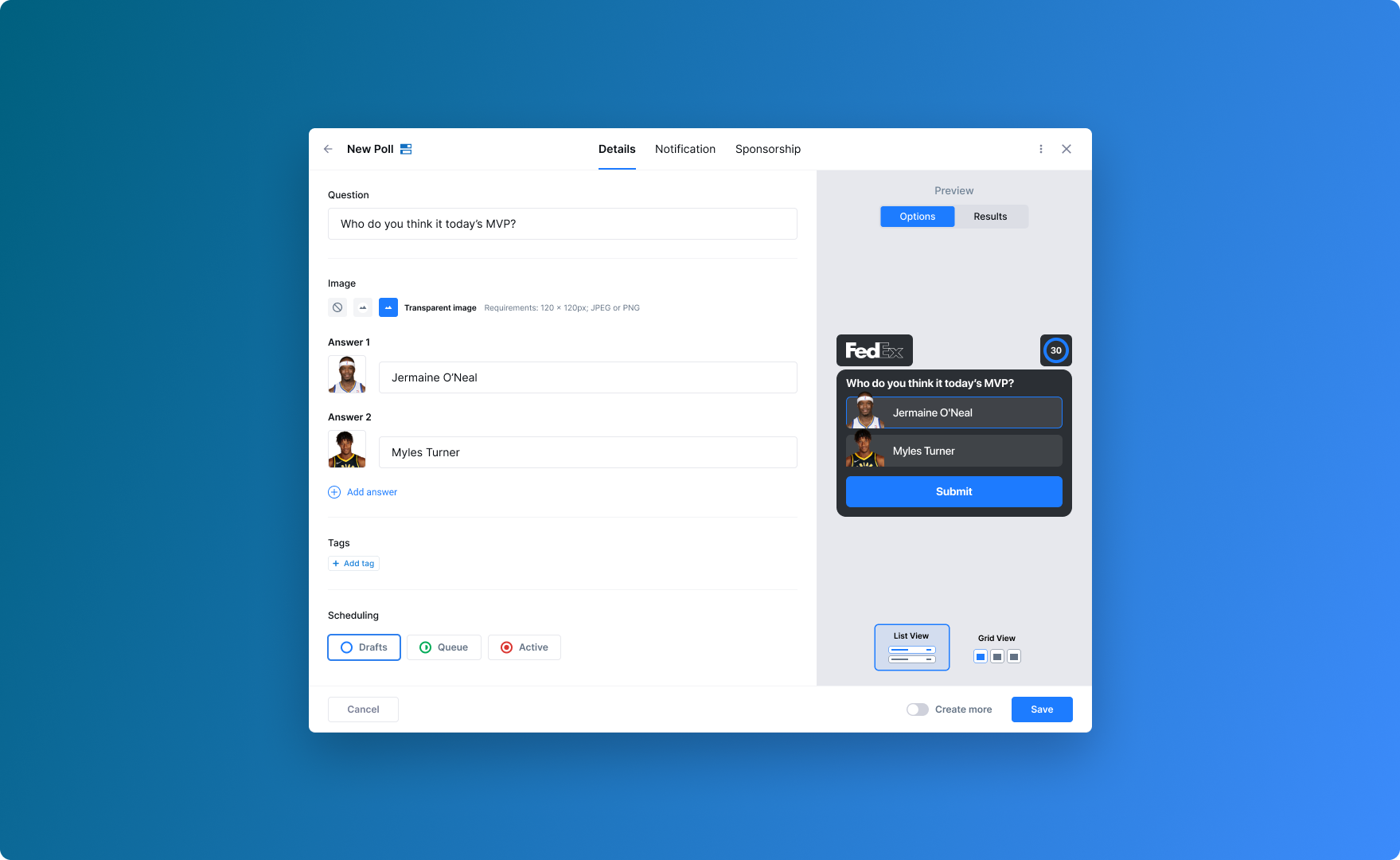
When you are creating a poll, trivia question, prediction question, or insight you can add an image to go along with your answer text. There are several options:
*None: There is no image associated
*Rounded: takes the supplied image and rounds the corner, similar to the icons you have on a modern smartphone. Recommended Requirements: 120 x 120px; JPEG or PNG
*Transparent: changes the opacity of the image supplied so you can see the event still happening behind the sponsorship image. Recommended Requirements: 120 x 120px; JPEG or PNG
Change the Sponsorship
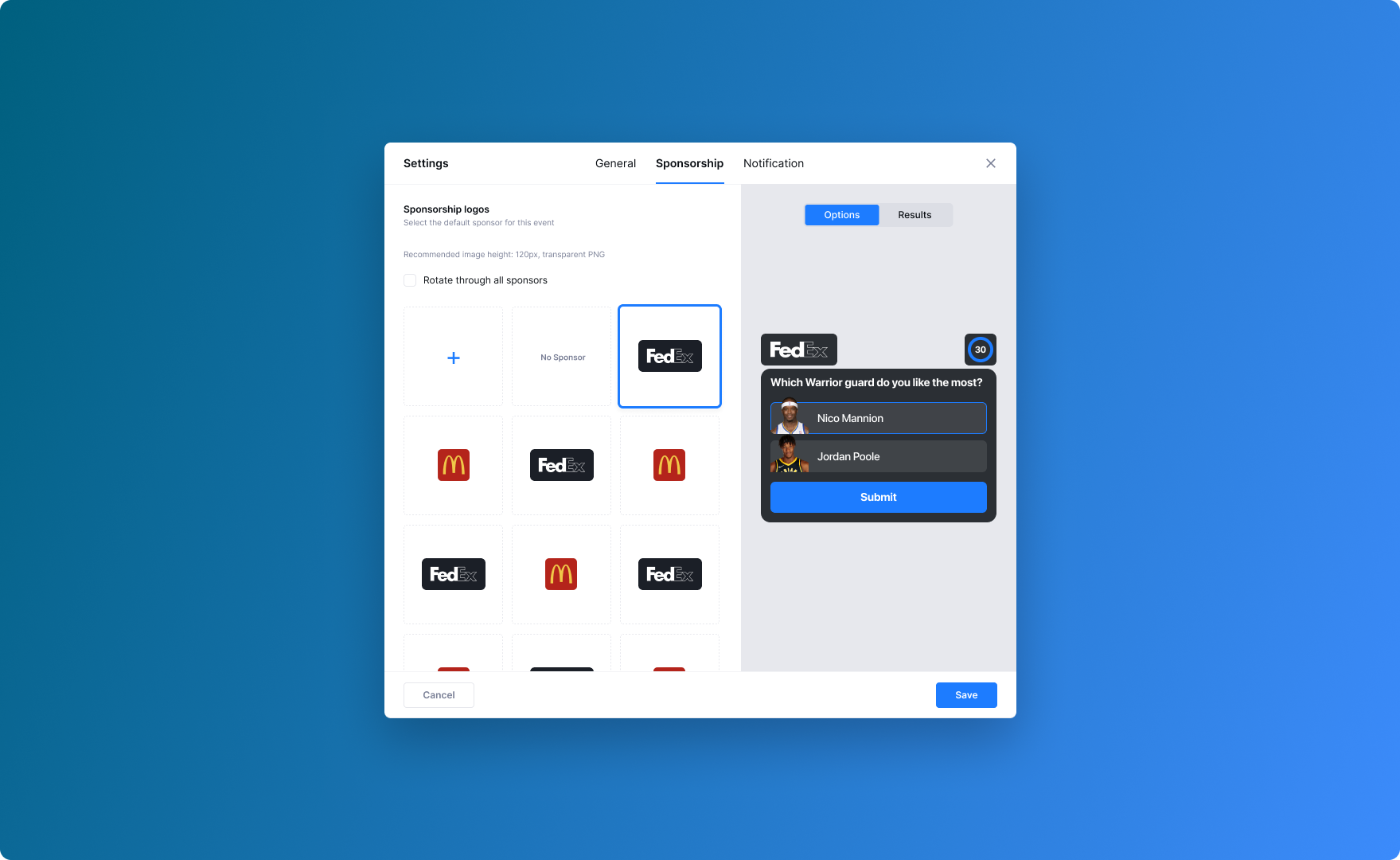
StreamLayer Studio allows you to customize the sponsorship for an individual question. While you are working on the question, click on the Sponsorship tab in the middle to customize what ad / branding is displayed for this question, insight, or social highlight.
View Notification Preview
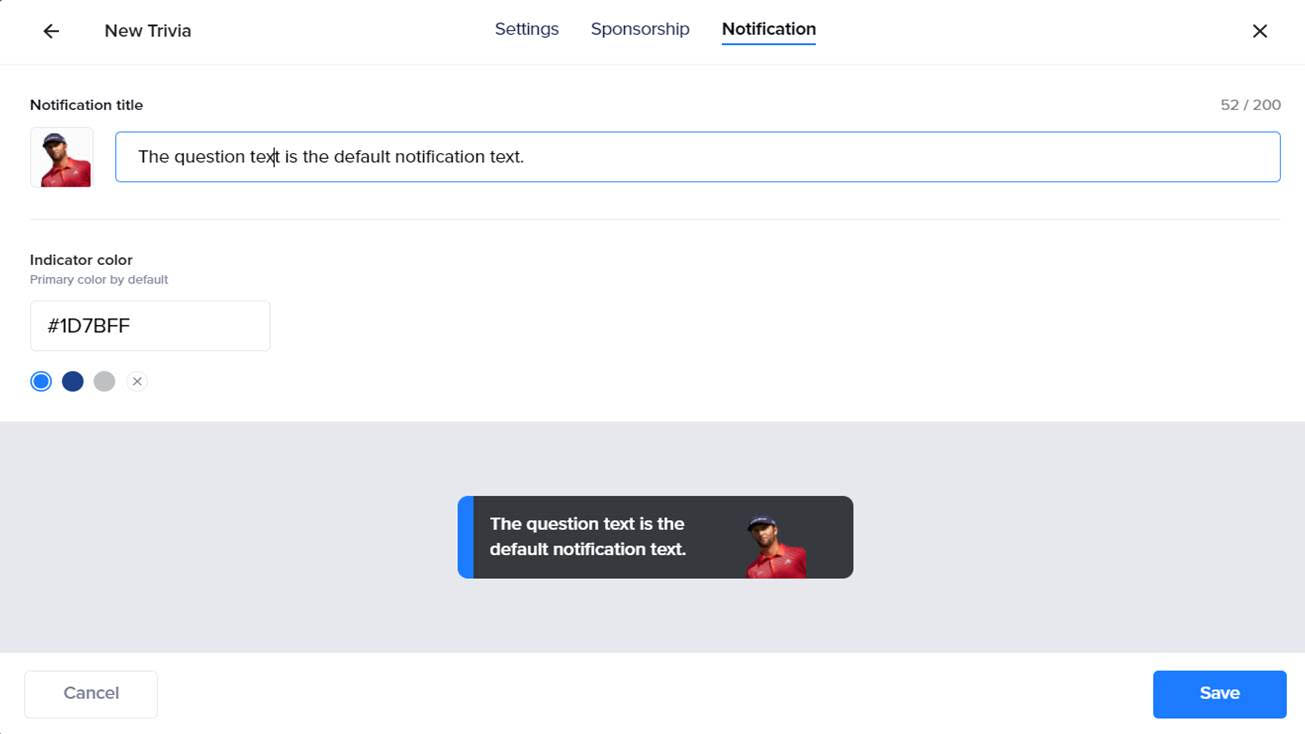
Click on the Notification tab to manage the text, image / icon, and color of the notification that will appear on your user's device when the content shows up for this particular question, insight, or social highlight. By default, the notification text is the same as the question itself.
Save
Save the question and view the corresponding question card in the corresponding column where it is scheduled. By default, the card will appear at the top of the Drafts column.
Schedule a Card
Now that your question has been entered, you need to schedule the question into a queue. Note you can do this within the Create Question screen above or afterwards by dragging and dropping the question into the appropriate bucket.
- DRAFT - a question with a draft status means you want to revisit or edit the question before it goes live.
- QUEUE - a question with a queue status means the question is completed and scheduled in the queue for the event.
- ACTIVE- a question with an active status means the question / factoid / tweet is pushed directly into the stream live, right now.
Manage the Queue
Manage the three queues by dragging and dropping the cards horizontally to a new status or vertically within a given status.
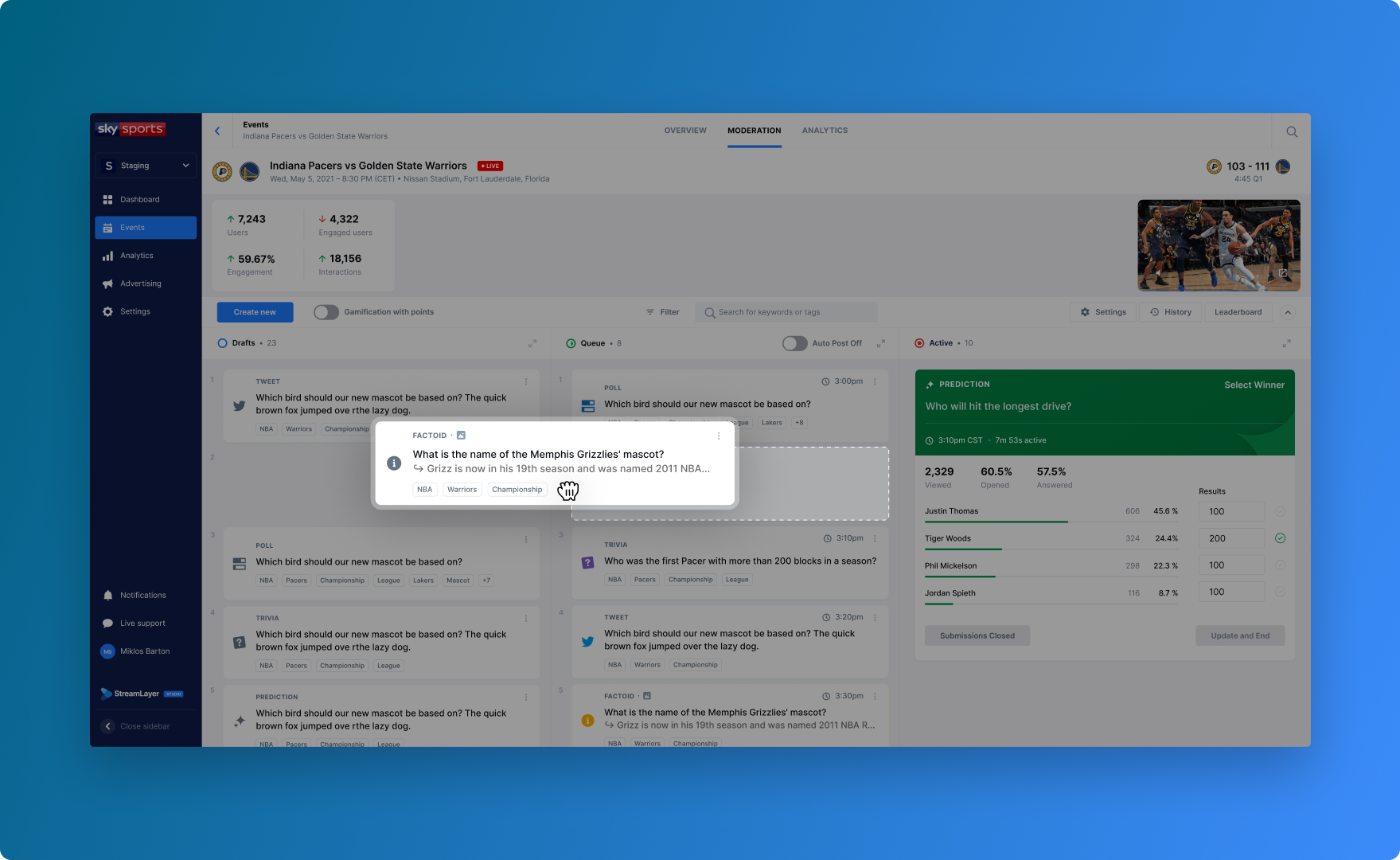
Filter Card Types
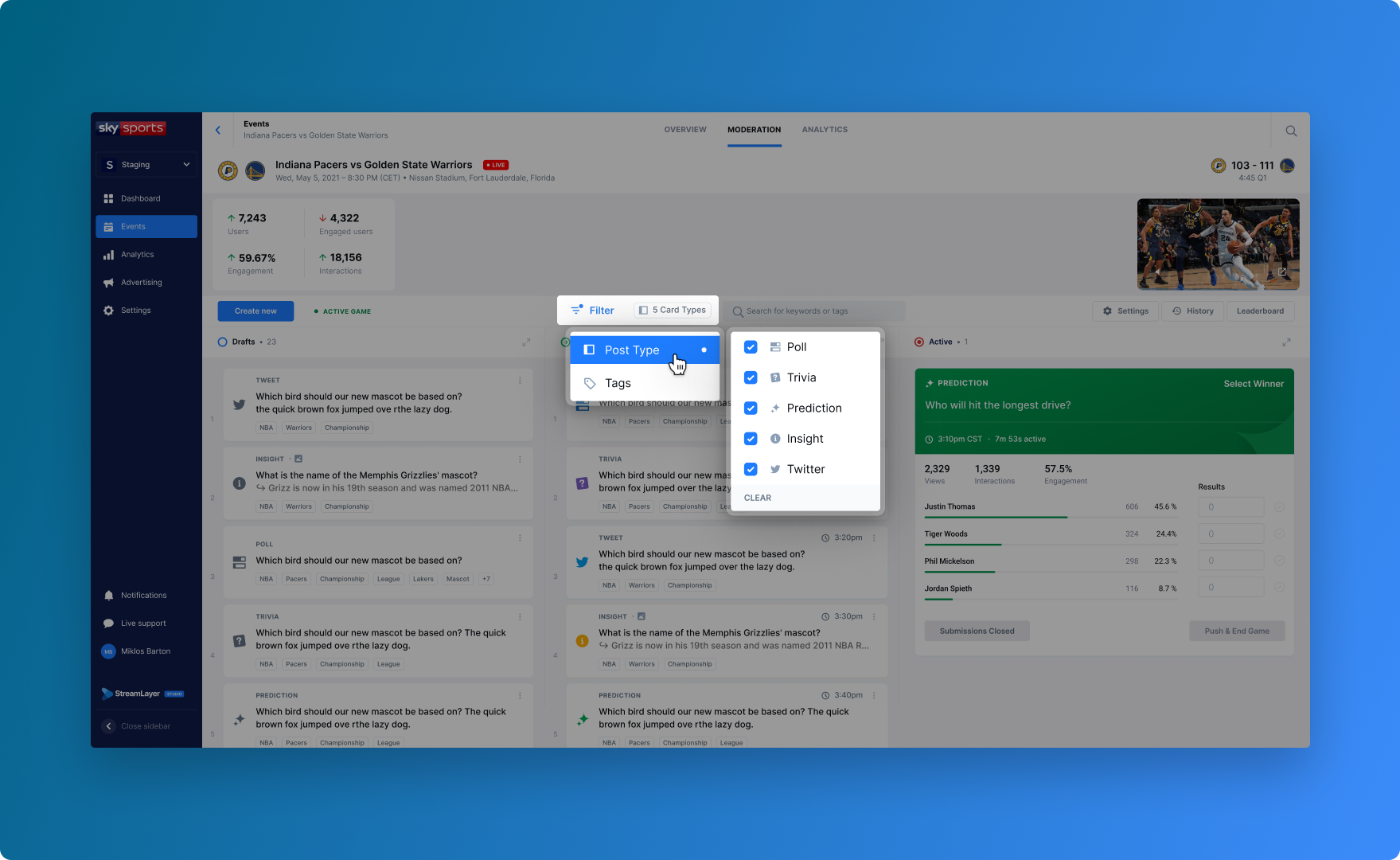
When you are on the Moderation screen inside an Event, you can filter the card types by clicking on the tabs above the Draft / Queue / Active columns as shown in the image below.
Edit or Duplicate a Card
You can edit, duplicate, delete, or move the position within that Status for a question by clicking on the three vertical dots in the upper right hand corner of the question.
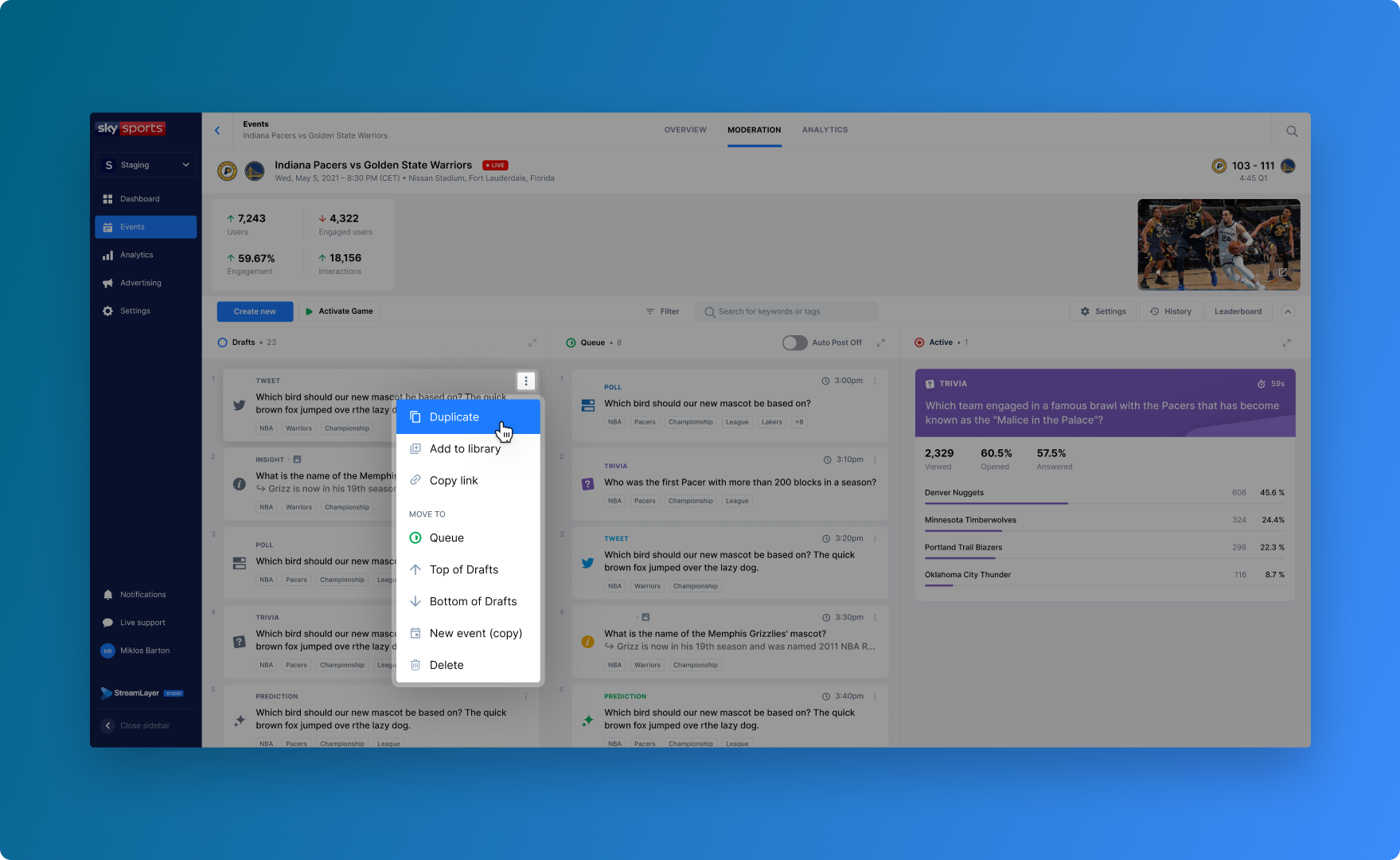
If you choose to Duplicate, an interim screen will appear with the copied question and text, and applied sponsorship and notification settings from the original card. Update as you would when creating a new poll, trivia, prediction, insight, or social highlight and save.
Activate a Card
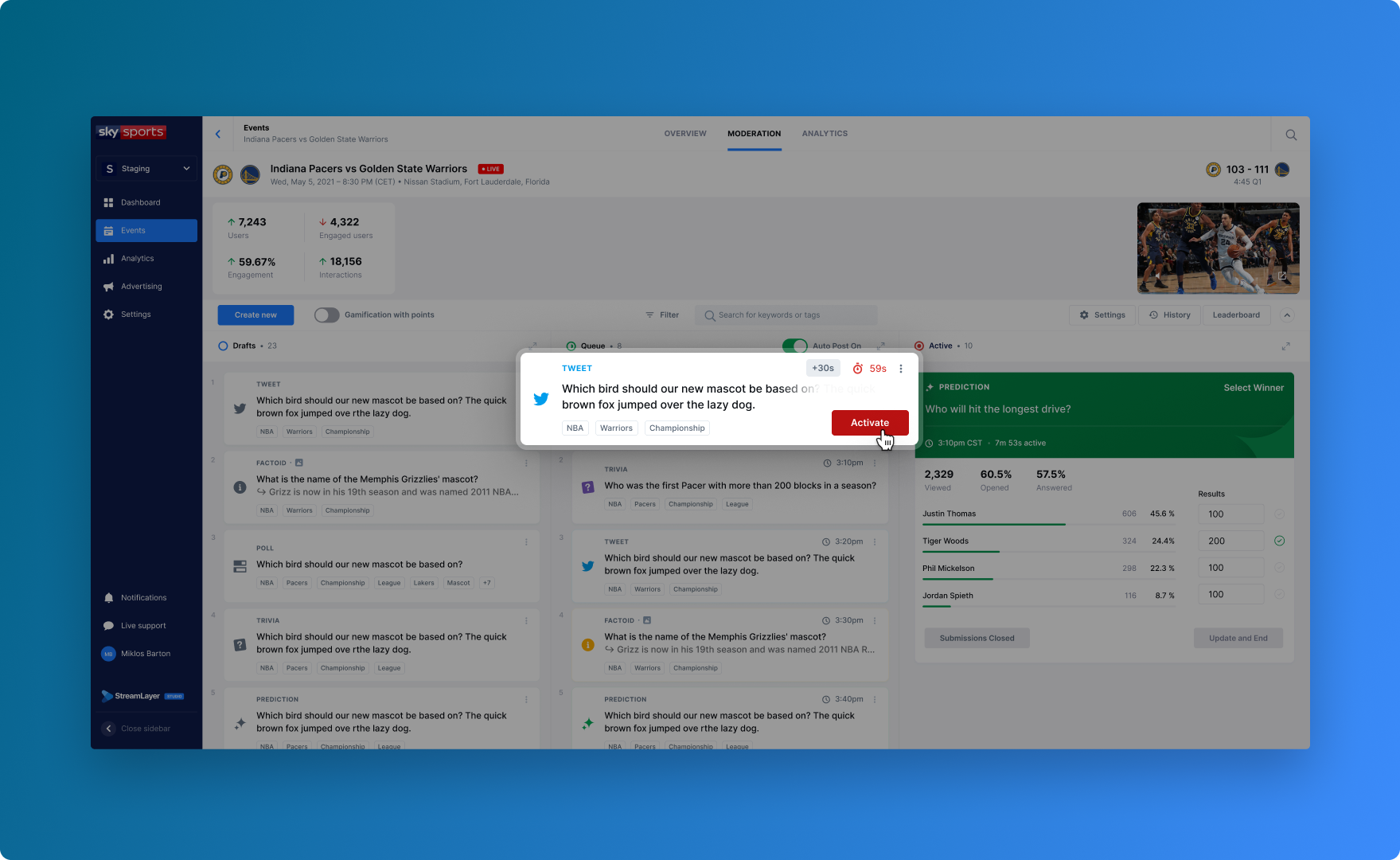
You can activate a card by clicking on the ACTIVATE button. Once Active, a notification will be sent to viewers with the embedded content in the mobile application.
Deactivate a Card
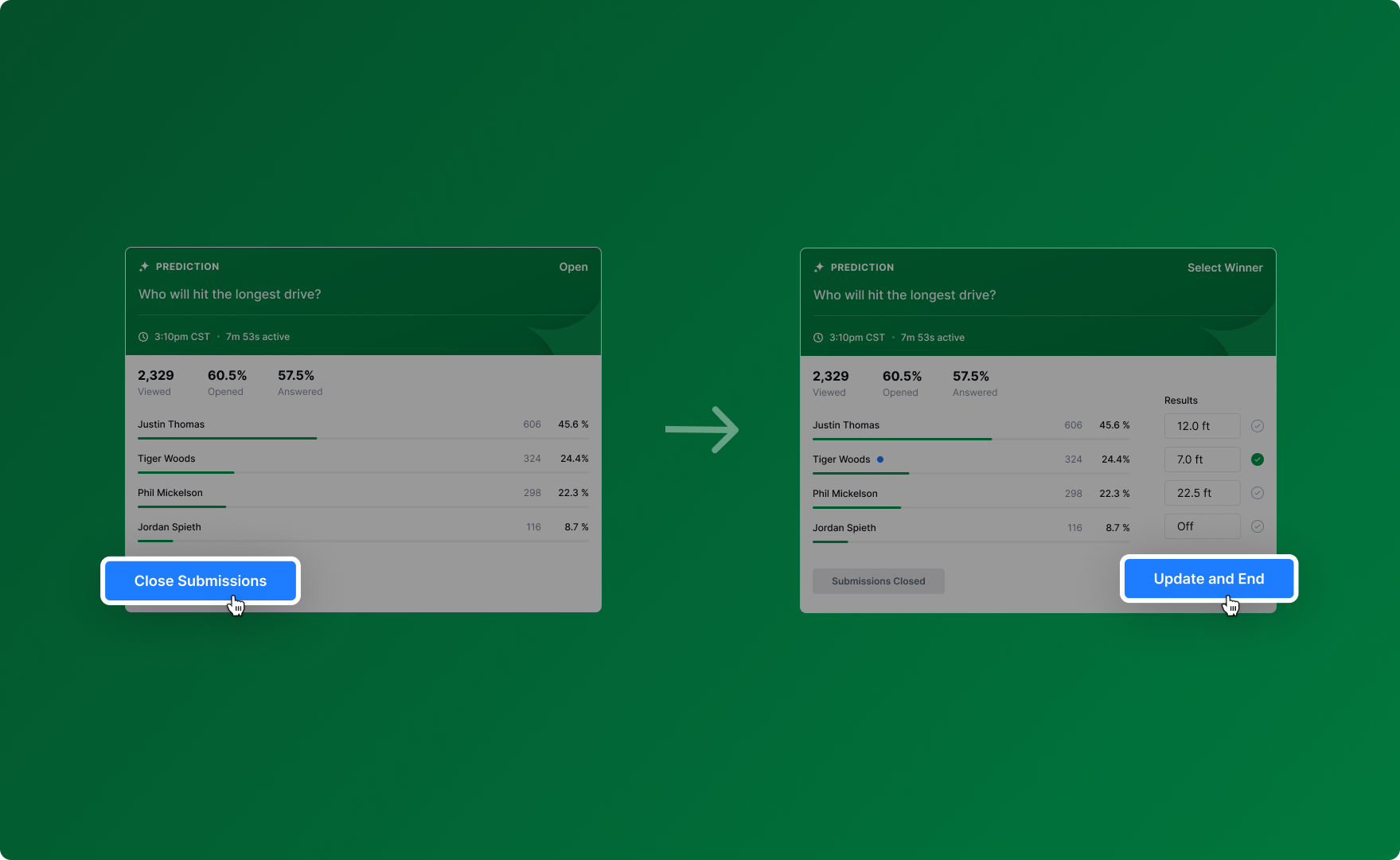
Active polls, trivia questions, insights, and social highlights will be automatically deactivated when any new card is published and it will be removed from the Active column. For Prediction questions there is a three step process for resolving the outcome:
- Close submissions before viewers become aware of the right answer
- Select the correct outcome from within the question card
- Push the results to users to deactivate the question**
Access Moderation History
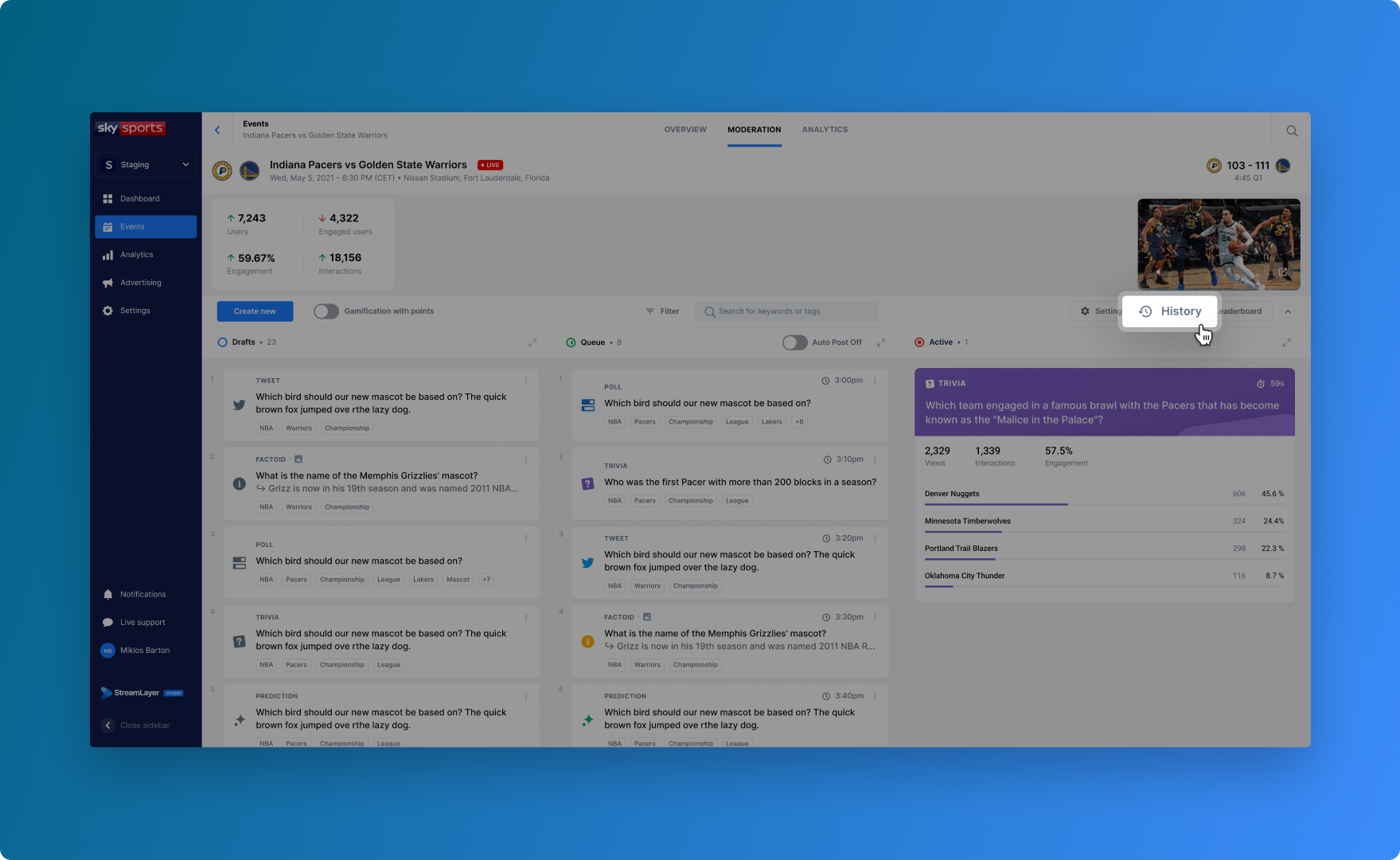
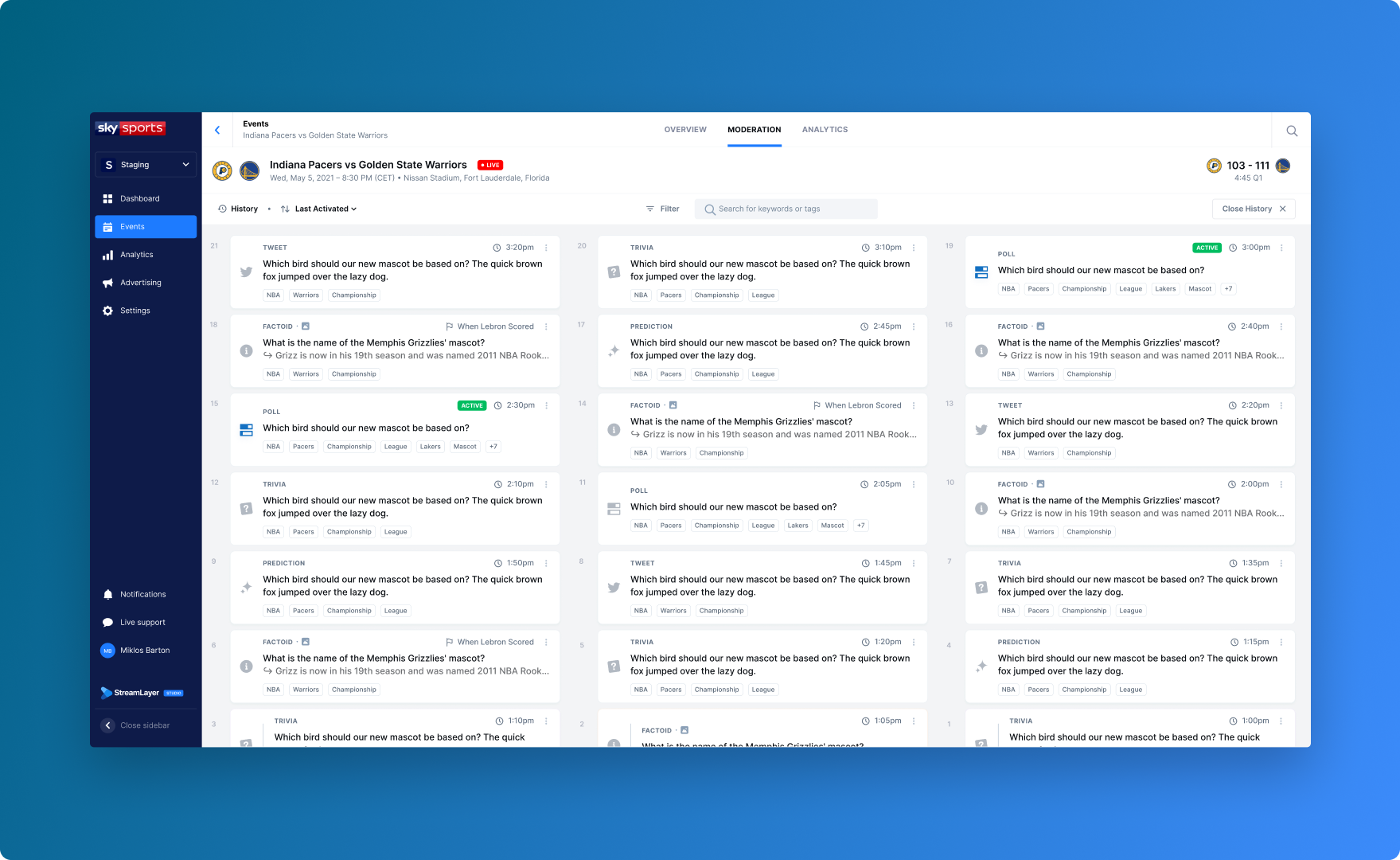
When you are on the Moderation tab, click on the HISTORY button (right side of screen) to view the list of deactivated polls, trivia, prediction, insights, and social highlights that have already occurred during the event.
Related
- Moderation - Promotions — Create IAB-compliant promotion formats
- Automation Capabilities — Automate content activation with triggers and auto-post
- Managing Events — Configure and navigate event pages
Updated 8 months ago