
Invites Guide
Integrate Watch Party invitations in the StreamLayer Android SDK using Branch.io deep linking. Set up invite links, handle incoming referrals, configure custom invite providers, and disable invites.
Invites Guide
Prerequisites
- Complete the Deep Linking Guide
Invites Integration
The StreamLayer SDK uses Branch.io for invite deep linking. For additional context on invitations, see the StreamLayer Studio invites documentation. Note that Branch.io service fees apply.
- Create a new account on Branch.io or use your existing account.
- Link your Branch.io credentials with your StreamLayer account in StreamLayer Studio.
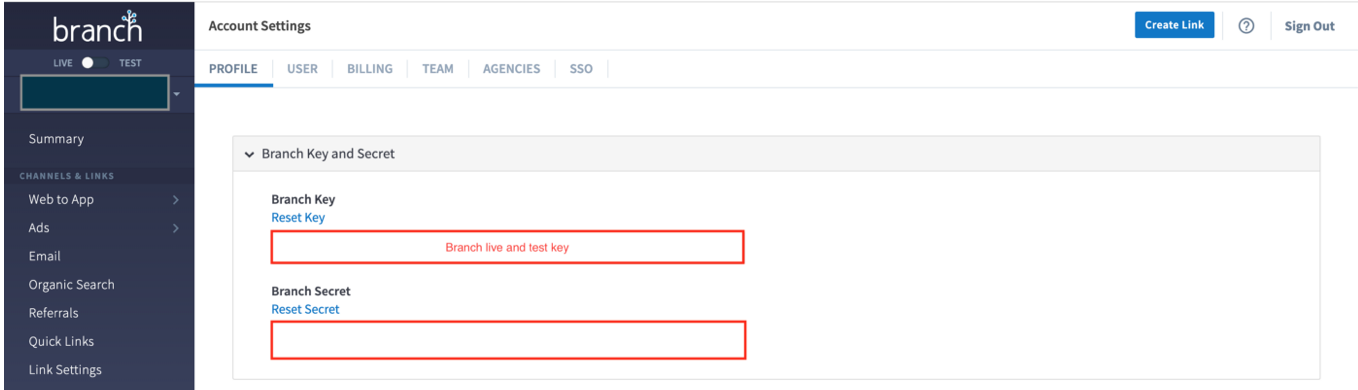
- Install Branch.io on the client side and add Branch.io keys to your Gradle file. This step is optional — you can put keys directly in your Android Manifest, but the Gradle approach is more flexible. Find your Branch key in your Branch Dashboard.
defaultConfig {
        manifestPlaceholders += [branchIoScheme: "your-app-scheme"]
        manifestPlaceholders += [branchIoKey: "your-branchIo-sdk-key"]
        manifestPlaceholders += [branchIoHost: "your-branchIo-host"]
        manifestPlaceholders += [branchIoAlternateHost: "your-branchIo-alternate-host"]
}- Configure the Android Manifest. Add metadata to your Application:
<!-- META DATA -->
        <meta-data
            android:name="io.branch.sdk.BranchKey"
            <!-- link to value from gradle file, you can set it manually -->
            android:value="${branchIoKey}" />
        <meta-data
            android:name="io.branch.sdk.TestMode"
            android:value="false" />
Configure the Activity that handles Branch.io links:
<activity
            android:name=".ui.LiveActivity"
            android:launchMode="singleTask">

            <intent-filter android:autoVerify="true">
                <action android:name="android.intent.action.VIEW" />

                <category android:name="android.intent.category.DEFAULT" />
                <category android:name="android.intent.category.BROWSABLE" />

                <data
                    <!-- link to value from gradle file, you can set it manually -->
                    android:host="${branchIoHost}"
                    android:scheme="https" />
                <data
                    <!-- link to value from gradle file, you can set it manually -->
                    android:host="${branchIoAlternateHost}"
                    android:scheme="https" />

            </intent-filter>

            <intent-filter>
                <action android:name="android.intent.action.VIEW" />

                <category android:name="android.intent.category.DEFAULT" />
                <category android:name="android.intent.category.BROWSABLE" />

                <data
                    android:host="open"
                    android:scheme="${branchIoScheme}" />
            </intent-filter>

</activity>- Initialize Branch.io in the Application class:
class App : Application() {

    override fun onCreate() {
        super.onCreate()
        Branch.getAutoInstance(this)
        StreamLayer.initializeApp(this, BuildConfig.SL_SDK_KEY)
    }
}- Configure your Activity to handle the invites user interface:
<activity
            android:name=".ui.LiveActivity"
            android:launchMode="singleTask">
            <intent-filter>
                <action android:name="android.intent.action.VIEW" />
                <category android:name="android.intent.category.DEFAULT" />
                <data
                    android:host="${applicationId}"
                    android:pathPrefix="/invite"
                    android:scheme="streamlayer" />
            </intent-filter>
        </activity>
The custom scheme streamlayer and path prefix /invite invoke the activity from the PendingIntent. The ${applicationId} value automatically links to your applicationId from app/build.gradle. Use the /invite path prefix because invites should be independent from other StreamLayer SDK deep links, which use the /main path prefix. This Activity must include StreamLayerFragment in the host app layout. For more information, see the Deep Linking Guide.
- Initialize the Branch.io session in the Activity that declared the intent filter:
private val branchReferralInitListener =
        BranchReferralInitListener { linkProperties, error ->
            if (error == null) linkProperties?.let { jsonObject ->
            SLRInviteData.fromJsonObject(jsonObject)?.let { invite ->
                    StreamLayer.getInvite(it.toString())?.let {
                    // check if user authorized or auth isn't required for this invite
                    if (StreamLayer.isUserAuthorized() || !invite.isAuthRequired()){
                        StreamLayer.handleInvite(invite, this)
                    } else{
                        // show your custom screen or user streamlayer general invite dialog
                        StreamLayerInviteFragment.newInstance(invite)
                            .show(supportFragmentManager, StreamLayerInviteFragment::class.java.name)
                    }
                }
                }
            }
      }

   override fun onStart() {
        super.onStart()
        Branch.sessionBuilder(this)
            .withCallback(branchReferralInitListener)
            .withData(this.intent?.data).init()
    }


   override fun onNewIntent(intent: Intent?) {
        super.onNewIntent(intent)
        if (intent == null) return
        this.intent = intent
        Branch.sessionBuilder(this)
            .withCallback(branchReferralInitListener)
            .reInit()
    }
In your BranchReferralInitListener, the invite link is parsed to SLRInviteData. The SLRInviteData.fromJsonObject() method returns an SLRInviteData object if the referral link originated from the StreamLayer SDK; otherwise it returns null. SLRInviteData contains information about the user who sent the invitation. You can execute custom logic or pass SLRInviteData to another screen — call StreamLayer.handleInvite() at the end. This function finds the StreamLayerFragment by tag and forwards the payload based on deep linking routes. You can also show the SDK's built-in invite welcome dialog or redirect the user to your auth flow.
For additional Branch.io integration help, see the Branch.io Android SDK overview and the demo app.
Custom Invite Links
If your host app does not use Branch.io, the StreamLayer SDK gives you full control over the invite link creation process. Listen for invite link creation requests by setting up an SLRInviteRequestHandler:
StreamLayer.setInviteRequestHandler(object: SLRInviteRequestHandler{
     override suspend fun getInviteLink(data: SLRInviteData): String {
         // map SLRInviteData ot JSONObject
         val jsonObject = SLRInviteData.toJsonObject(data)
         // provide invite link based on JSONObject params
         return "custom_invite_link"
     }
})
The SDK provides SLRInviteData as an incoming parameter. Your host app saves it and returns an invite link string to the StreamLayer SDK.
Your host app must also handle incoming invite links. At the end of your processing, parse the link back to SLRInviteData:
SLRInviteData.fromJsonObject(jsonObject)?.let { invite ->
     StreamLayer.getInvite(it.toString())?.let {
          // check if user authorized or auth isn't required for this invite
          if (StreamLayer.isUserAuthorized() || !invite.isAuthRequired()){
                StreamLayer.handleInvite(invite, this)
          } else{
          // show your custom screen or user streamlayer general invite dialog
          StreamLayerInviteFragment.newInstance(invite)
                .show(supportFragmentManager, StreamLayerInviteFragment::class.java.name)
          }
    }
}
Disable Invites
To hide all invite-related views:
class App : Application() {

    override fun onCreate() {
        super.onCreate()

        StreamLayer.initializeApp(this, BuildConfig.SL_SDK_KEY)
        // set this feature off
        StreamLayer.setInvitesEnabled(false)
    }
}
Related
- Deep Linking Guide — Push notification deep linking
- Push Notifications Guide — Firebase Cloud Messaging setup
- Watch Party — Watch Party feature overview
Updated 7 months ago