
Test Integration: Ads + Inplay Game
Test Advertising and Games: This integration integrates StreamLayer’s games PLUS advertising capabilities. These features allow a moderator to manually or automatically insert contextual ads and game prompts (polls, trivia, prediction, insights, highlighted tweets) relevant to game action or based upon a pre-determined cadence (i.e., every 5 minutes). Ads, game questions, or insights can be received with or without a notification and in an overlay or a squeeze back L-bar format. From ads, depending on the format, viewers can take certain actions from the ads like saving a promotion to wallet, scanning a QR code, or linking out to another application or web page. The typical StreamLayer launch menu and other feature sub-menu options will be hidden. However, clients have the option to insert a custom button they can tap to view their Games home tab to access old questions they may have missed while away or the leaderboard to see how they are tracking against their friends.
This test would require a moderator to utilize StreamLayer Studio to create and activate ads or questions and is a good way for your team to explore how these features' interactivity could be deployed over various types of programming. For this test implementation, the StreamLayer team will provide you access to StreamLayer Studio to create and moderate relevant content.
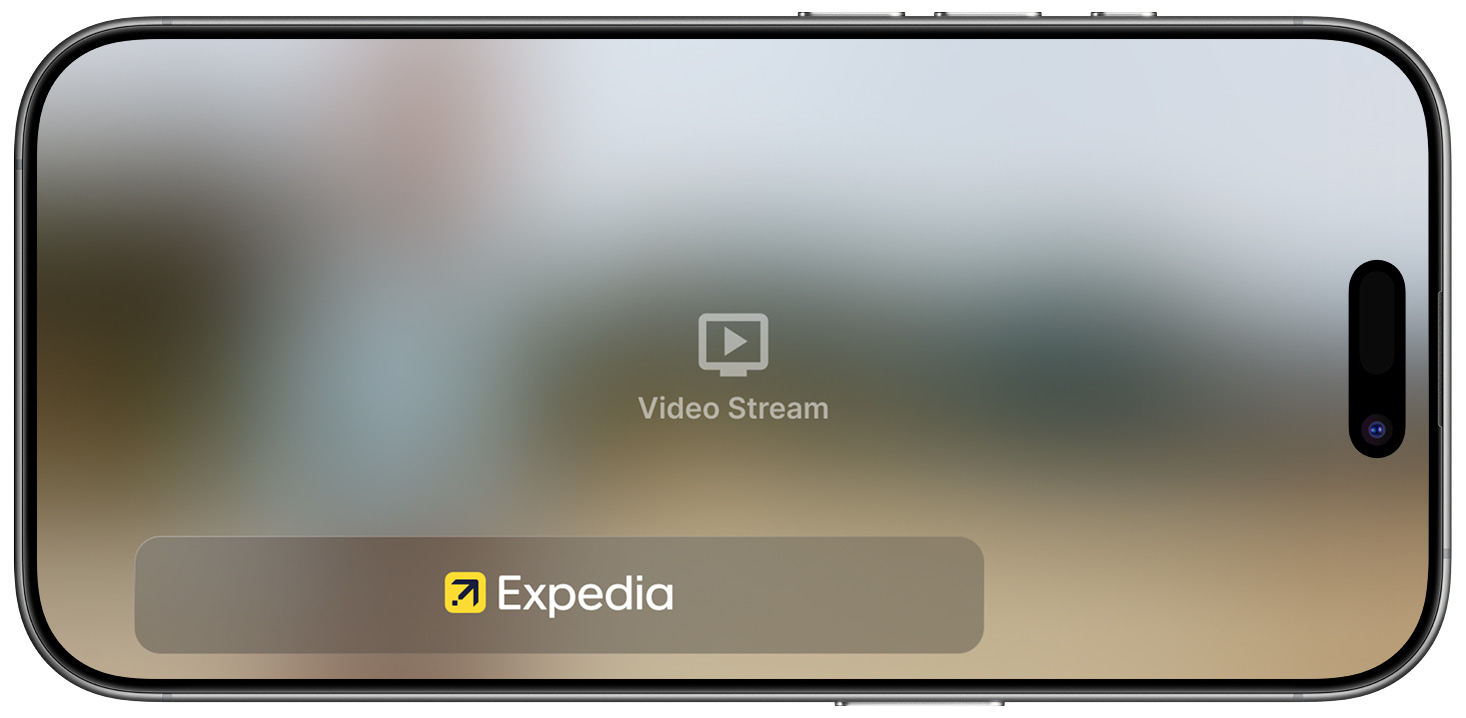
Interstitial
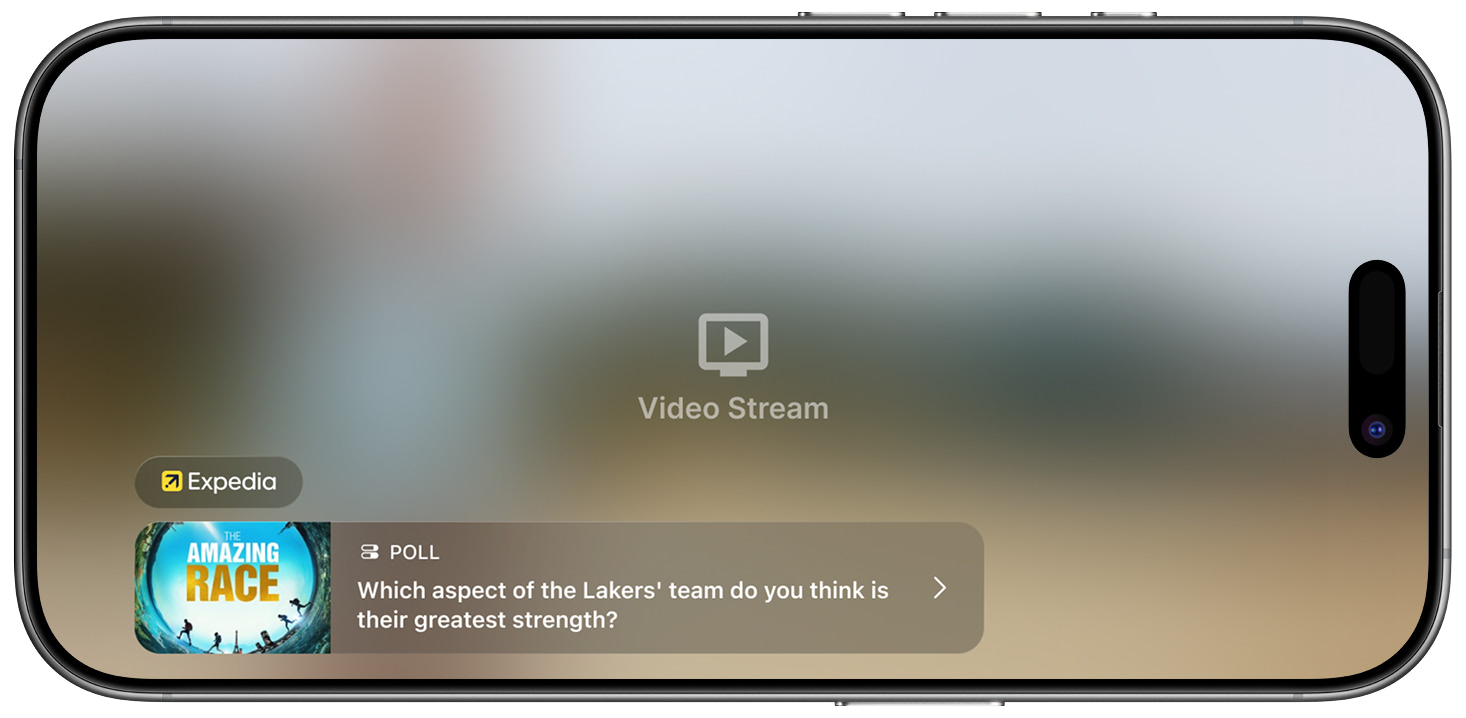
Branded Notification
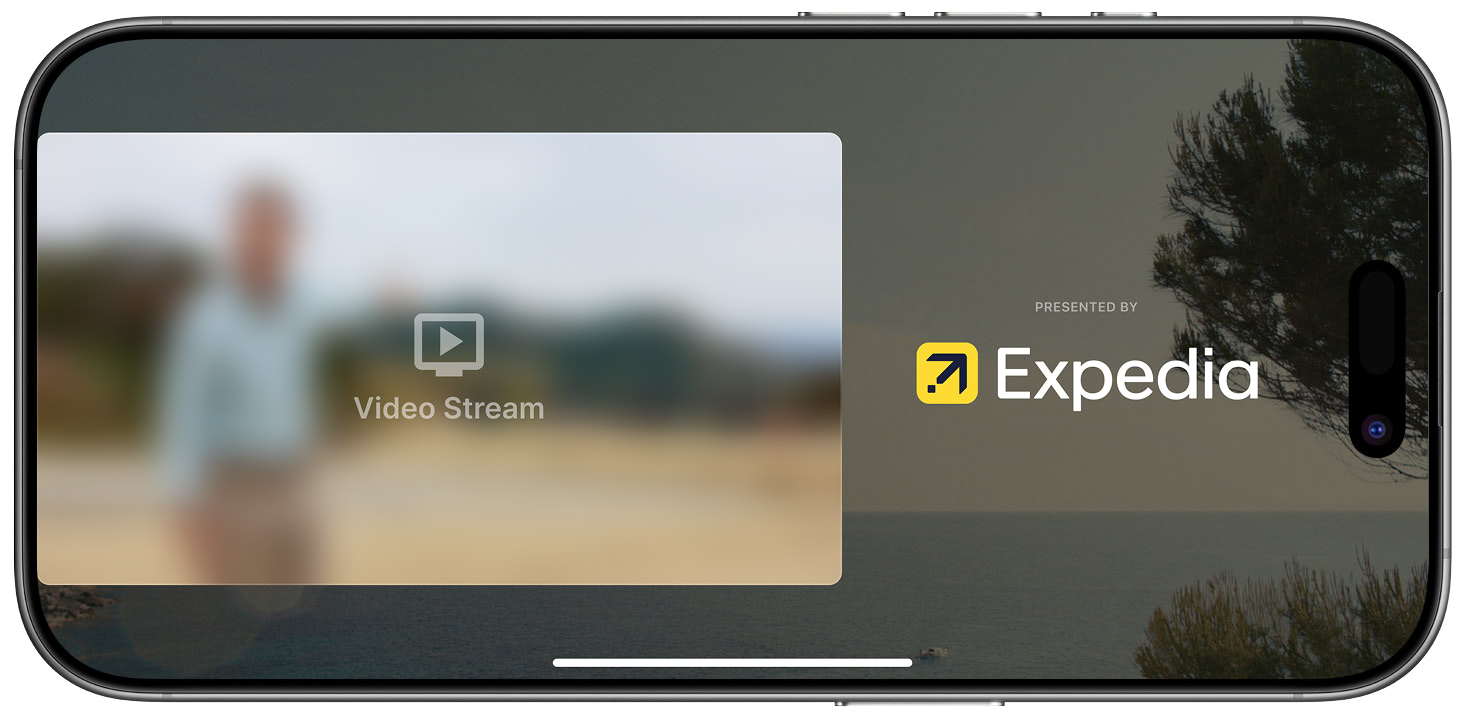
Animated Sponsor Logo
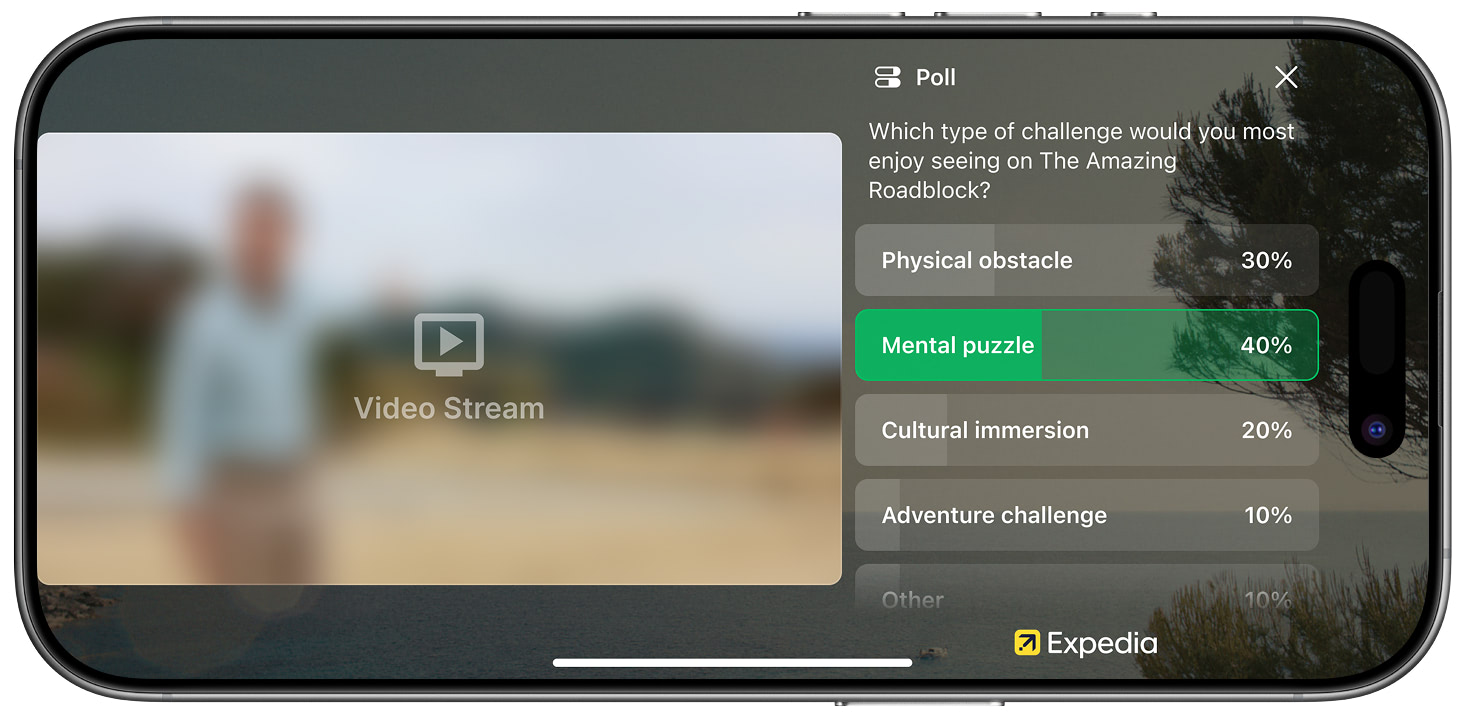
Poll Question L-Bar
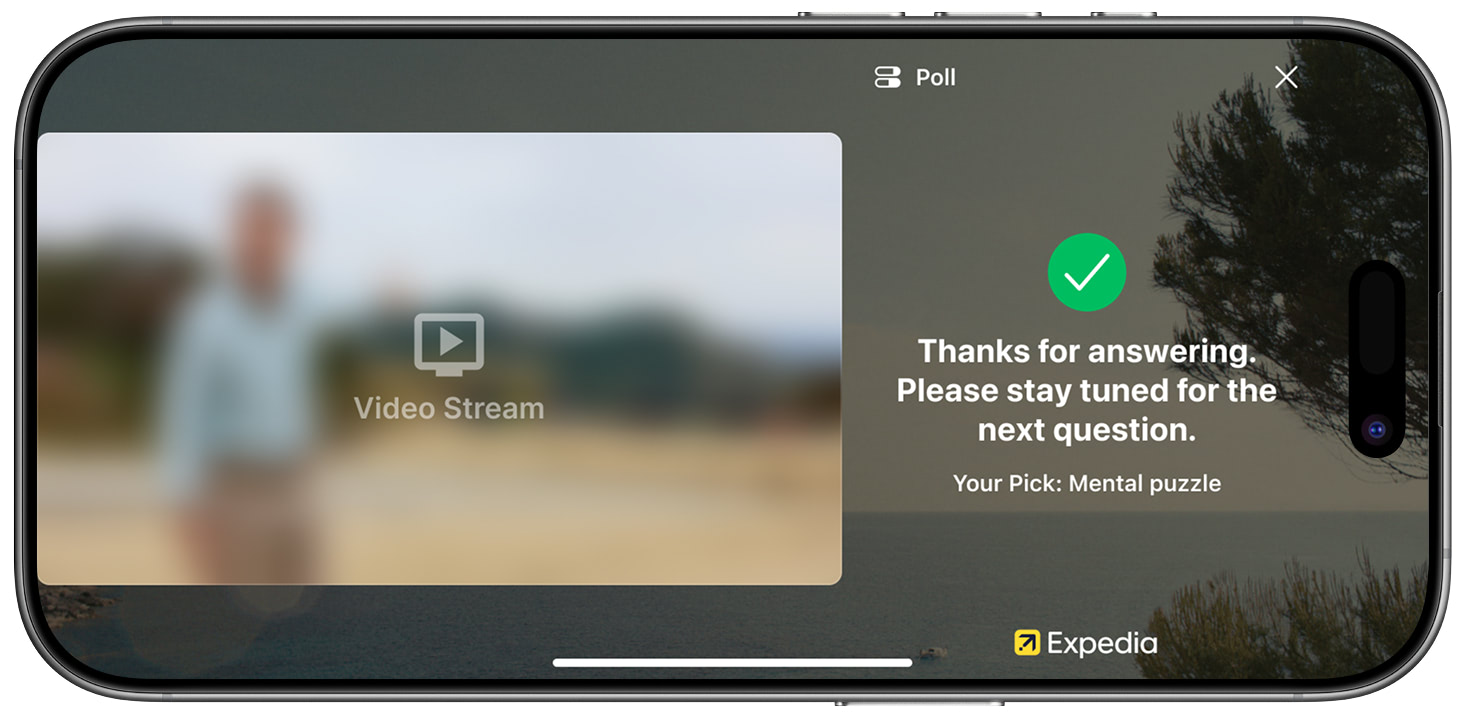
Question Answered
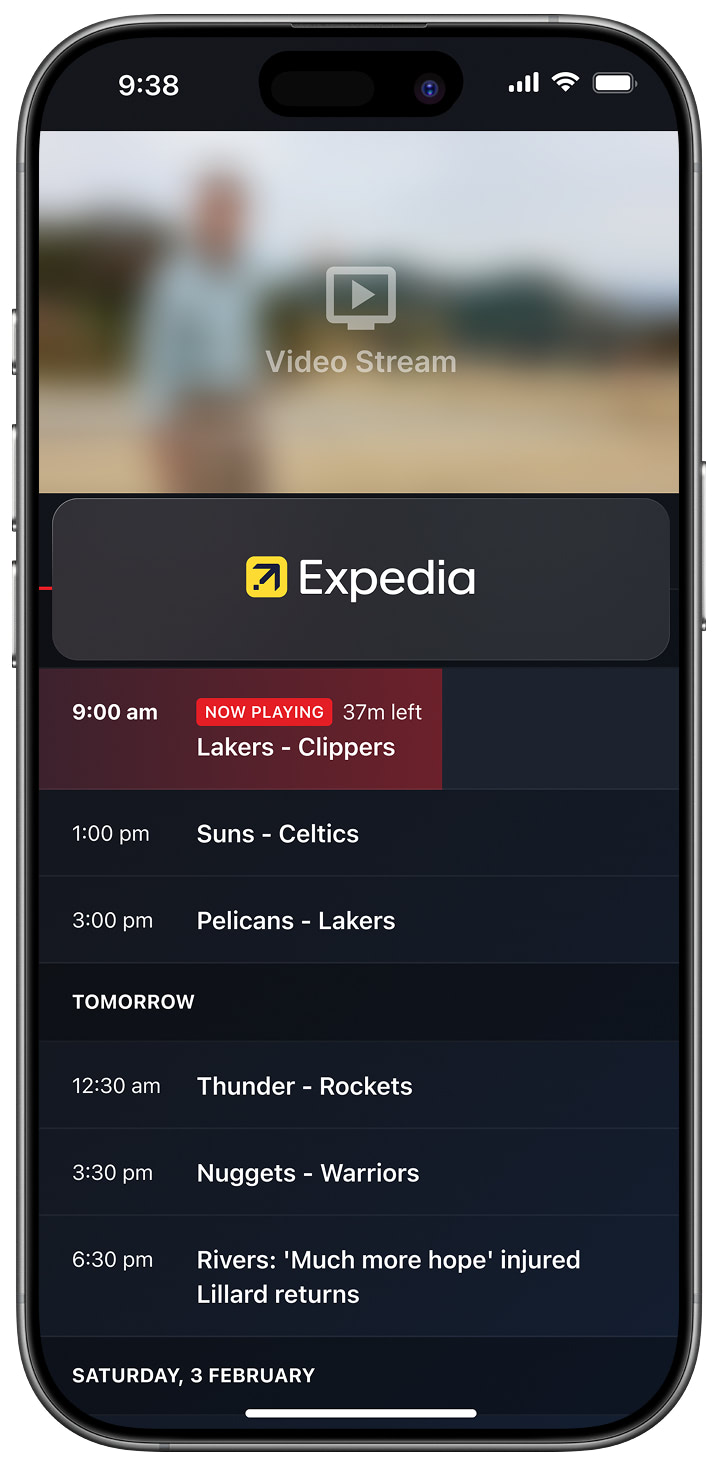
Interstitial
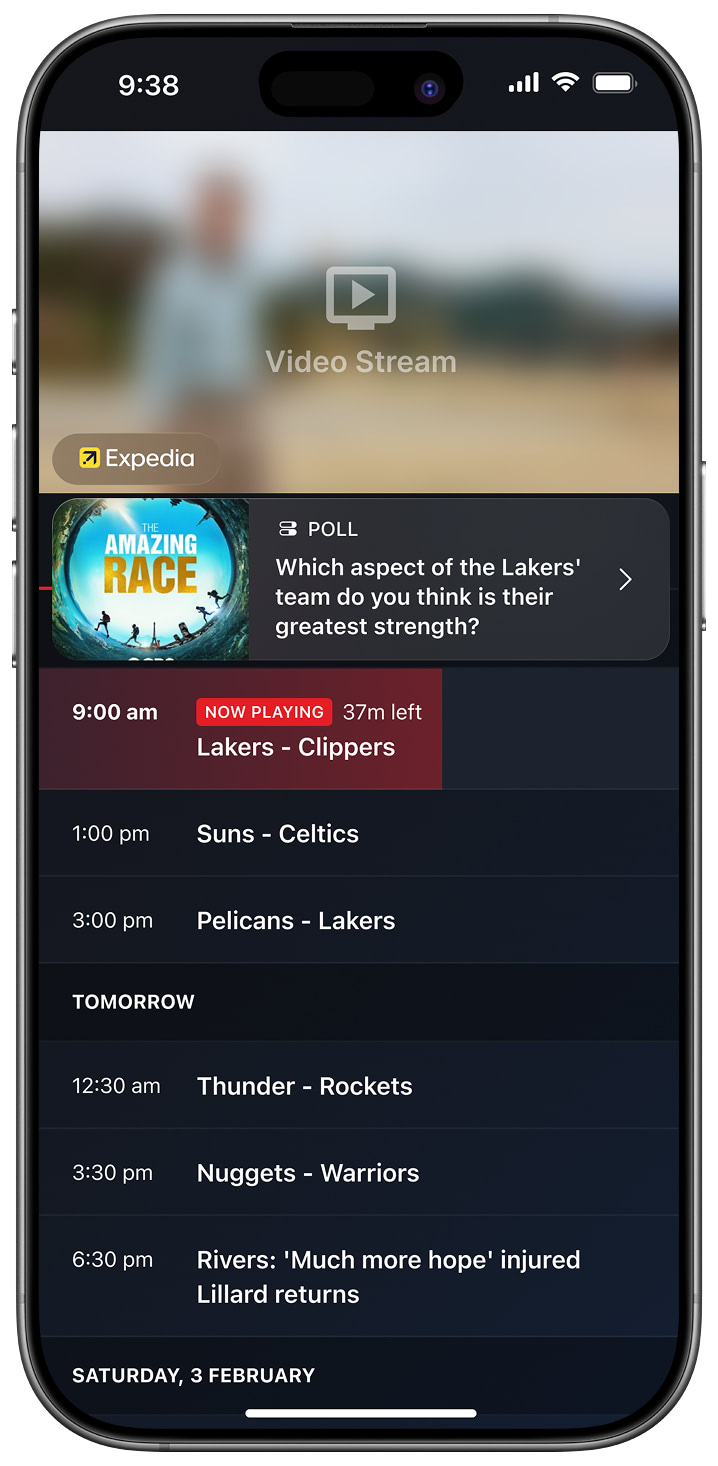
Branded Notification
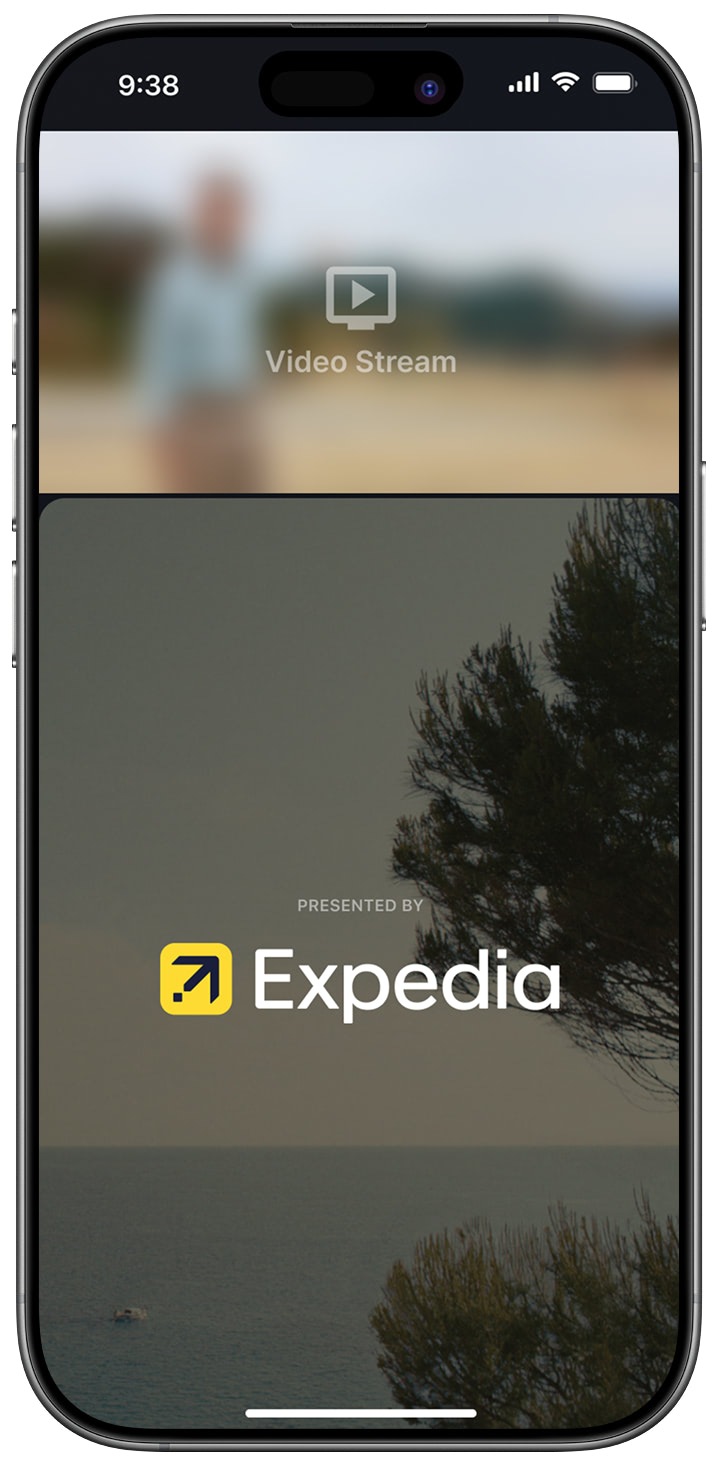
Animated Sponsor Logo
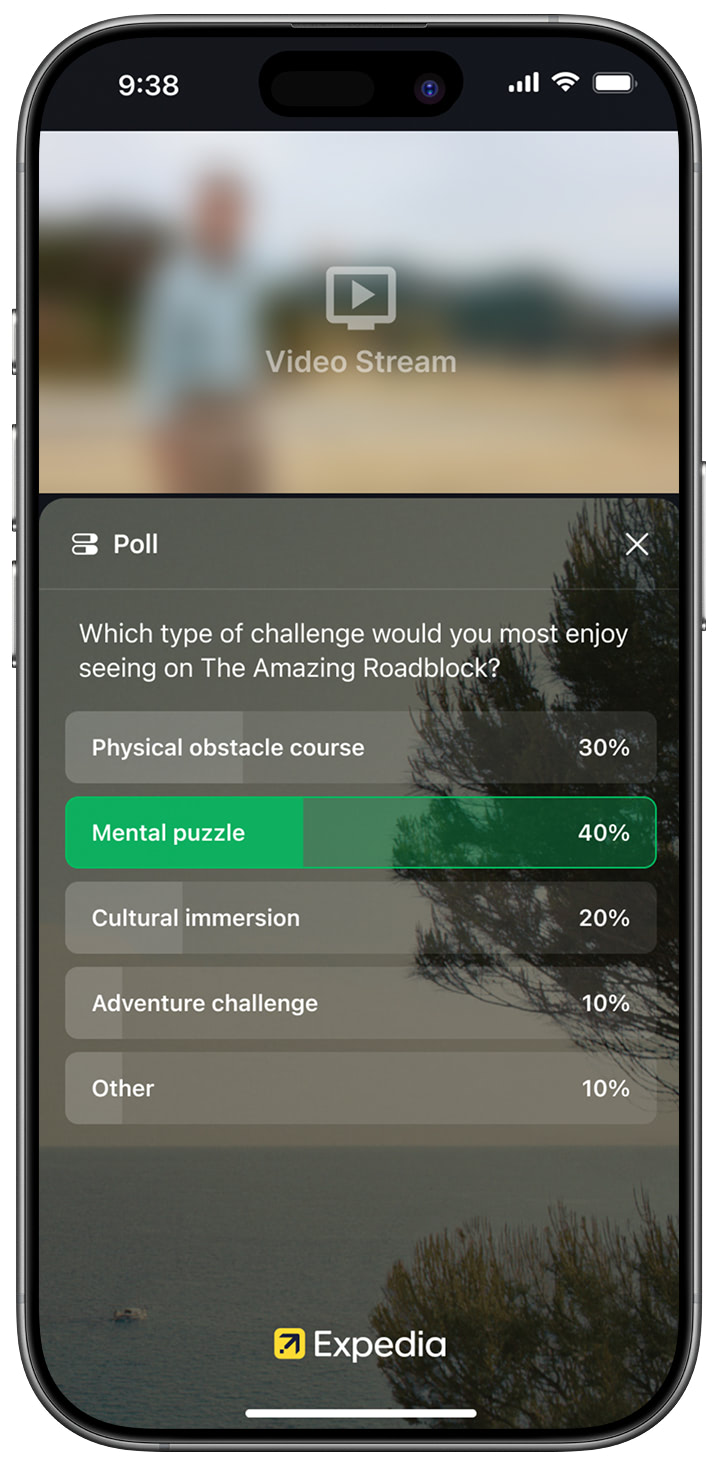
Poll Question
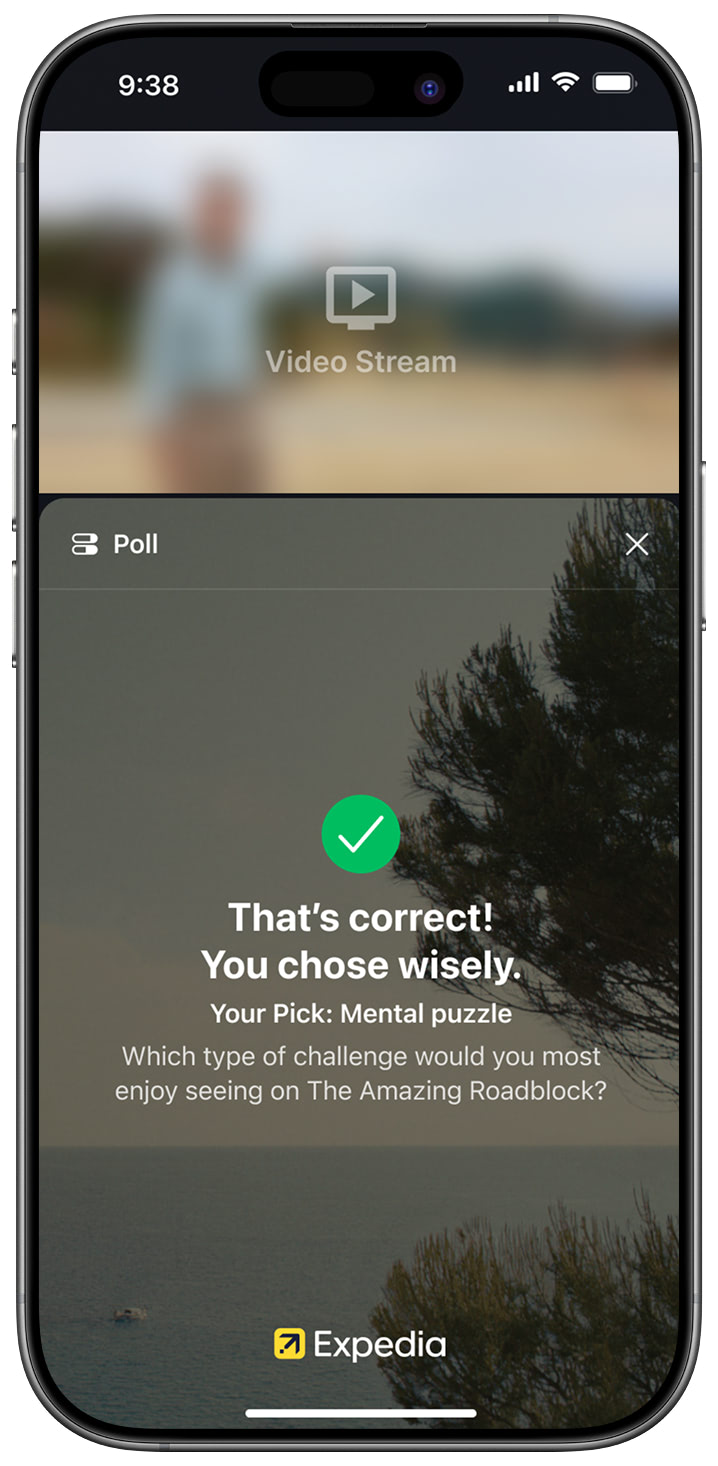
Question Answered
If the Test Ads and Gamification Feature is of interest, the StreamLayer development team is on-hand and available to ensure the integration is done smoothly and properly. The steps to get started that are covered in this guide are:
- Prerequisites and SDK API key setup
- Install the StreamLayer test SDK. This can be done via the Carthage Package Manager or manually.
- Initialize the SDK.
- Create the StreamLayer ViewController.
- Set up an “Event” in StreamLayer Studio.
- Position the overlay within your video experience.
Prerequisites
System Requirements
- Xcode 15.3 / Swift 5.9
- iOS 15+ NOTE: If you use other versions of Xcode/swift, contact support, and we can add it to our continuous delivery pipeline.
Obtain an SDK API Key
Provide StreamLayer with your email. We will use this to create a new organization for you on our backend platform, StreamLayer Studio. You will then receive an invitation email with a link for authentication. After receiving access to the admin panel, the StreamLayer team will generate an API key for your organization. This API authenticates your application with our servers and is required for all interactions.
Once you have authenticated and accessed your organization within StreamLayer Studio, you can view, create content for, and moderate events using our platform. See an overview of StreamLayer Studio here.
Installation
Swift Package Manager
You can integrate StreamLayer SDK using SPM (Swift Package Manager) in 2 ways
Semi-Manual Integration
- Select your workspace in the Xcode Project View
- Select project
- Select package dependencies
- Press + to add a new dependency
- Insert
[email protected]:StreamLayer/sdk-ios.git - Dependency Rule:
Up to Next Major Version: 8. Add Package- Select
StreamLayerfrom package products, select an appropriate target to add this to - Wait until all dependencies have been downloaded
Integration through Package.swift
- Open your
Package.swiftfile - In
dependenciesadd.package(url: "[email protected]:StreamLayer/sdk-ios.git", from: "8.22.31") - Add
.product(name: "StreamLayerSDK", package: "sdk-ios")to appropriate target
Integration Steps
1. Install the StreamLayer test SDK
Import the StreamLayer and the third-party dependencies packed inside the StreamLayer framework. Add the following to the AppDelegate.swift file:
import StreamLayerNow you can build the application to check and confirm whether you have correctly included the framework and related dependencies into the project.
2. Initialize the SDK
In your AppDelegate, initialize the SDK with the following command:
and add:
    StreamLayer.config.notificationsMode = [.vote, .promotion]
    StreamLayer.config.gamificationOptions = SLRGamificationOptions(globalLeaderBoardEnabled: true, invitesEnabled: false)
}
Note: You need to replace REPLACE_WITH_YOUR_SDK_KEY with the SDK Key found in Settings (https://docs.streamlayer.io/docs/settings).
Set up Anonymous User Authentication
For full access to the feature, you need to authenticate the User. The SDK provides several ways to complete auth. In this guide, we use the simplest of them - Anonymous authentication. In this case, the SDK will assign userID without collecting the phone number. To use Anonymous authentication, you need to call
import StreamLayer

....

Task {
	do {
  	try await StreamLayer.useAnonymousAuth()
  } catch {
  	print(error)
  }
}
3. Create the StreamLayer ViewController
Init the overlay ViewController using StreamLayer.createOverlay(...) method and remove the overlay during the parent VC deinitialization:
4. Setup an event in StreamLayer Studio.
StreamLayer SDK requires the host app to set up an Event. An event can be added to StreamLayer Studio on demand or via an API scheduler. The host app should notify the StreamLayer SDK when a new event is selected/activated by calling StreamLayer.createSession() function.
As we are doing a non-dynamic integration, the event-id could be a static string, and for demo purposes, we have pre-created an event. Typically you'd call this method when you navigate to the page that contains the StreamLayer SDK.
StreamLayer.createSession(for: "demo")5.[Optional for games only] Add custom button and shortcut.
StreamLayer SDK supports shortcuts to open specific overlays. If you would like to be able to access a pick history of past questions or the games leaderboard, there is an option to add a custom Games button per the below instructions. This step is entirely optional if you want to test delivery of ads, game questions, or insights only.
Create a button:
private lazy var gameButton: UIButton = {
    let button = UIButton()
    button.setImage(UIImage(named: "games_icon"), for: .normal) // use your image or we can provide one
    button.translatesAutoresizingMaskIntoConstraints = false
    button.addTarget(self, action: #selector(gameButtonTapped), for: .touchUpInside)
    return button
  }()
Add it to the view hierarchy:
view.addSubview(gameButton)Setup constraints:
gameButton.snp.makeConstraints {
  // you can change this to your desired settings
	$0.height.width.equalTo(32.0)
	$0.trailing.equalToSuperview().inset(20.0)
	$0.bottom.equalTo(view.safeAreaLayoutGuide).inset(20.0)
}
Add action:
@objc func gameButtonTapped() {
	do {
	  try StreamLayer.showOverlay(overlayType: .games, mainContainerViewController: self,
	                              dataOptions: [:])
	} catch {
	  print("Error: \(error)")
	}
}
6. If L-bar squeeze back formats are desired, enable L-bar in the app.
For latest doc see https://docs.streamlayer.io/docs/integration-guide-ios#sidebar-support
To always enable L-bars so that all content is presented in this format, set the config value: 'StreamLayer.config.isLBarEnabled = true'
If this value is set to false or not set all, StreamLayer's gamification feature and promotions will be in overlays unless promotions are selected as L-bar in StreamLayer Studio. Only then will they will actually appear in L-bar mode when this condition is not set to true in advance.
In order to setup L-bar in your app, you have to provide 'mainContainerViewController' and 'lbarDelegate'.
StreamLayer.config.lbarMode
StreamLayer.config.lbarModeThe lbarMode property of StreamLayer.config allows you to configure how the L-bar (lower banner area) behaves in relation to available space. Here are the available options:
-
.full: Use this mode when you want the L-bar to always occupy the lower space, regardless of whether there is a banner present. This ensures that the reserved space for the L-bar remains constant, even if no banner is displayed.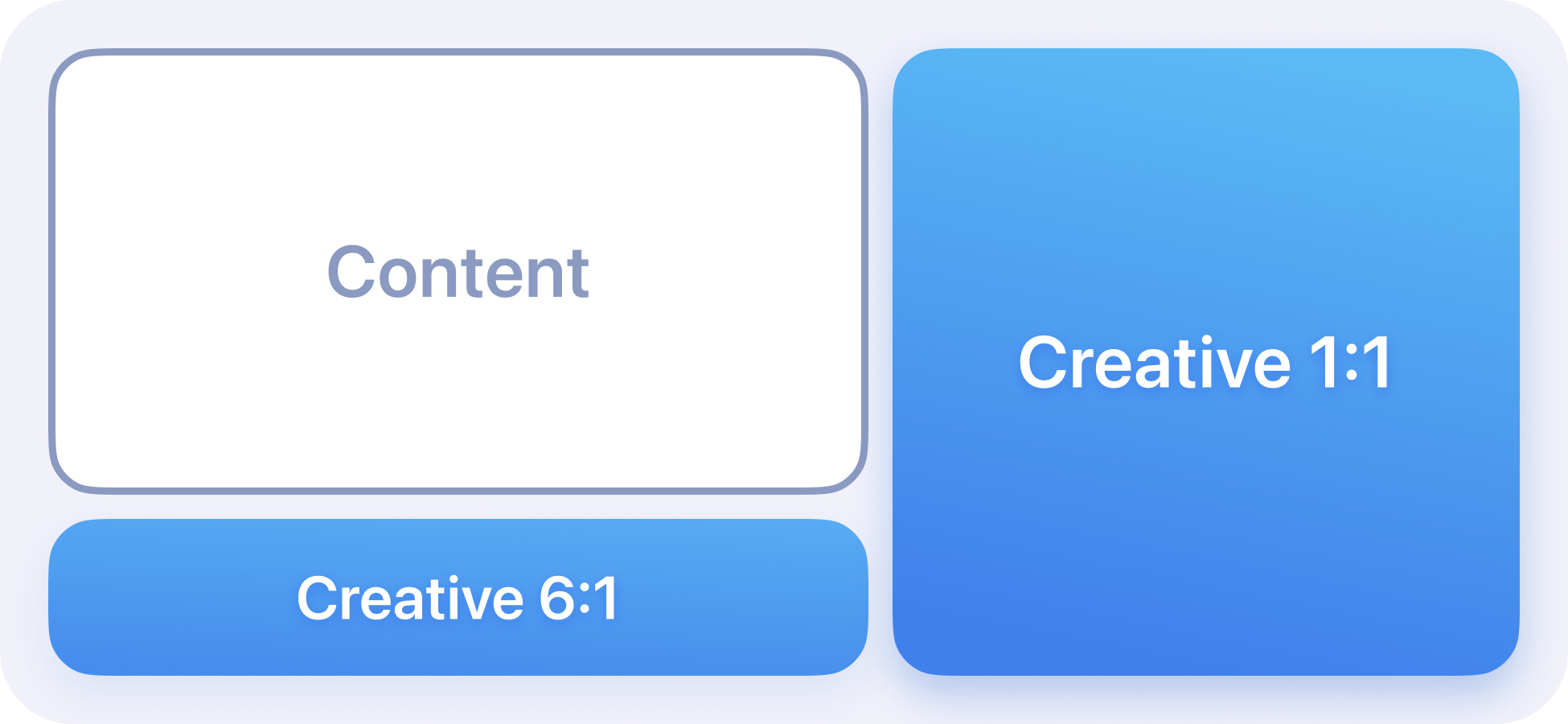
-
.fullFlexible: Use this mode when you want the L-bar to only occupy space when a banner exists. If no banner is present, the lower space will not be shown, allowing the content to fully utilize the space.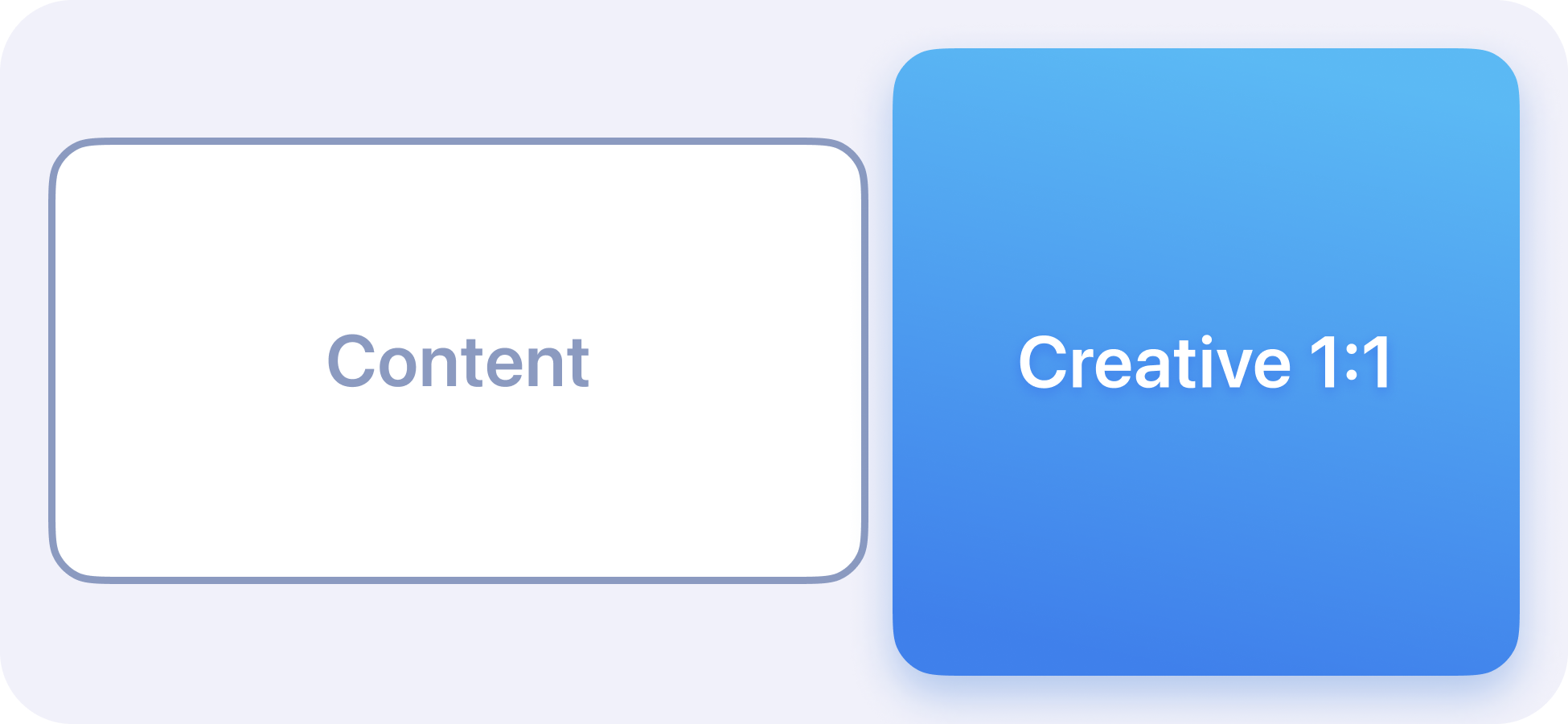
7. If overlays are desired, position the overlay and handle system orientation.
Position the Overlay ViewController.
We have excerpted the implementation of orientation handling from the Sample Integrations found in the repository along with the SDK. In this example, we use SnapKit and RxSwift for simplicity. Neither of these is required, but it allows us to demonstrate the functionality of our framework quickly. You can position the overlay in whatever way best suits your current markup style. Please note that this example may not work with your integration if you perform a simple cut and paste. This example code works with the Sample Integrations it was pulled from. See the full demo application for additional details.
The complete demo source code is available here: https://github.com/StreamLayer/sdk-ios/tree/sample-games
Extend the file you've created in Step 5 with the following:
Visually this would result in the following representation:
Astands for your video player areaBstands foroverlayVC.viewCstands foroverlayViewReference ViewisoverlayReferenceView
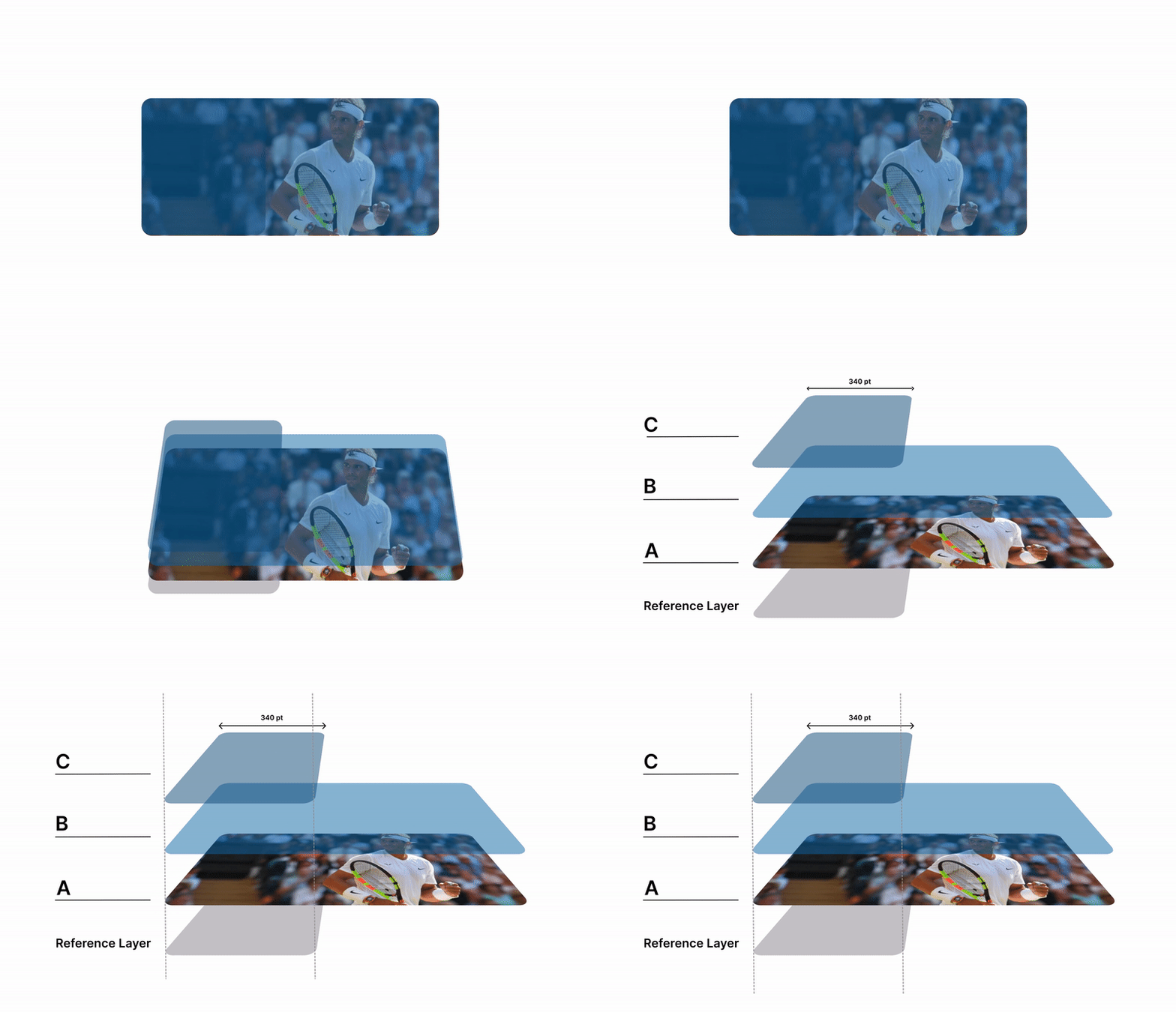
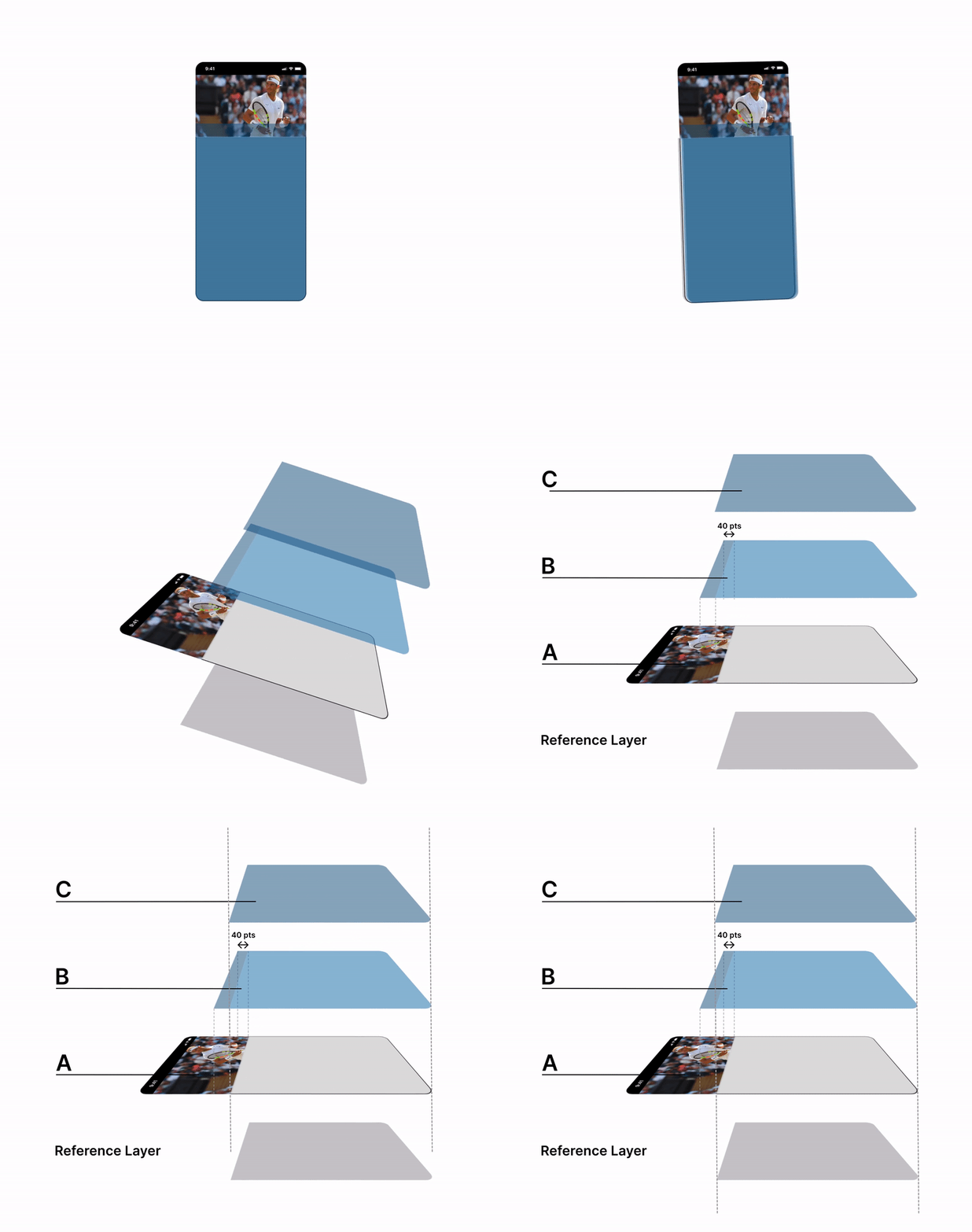
The following is the base implementation of the SLROverlayDelegate:
8. Spoiler Prevention / Data-Syncing
If your video is timestamped, data syncing for ads and game content is available. To enable Spoiler Prevention, please reference the Spoiler Prevention Guide.
Updated 4 months ago