
Moderation - Promotions
Create and manage IAB-compliant promotions in StreamLayer Studio including overlays, L-bars, lower thirds, video banners, sponsor frames, and picture-in-picture.
In addition to game content, the moderation tab in Studio is also where admins can create and manage promotions. All promotion options are IAB compliant.
No Notification: A StreamLayer Element or L-bar squeeze back ad is automatically opened in its respective format when this ad is activated either manually, via auto-post, or event trigger. This option is used with no content is allowed on top of the video player.
Rich Notification: Activates on top of the underlying video, either manually, via auto-post, or event trigger, that viewers can open to view ad content.
Lower Third: Activates a notification that appears on top of the lower one third of the underlying video.
Video Banner: Embed a video player within a banner ad that plays upon click or automatically with no sound.
Sponsor Frame: A commercial message with embedded image or video viewed at the start of any streaming session.
Video Side-by-Side: Scales down content side-by-side with a video ad that runs alongside live coverage that is muted.
Picture in Picture: Live coverage shrinks to traditional PiP video size, with the ad taking up a larger portion of the screen, used during ‘idle time’ in live events.
Create Promotions
Just as you would create a game question or insight, click the Create New button on the Moderation tab of your event. Select Promotion and choose your notification style from one of the above.
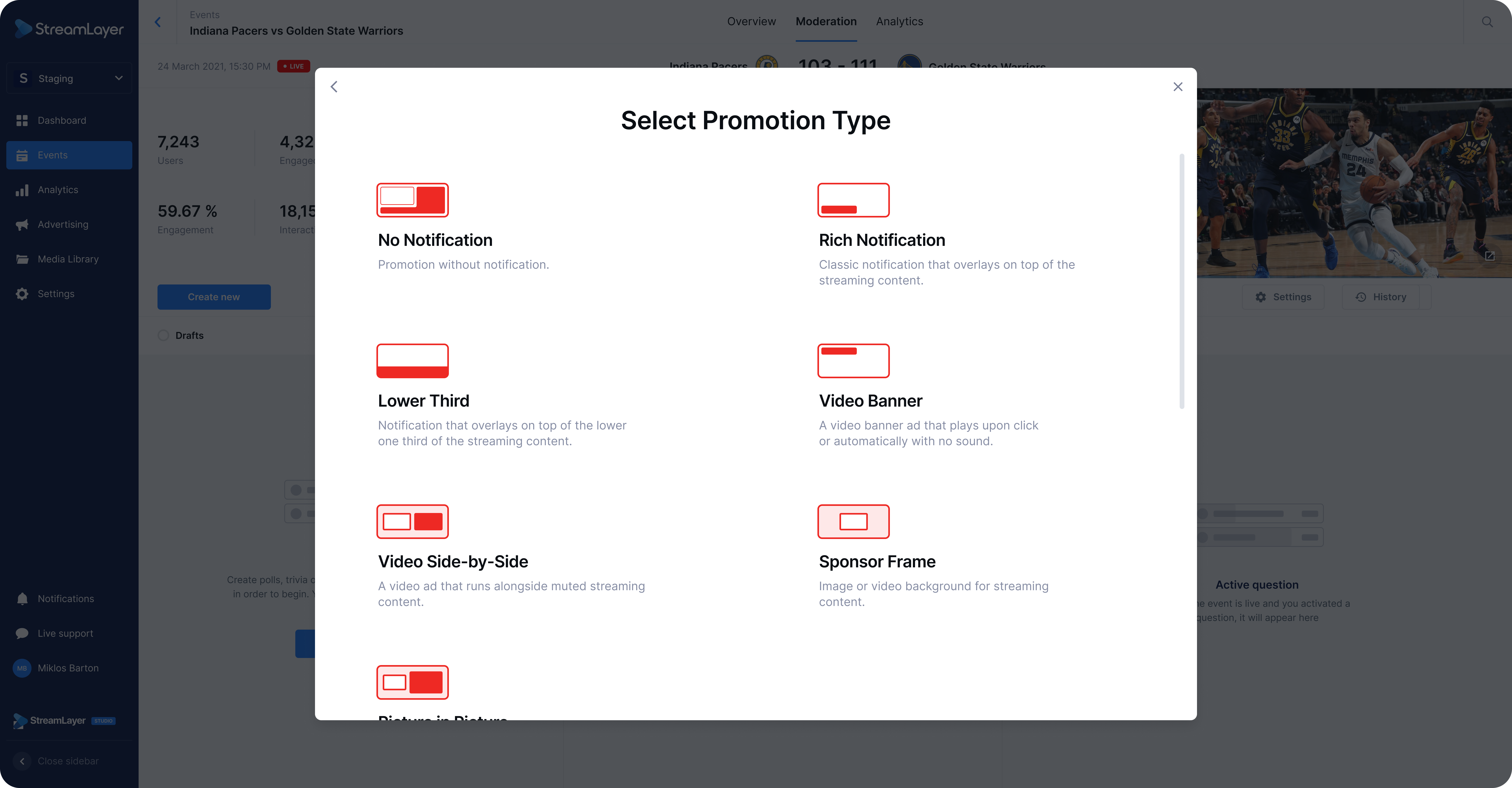
No Notification
With No Notification, you can open an L-bar or StreamLayer Element for all users who receive this ad. With this style, use the buttons at the top to choose the format and size of your ad content. Fill out the required fields: Sponsor Logo and Sponsor Name below. While not required, add images or videos and give your ad an Title and Description.
1:1 or 2:1 StreamLayer Element: Activated on top of the underlying video, with option to embed an image or video that is clickable to link to a URL or save to wallet.
1:1 or 2:1 L-bar: Activated when the video stream squeezes to a smaller container to fit promotion content on either side. L-bars have the same optionality to embed an image or video that is clickable to link to a URL or save to wallet.
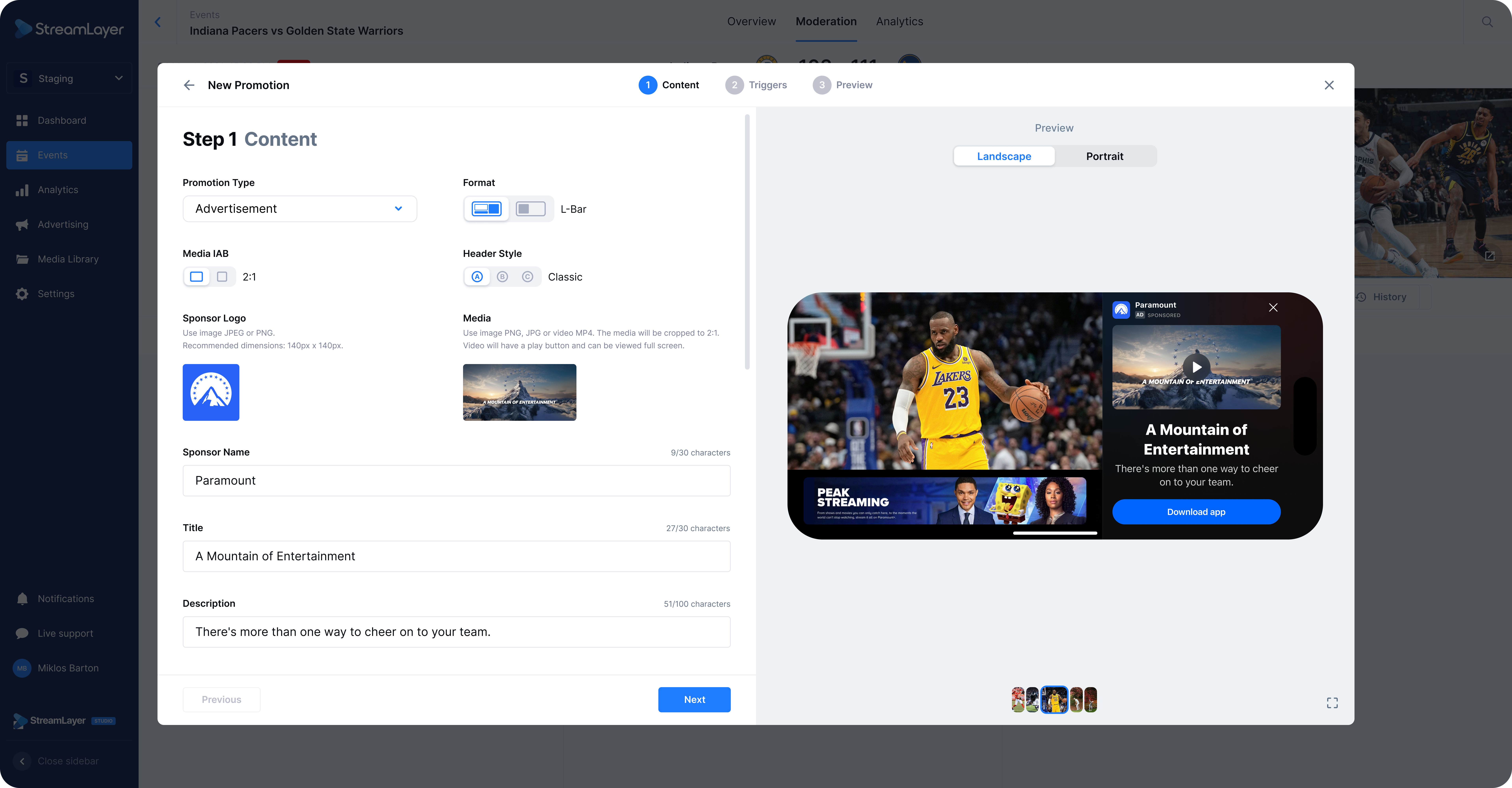
Here, 2:1 sizing and L-bar Format is selected. 2:1 indicates that the embedded image or media has 2:1 dimensions.
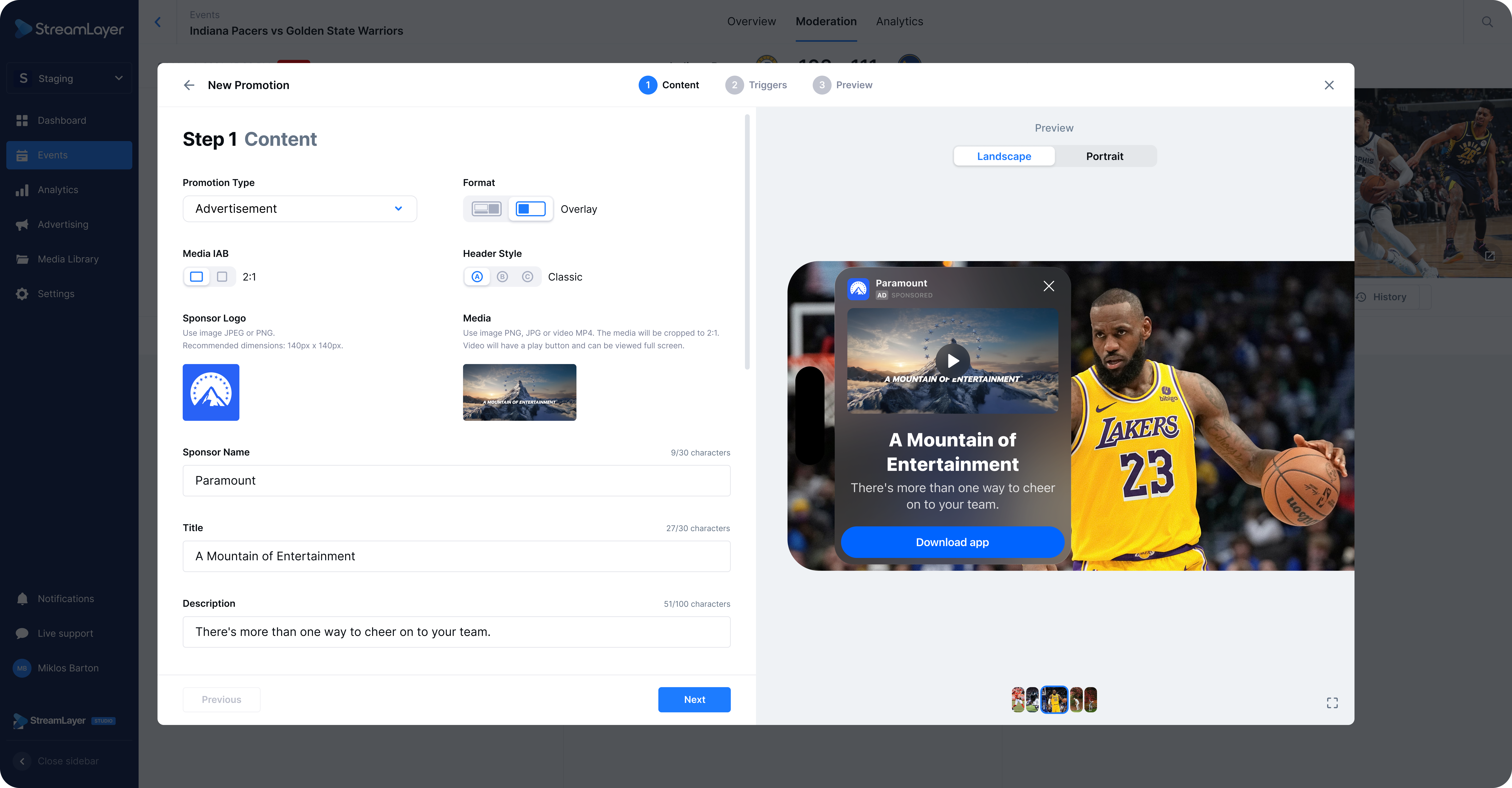
Here, 2:1 sizing and Overlay Format is selected. 2:1 indicates that the embedded image or media has 2:1 dimensions.
Rich Notification
With Rich Notifications, viewers will first receive a notification with a CTA to open an L-bar or StreamLayer Element to view more. With this style, use the same buttons at the top to choose the notification type, format, and size of your ad content.
First, configure your notification. From this create wizard, admins are also about to select other notification types: lower third or video banner. Use the Notification Type selections to choose your preference.
Add the sponsor, sponsor logo, media images, and descriptions. Note that notifications require a CTA so that viewers have a button to press to view more ad information.
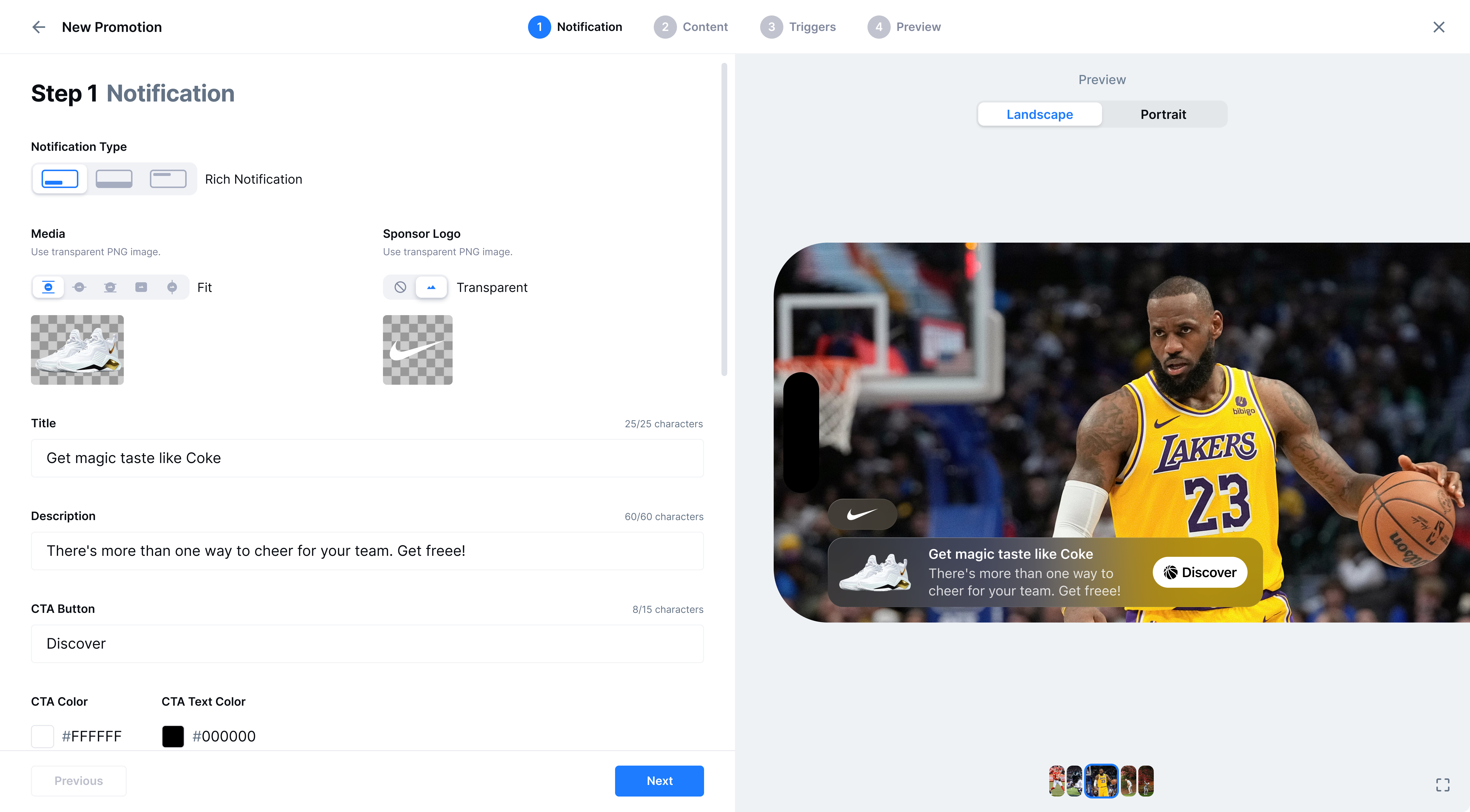
Example of rich notification configuration.
Lower Third
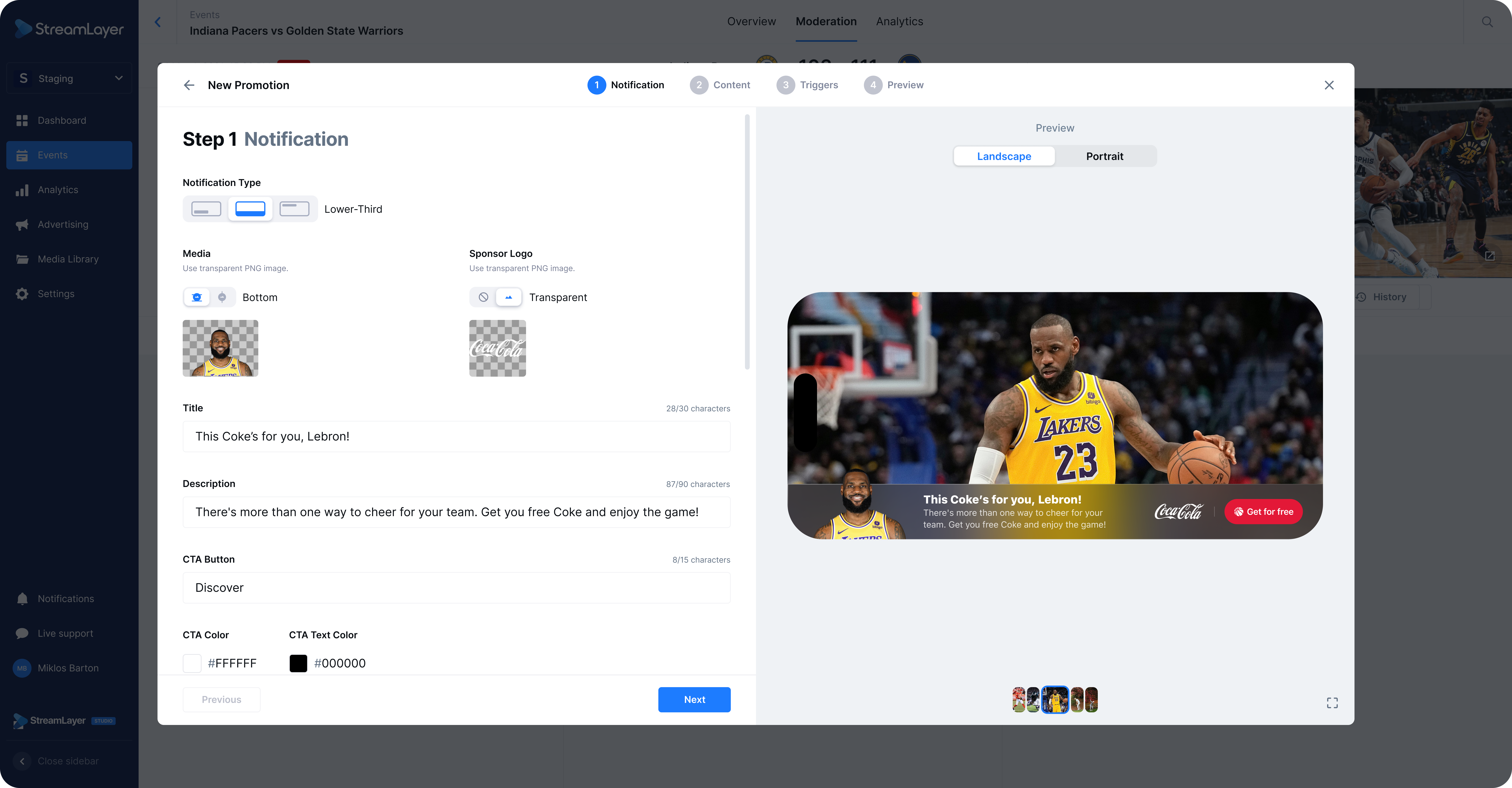
Example of lower third notification configuration.
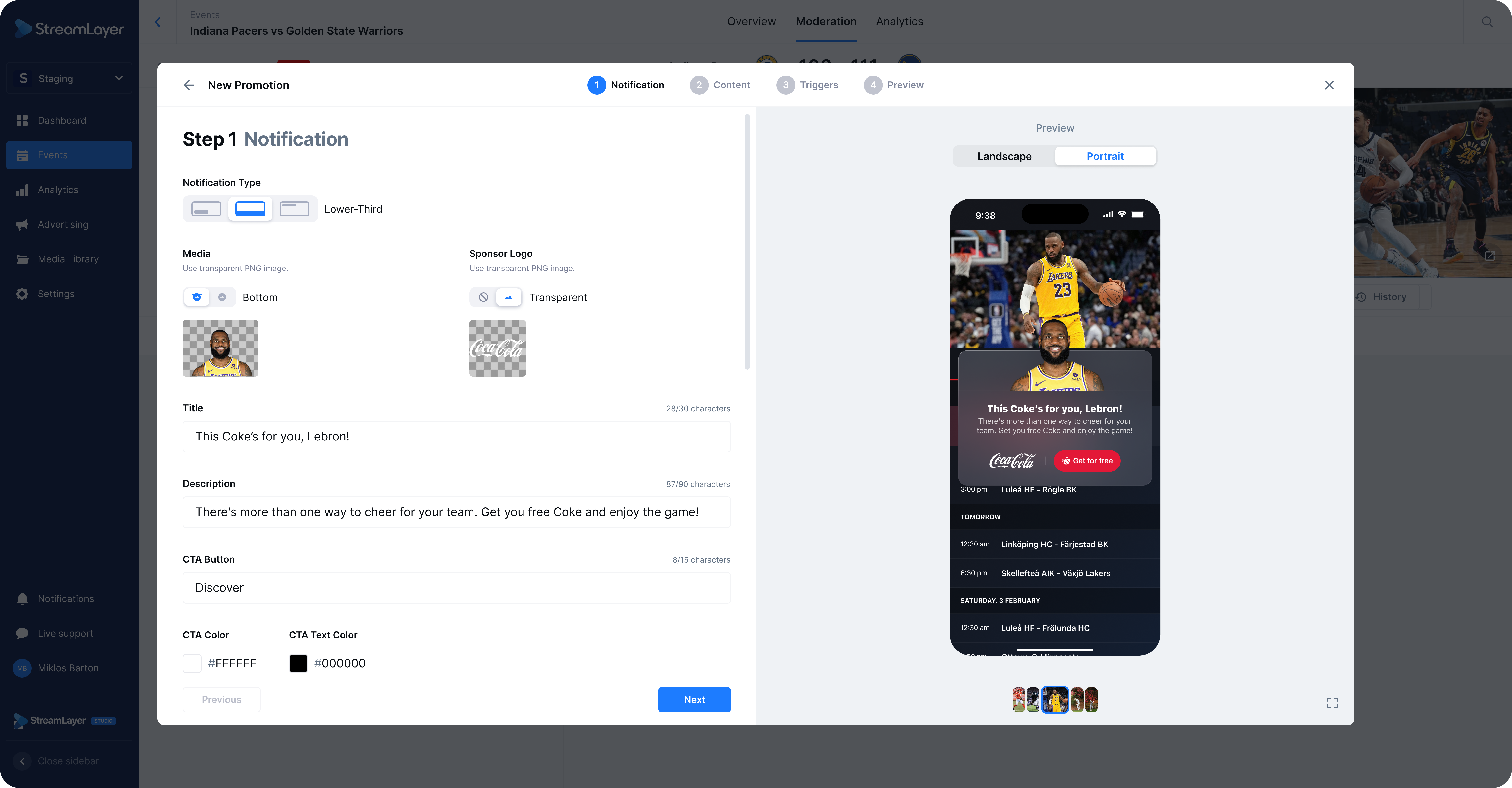
Example of lower third notification in portrait (see Preview image).
Video Banner
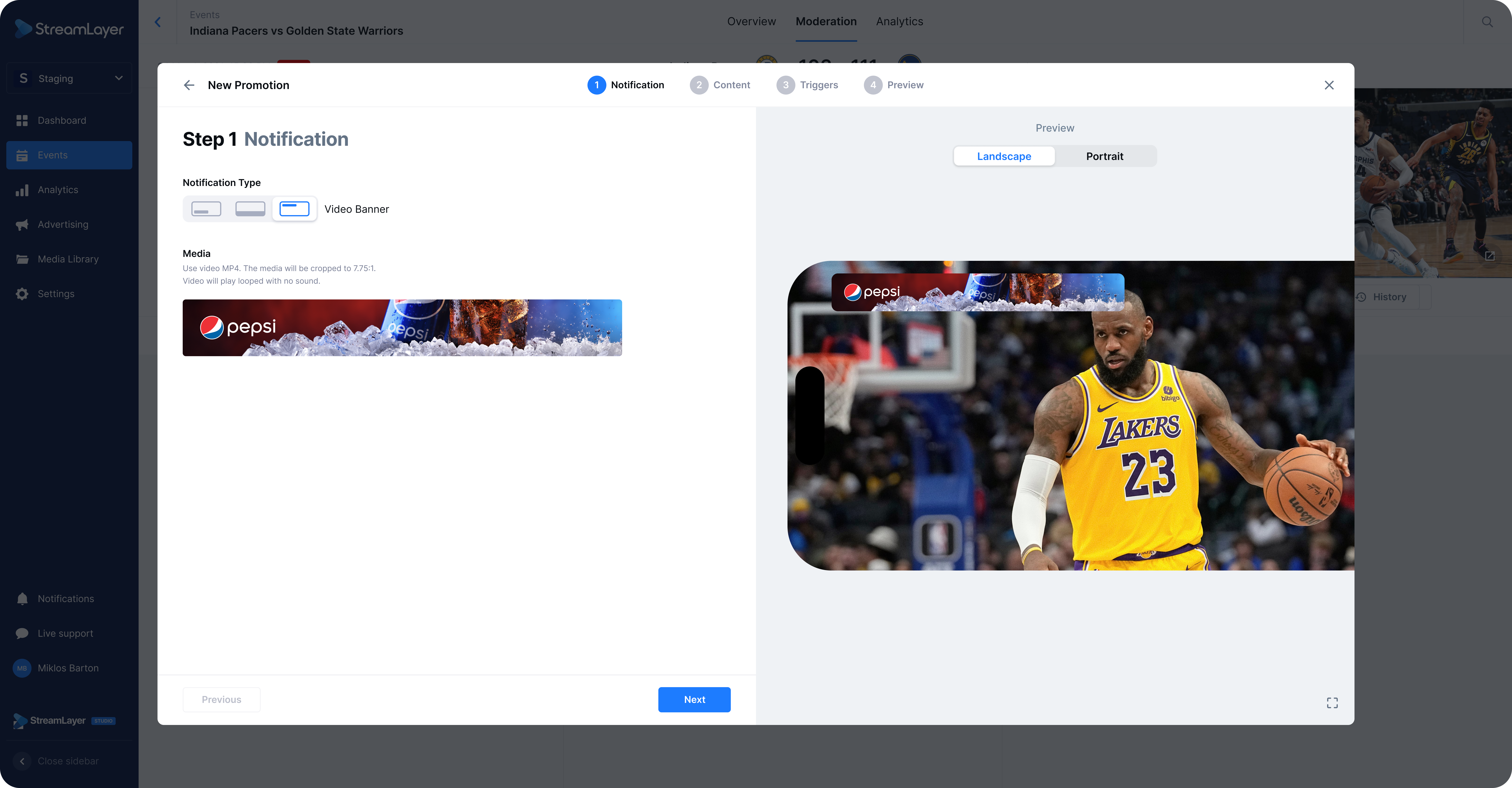
Example of video banner notification configuration.
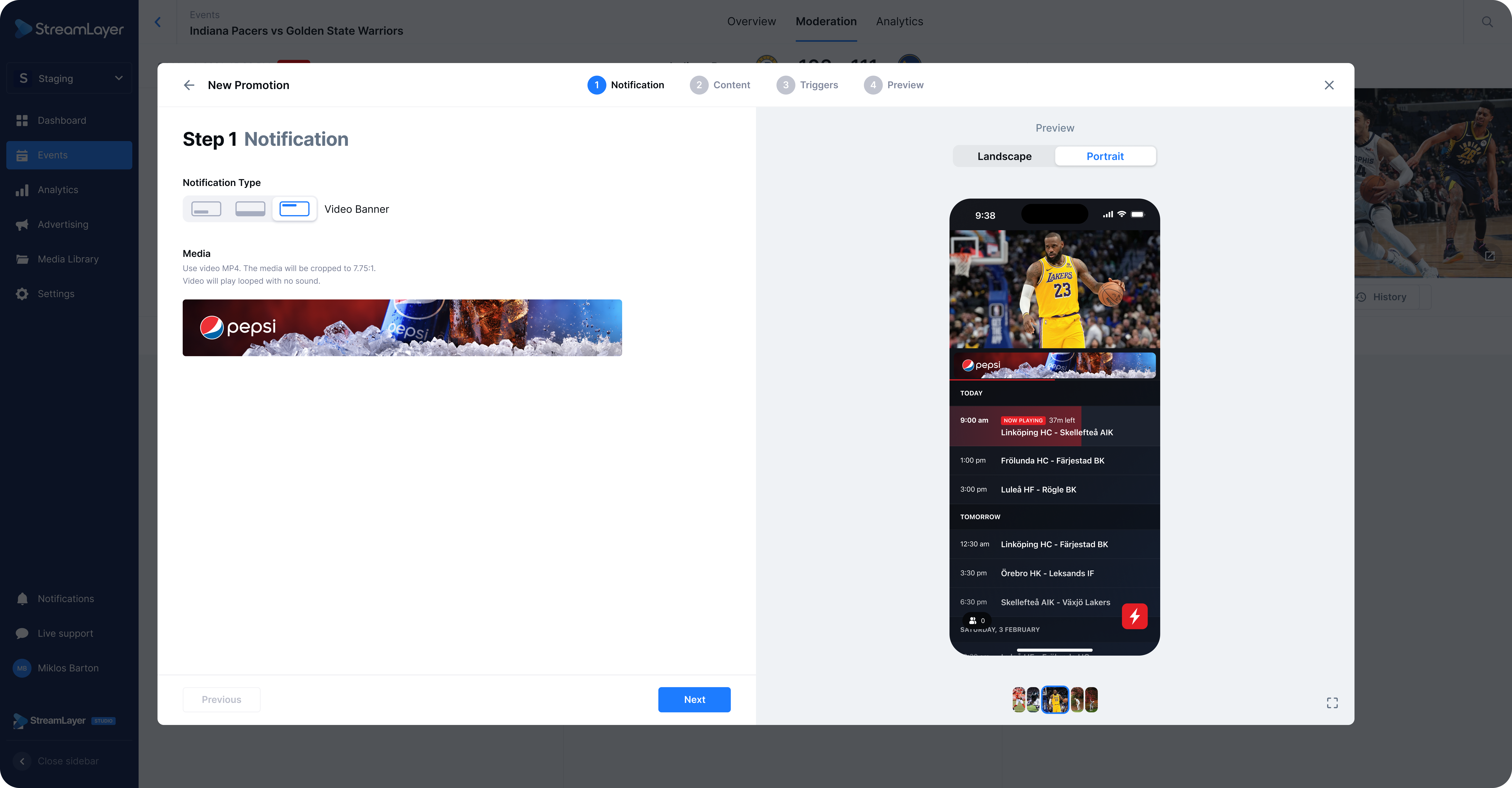
Example of video banner notification in portrait (see Preview image).
For all notification types, click next to go to the Content tab. upload your content as you would for a no notification ad (see No Notification image above).
Interactivity Optionality
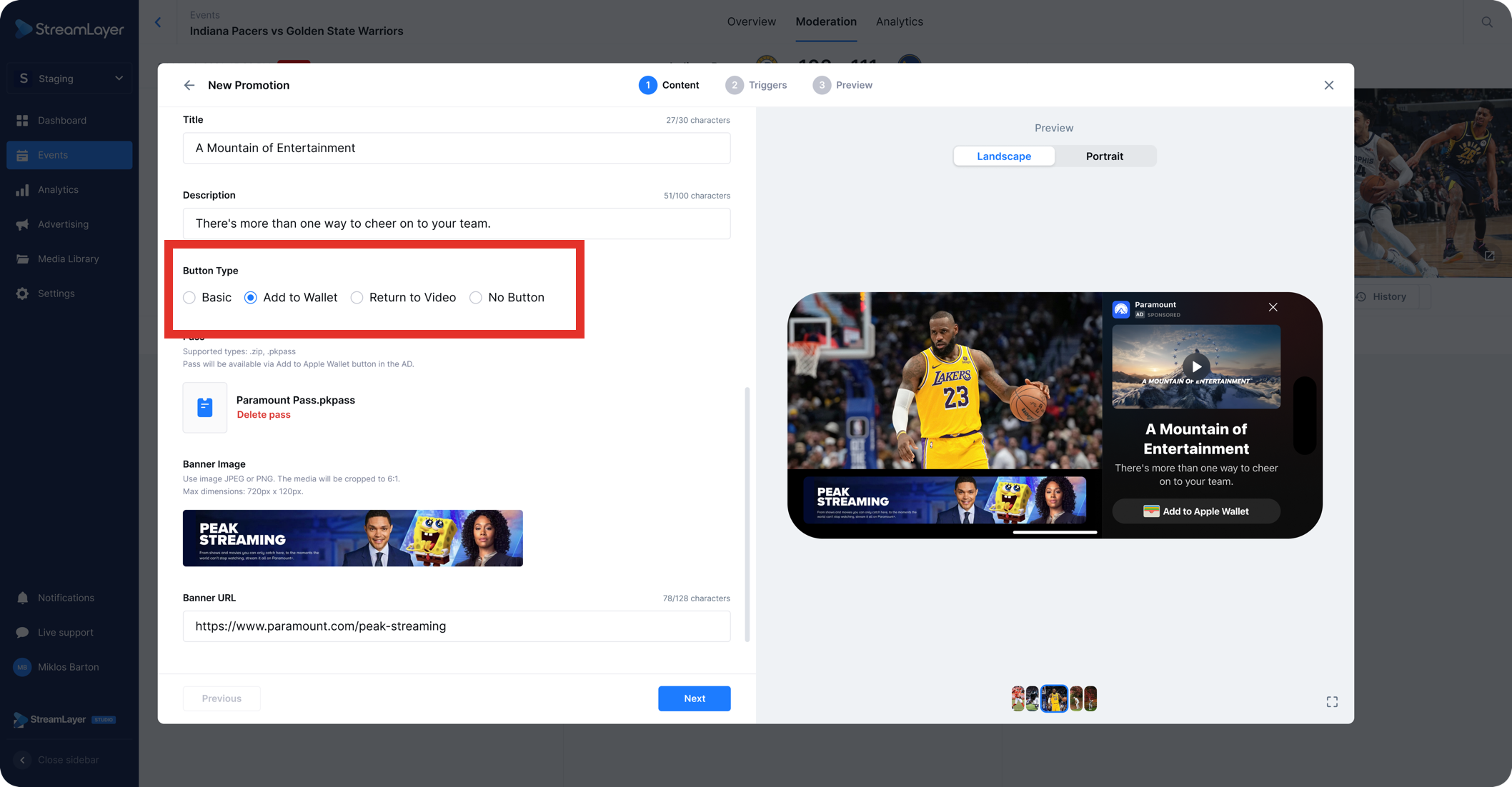
Beyond the ability to embed images and videos, each promotion format has the various CTA options for further interactivity.
CTA Button and URL: Link viewers to another application or a web-frame URL.
Save to Wallet: Allow viewers to download the embedded image to their mobile wallet. Embedded passes must be compatible with Apple or Google wallet formats. This option allows viewers to save and claim a promotion at a later date.
Return to Stream*: View the embedded video and simply return to full-screen video.
Related
- Moderation - Games — Create polls, trivia, predictions, and insights
- Global Advertising — Configure global ad settings across events
- Automation Capabilities — Automate promotion delivery with triggers and auto-post
Updated about 1 month ago