
Test Integration: Ads + Inplay Game (Android)
Test Gamification: A simple test integration that can be deployed in just a few hours is to integrate StreamLayer’s gamification feature. This feature allows a moderator to insert relevant gamification prompts (polls, trivia, prediction, insights, highlighted tweets) through StreamLayer’s lower-third notifications. Viewers will receive the content via notification within the stream, as seen below, and can top to open, answer, or view additional content. The typical StreamLayer launch menu and other feature sub-menu options will be hidden, but viewers will have a custom button they can tap to view their Games home tab to view old questions they may have missed while away or the leaderboard to see how they are tracking against their friends. This test would require a moderator to utilize StreamLayer Studio to create and activate questions and is a good way for your team to explore how this feature’s interactivity could be deployed over various types of programming. For this test implementation, the StreamLayer team will provide you access to StreamLayer Studio to create and moderate relevant poll, trivia, prediction, insights, and highlighted tweet content.
TV Examples
Interstitial
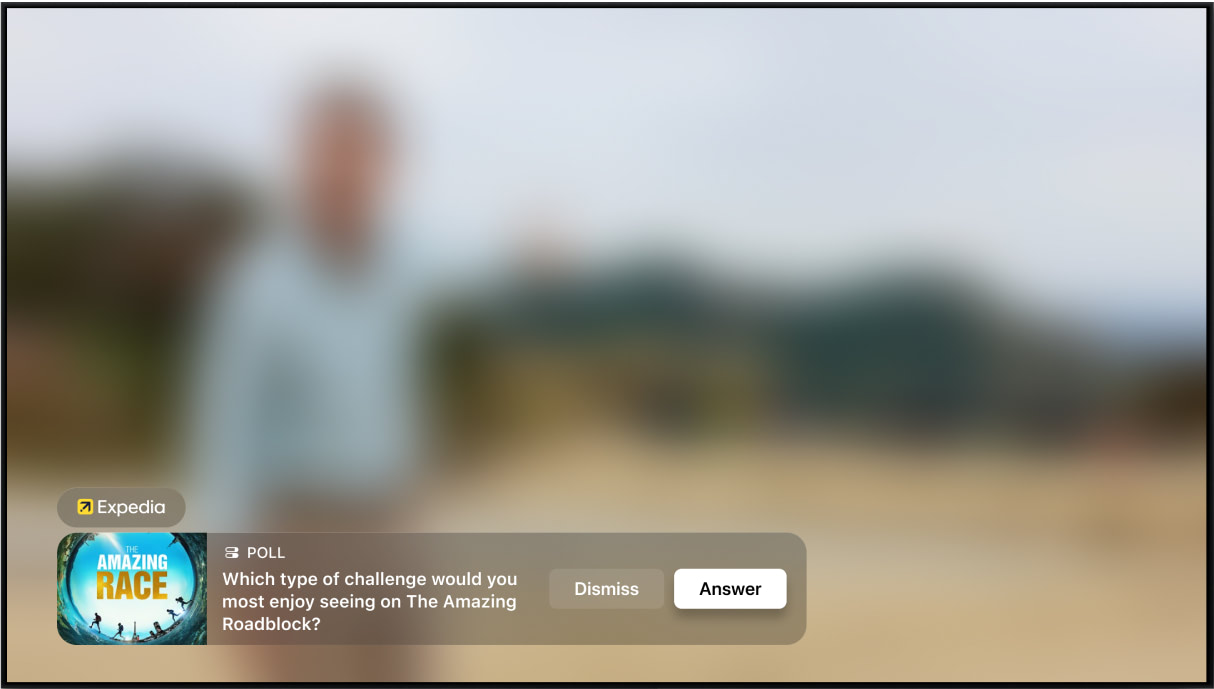
Branded Notification
Animated Sponsor Logo
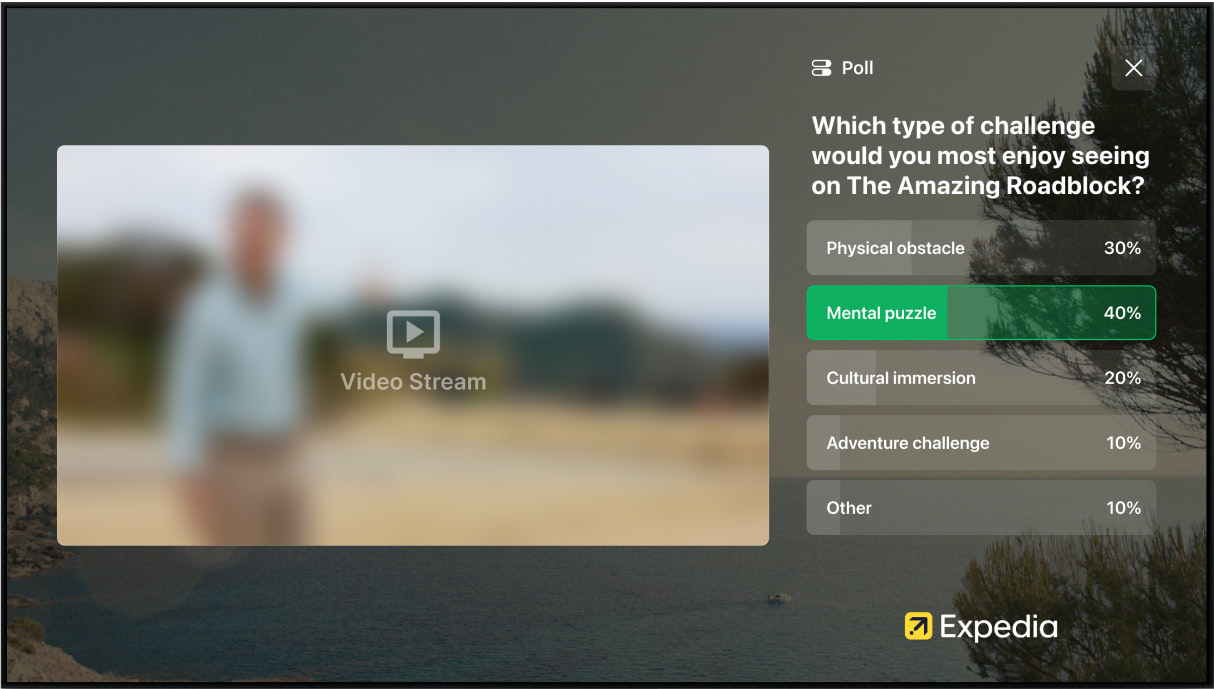
Poll Question
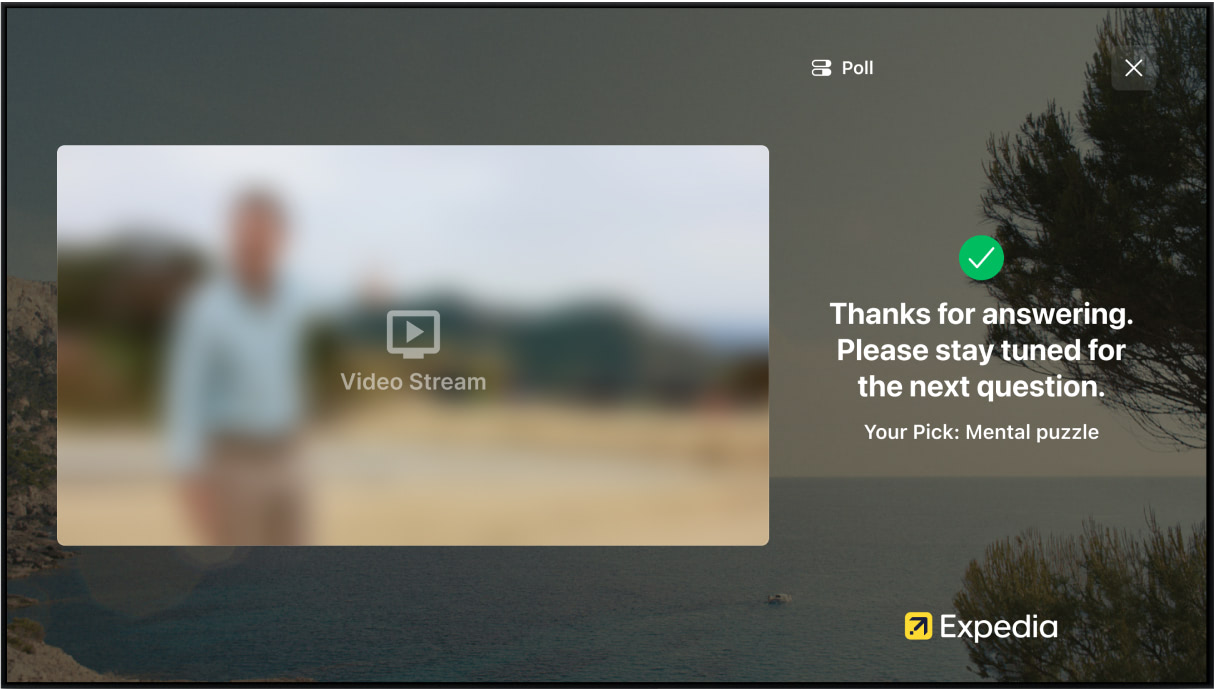
Question Answered
Mobile Landscape Examples
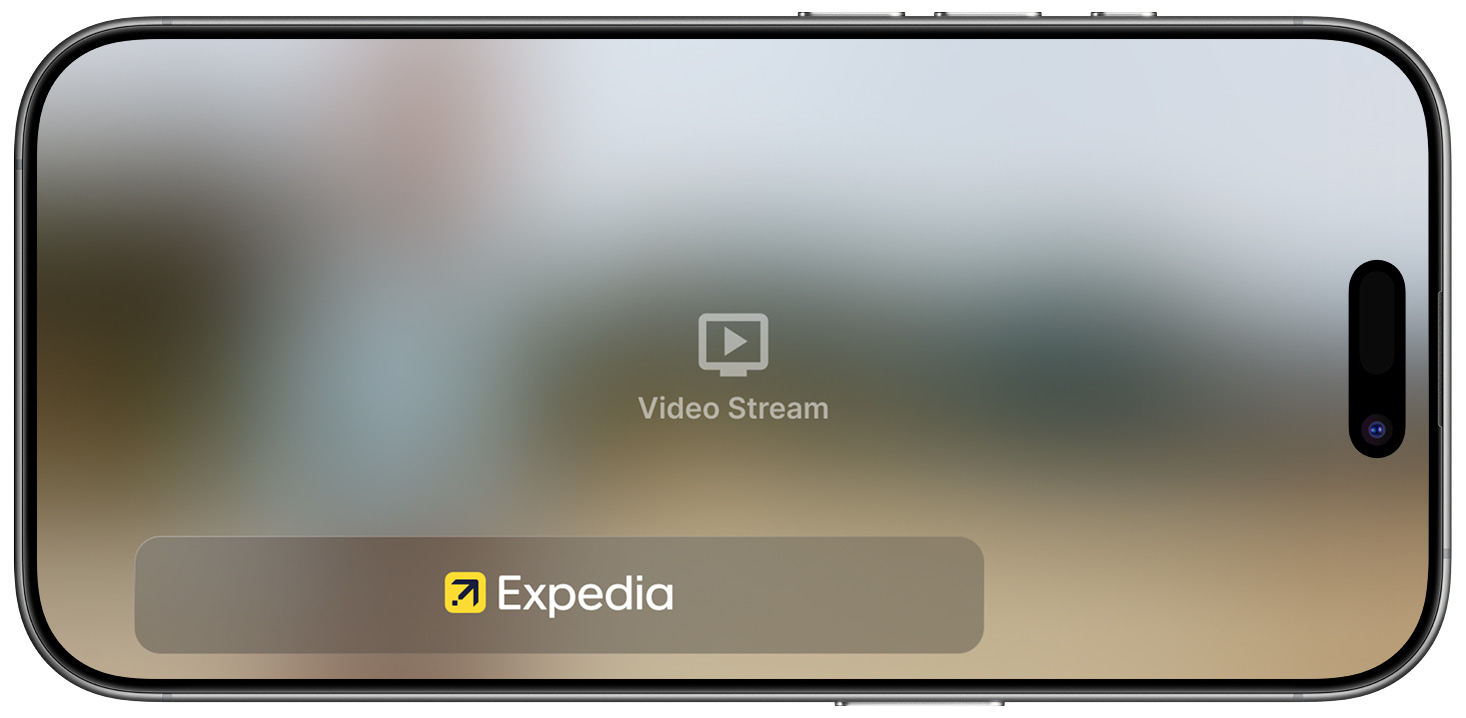
Interstitial
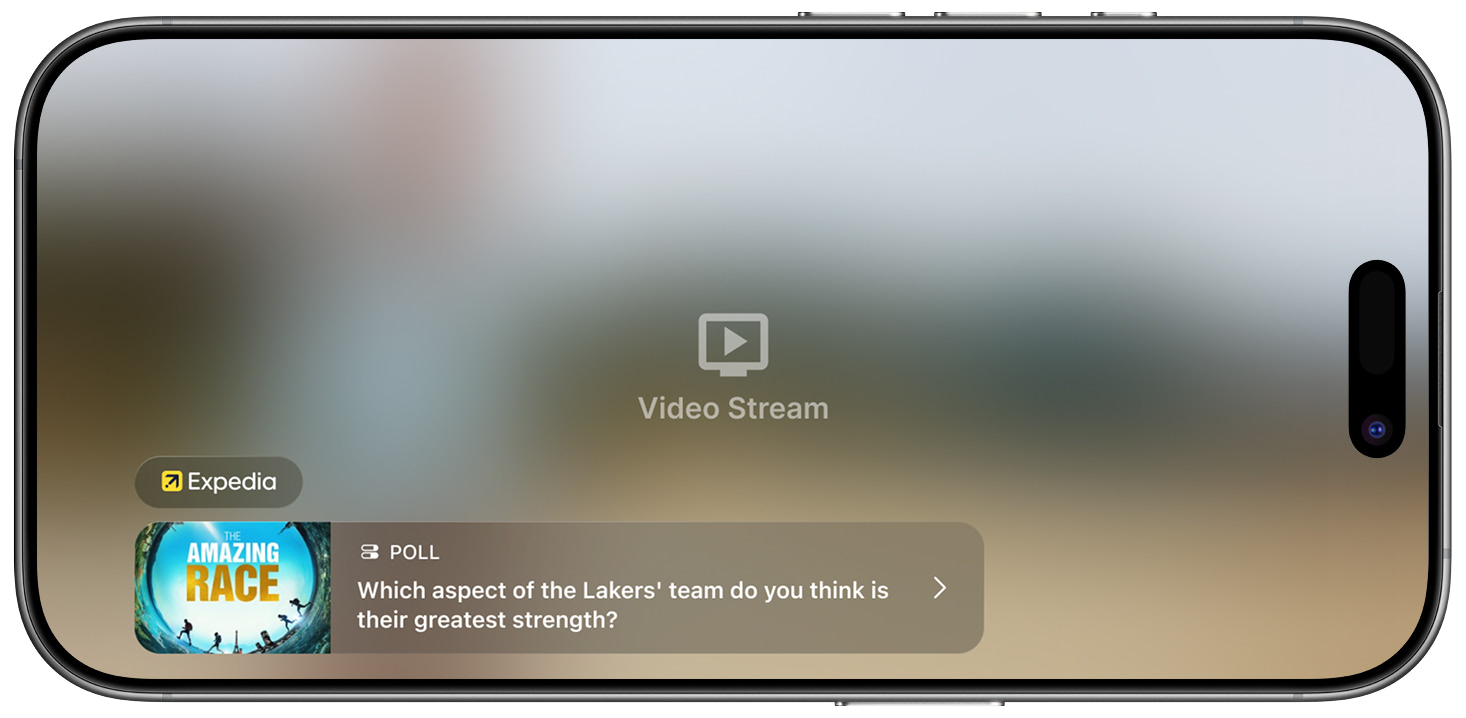
Branded Notification
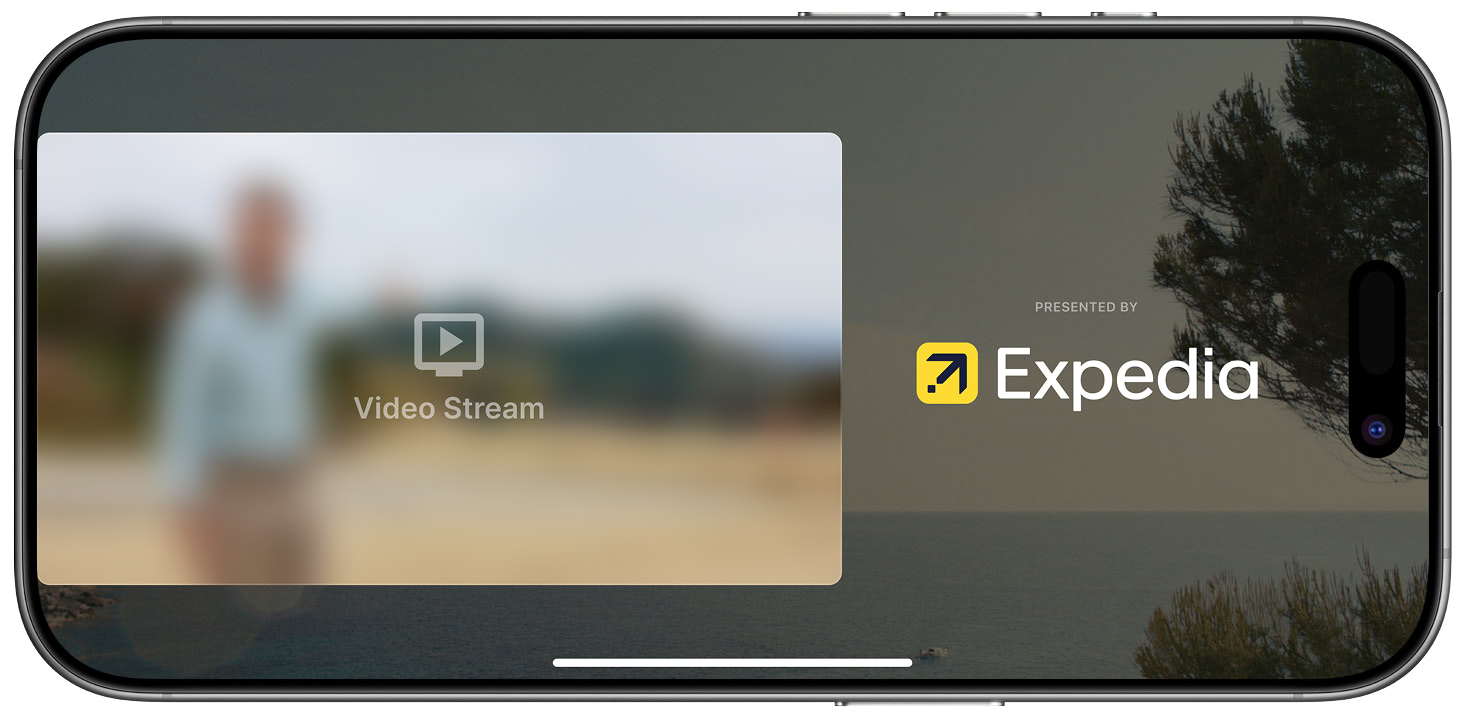
Animated Sponsor Logo
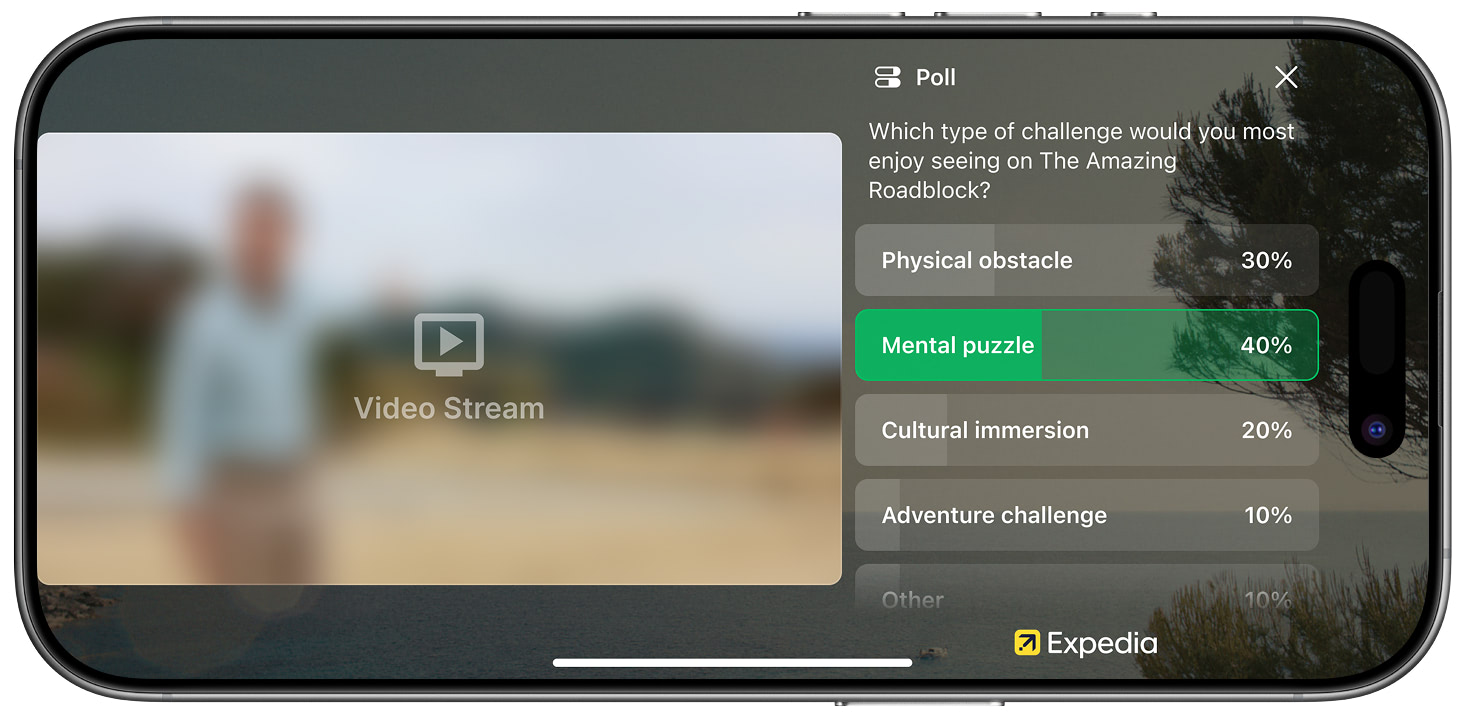
Poll Question L-Bar
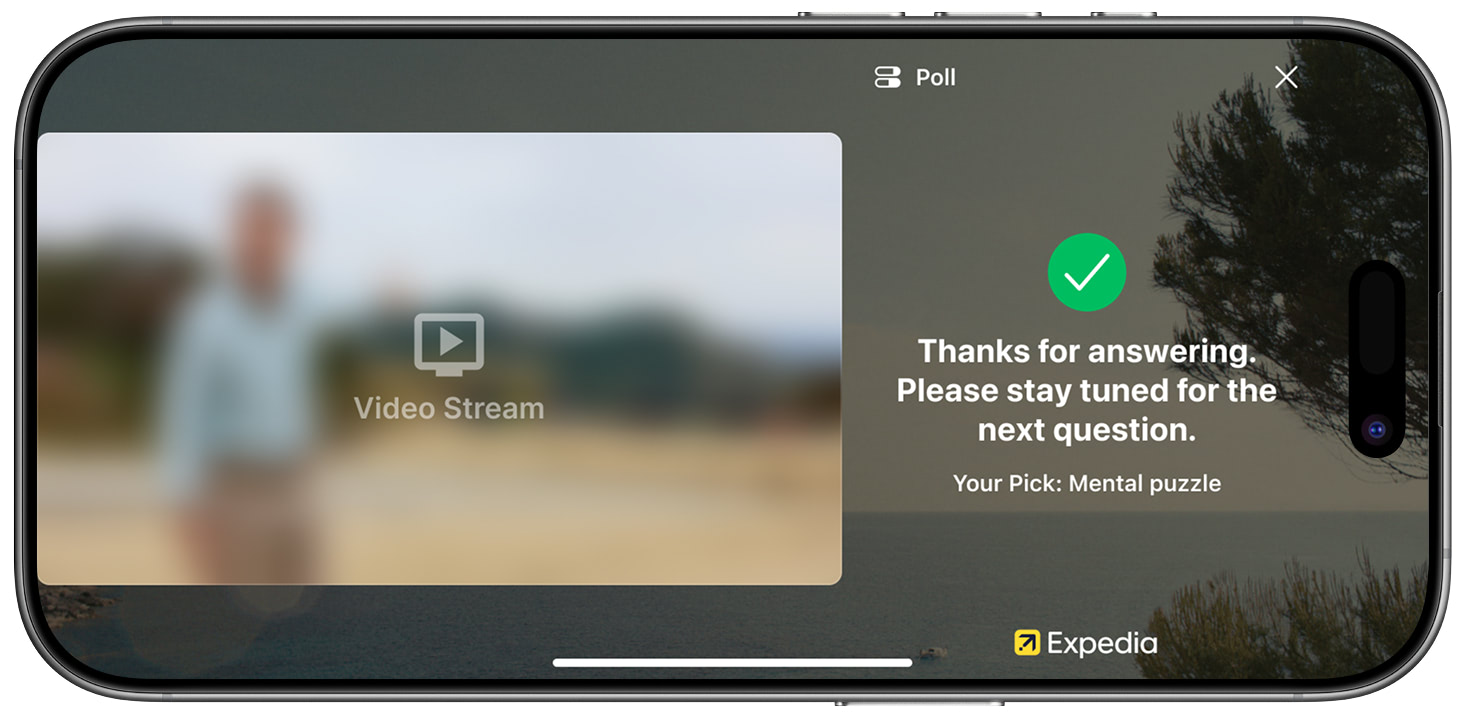
Question Answered
Mobile Portrait Examples
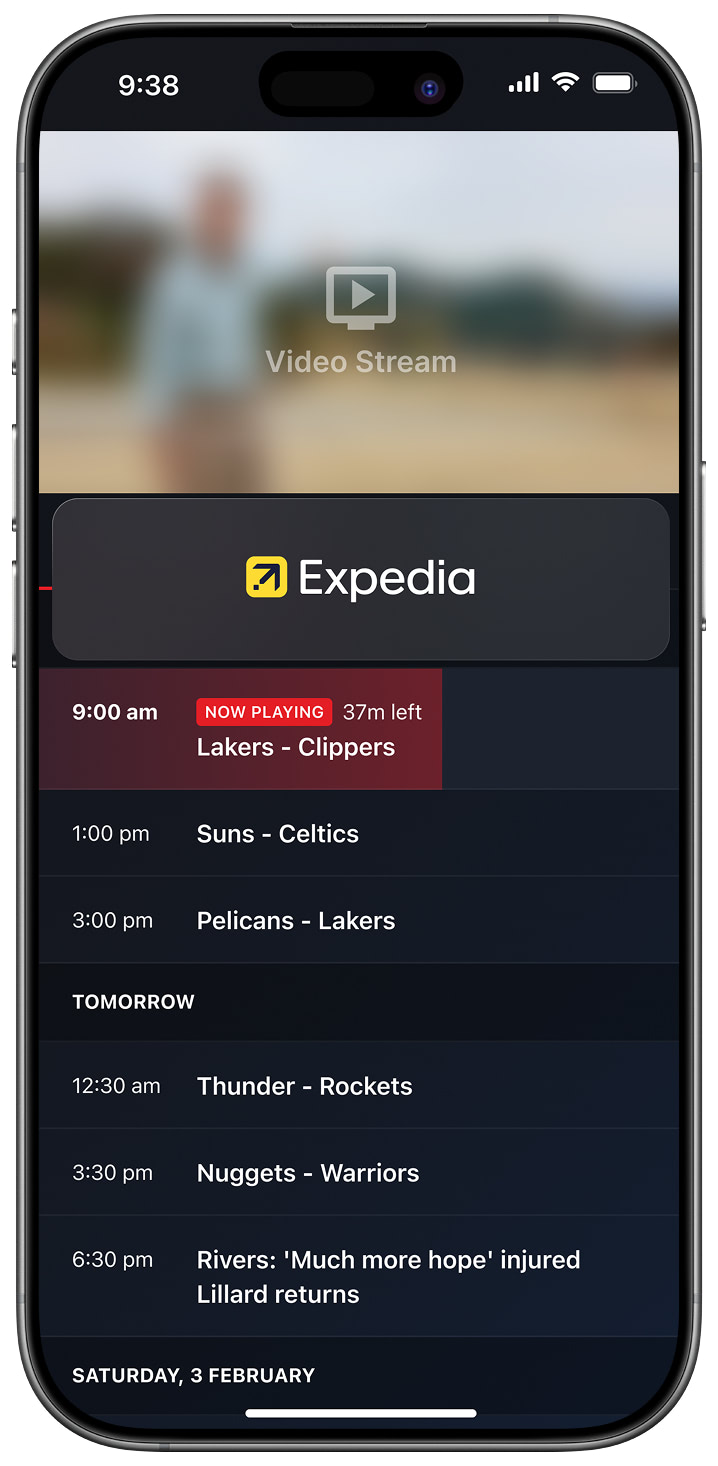
Interstitial
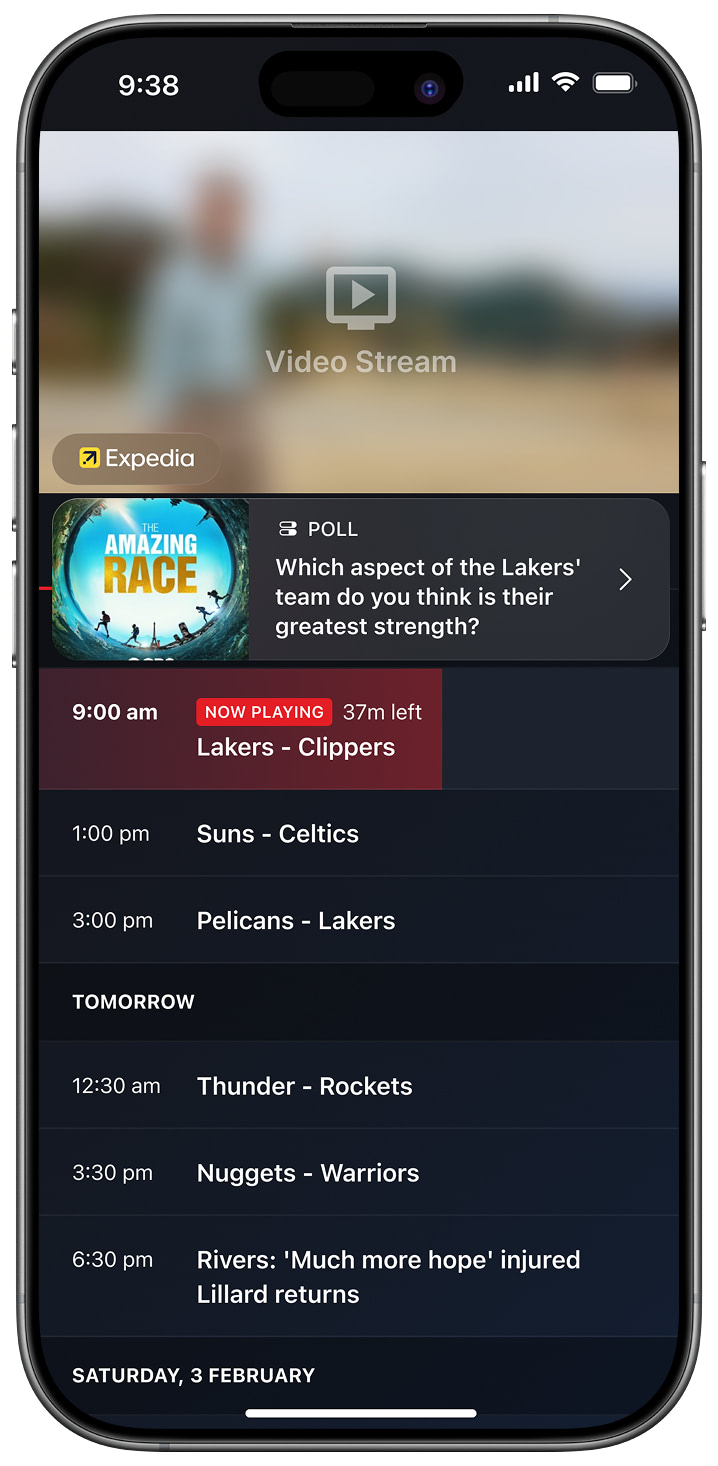
Branded Notification
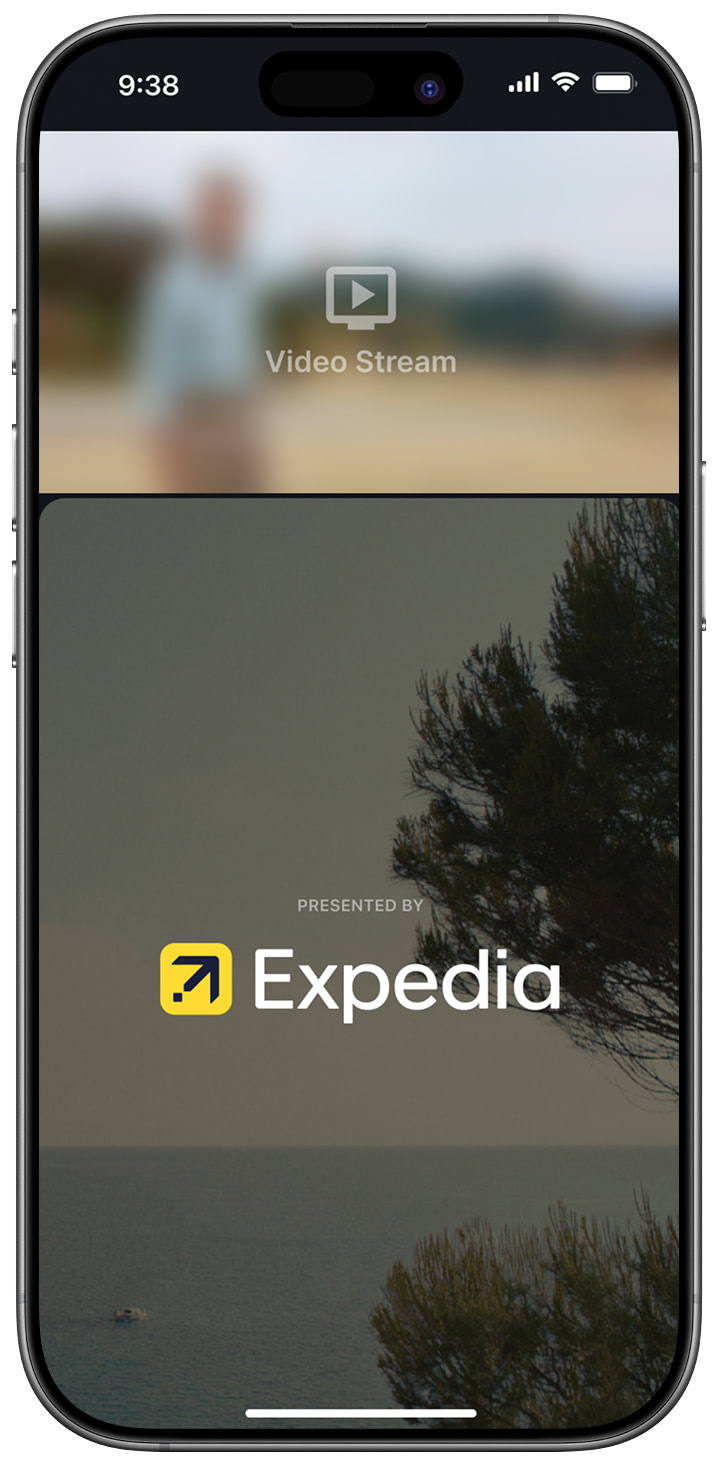
Animated Sponsor Logo
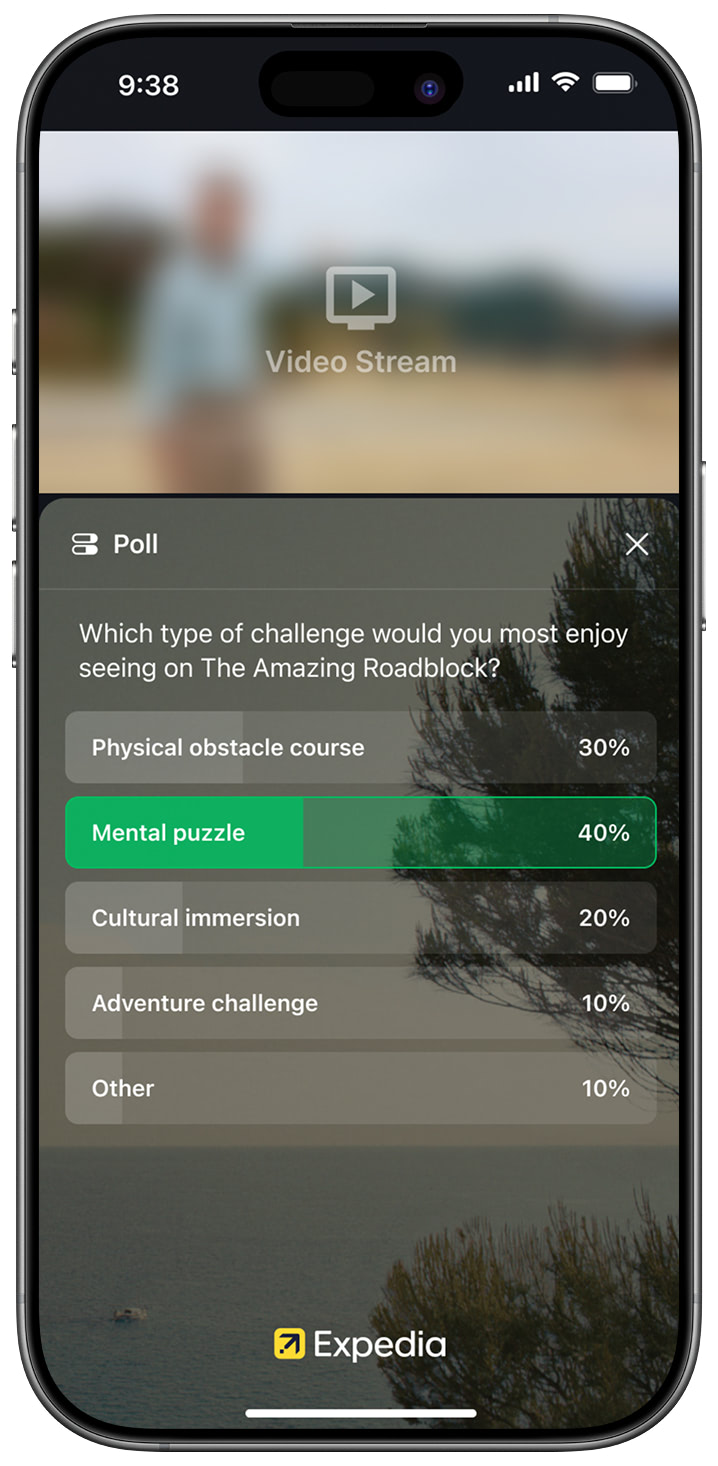
Poll Question
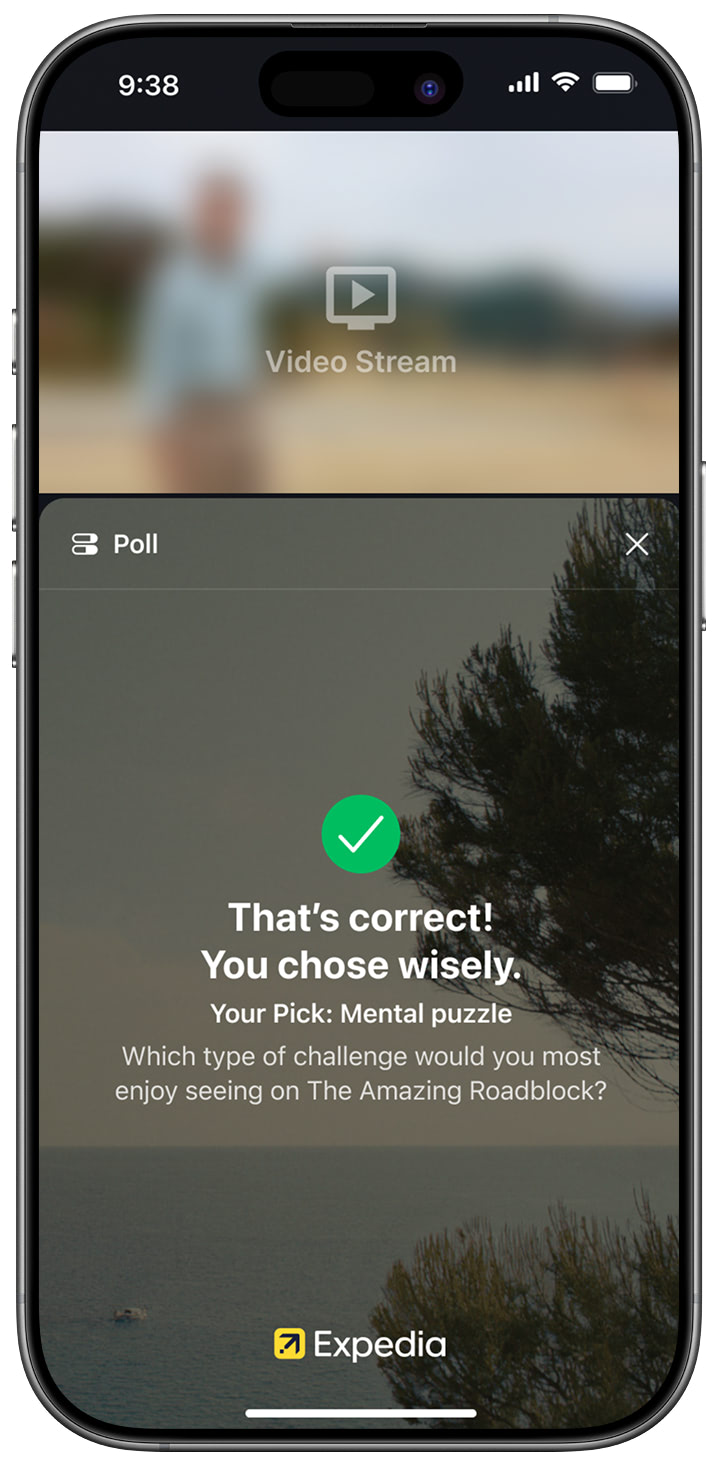
Question Answered
If the Test Gamification Feature is of interest, the StreamLayer development team is on-hand and available to ensure the integration is done smoothly and properly. The initial steps to get started are:
Pre-Integration: Obtain an SDK API Key. Provide StreamLayer with the email you want associated with this Key and we will send you an invite to our admin panel to generate an API key in the development section of the admin panel. This API authenticates your application with our servers and is required for all interactions.
- Install the StreamLayer SDK. This can be done via Gradle.
- Initialize the SDK.
- Set up the
StreamLayerFragmentin Activity. - Set up an
Eventin StreamLayer Studio. - Position the Games button.
- Set up the SDK AudioDucking
Prerequisites
System Requirements
- Android Studio 4.0+
- Target SDK version 33 or higher
- Minimum SDK version 21
- Kotlin or Java
You can find a complete code sample here . This demo app contains one screen with a video player and configured Gamification StreamLayer SDK feature. We highly recommend using ExoPlayer as your main application video player. This guide is based on it. If you have already used another solution you will need to implement some SDK interfaces by yourself.
Integration Steps
1. Install the StreamLayer SDK
The SDK is distributed via a Maven public repository. Add the following dependency to your module level build.gradle script.
dependencies {
   implementation "io.streamlayer:androidsdk:<insert latest version>"
}
You can find the latest version here.
Also add the following dependency to your project level build.gradle script.
allprojects {
    repositories {
        ...
        mavenCentral() // add this line
        maven { url "https://jitpack.io" } // add this line
    }
}
2. Initialize the SDK
Import the StreamLayer class into your Application class and initialize the SDK when the app is created using StreamLayer.initializedApp() function with the SDK key.
import io.streamlayer.sdk.StreamLayer

override fun onCreate() {
    super.onCreate()
    // initialize sdk with your key
    StreamLayer.initializeApp(this, ”SL_SDK_KEY”)
}
Note: You need to replace SL_SDK_KEY with the SDK Key that has been provided to you by the StreamLayer team.
Set up Gamification options
Gamification feature supports several type of Leader boards - Friends(show only your friends) and Global(show all users). Friends Leader board require to configure the Invites - the most common way how 2 users become a friends in the app. Since Invites is another feature of the SDK which requires complex integration on backend/client sides, it's out of the scope of this guide. We suggest to use Global Leader board with disabled Invites for the quick start. To use it you need call this code:
import io.streamlayer.sdk.StreamLayer

override fun onCreate() {
    super.onCreate()
    // set gamification options
    StreamLayer.setGamificationOptions(StreamLayer.GameOptions(
            isGlobalLeaderboardEnabled = true,
            isInvitesEnabled = false,
            isOnboardingEnabled = true,
            showGamificationNotificationOnboarding = false
        ))
}
Initialize SDK Video Player
To ensure the best user experience, the SDK overlays may require video playback support. The SDK will request the host app to provide a video player on demand based on video settings. Your host app can use any library for supporting video playback - the SDK doesn't depend on them. But we highly recommend using ExoPlayer - our API based on this API. The SDK provides an interface for supporting video playback - SLRVideoPlayerProvider. You can implement it by yourself or just copy ExoVideoPlayerProvider from our demo project. You also need to set your provider in Application class:
override fun onCreate() {
    super.onCreate()
     // set video player provider
    StreamLayer.setVideoPlayerProvider(ExoVideoPlayerProvider(this))
}
Examples of code can be found here.
or choose one of the module dependencies
There are two modules you can select for the internal video player. Choose one according to your needs
dependencies {
   implementation "io.streamlayer:android-exoplayer:<insert latest version>" // based on exoplayer
   implementation "io.streamlayer:android-media:<insert latest version>"
}import io.streamlayer.sdk.StreamLayer
import io.streamlayer.sdk.exoplayer.StreamLayerExoPlayer
import io.streamlayer.sdk.media3.StreamLayerMedia3Player
override fun onCreate() {
super.onCreate()
// initialize the StreamLayer SDK with SDK key
StreamLayer.initializeApp(this, {SDK_KEY})
// initialize a player
StreamLayerMedia3Player.initSdk(this)
// or
StreamLayerExoPlayer.initSdk(this)
}3. Set up StreamLayerFragment in Activity
The SDK provides io.streamlayer.sdk.main.StreamLayerFragment - fragment which contains all supported features of SDKs. You can add it programmatically or add to the activity xml layout. Importantly, you need to use the same android:tag=StreamLayerFragment for any version of the SDK fragment. We suggest using the latest FragmentContainerView to insert the fragment. For example, in your activity layout add the following.
<?xml version="1.0" encoding="utf-8"?>
<androidx.constraintlayout.widget.ConstraintLayout xmlns:android="<http://schemas.android.com/apk/res/android>"
    xmlns:app="<http://schemas.android.com/apk/res-auto>"
    xmlns:tools="<http://schemas.android.com/tools>"
    android:id="@+id/container"
    android:layout_width="match_parent"
    android:layout_height="match_parent">

    <com.google.android.exoplayer2.ui.StyledPlayerView
        android:id="@+id/playerView"
        android:layout_width="0dp"
        android:layout_height="0dp"
        app:auto_show="false"
        app:hide_on_touch="false"
        app:keep_content_on_player_reset="true"
        app:layout_constraintDimensionRatio="H,16:9"
        app:layout_constraintEnd_toEndOf="parent"
        app:layout_constraintStart_toStartOf="parent"
        app:layout_constraintTop_toTopOf="parent"
        app:resize_mode="zoom"
        app:surface_type="surface_view"
        app:use_controller="false"
        tools:background="@tools:sample/backgrounds/scenic" />

    <androidx.fragment.app.FragmentContainerView
        android:id="@+id/streamLayerFragment"
        android:name="io.streamlayer.sdk.main.StreamLayerFragment"
        android:layout_width="match_parent"
        android:layout_height="0dp"
        android:tag="StreamLayerFragment"
        app:layout_constraintBottom_toBottomOf="parent"
        app:layout_constraintEnd_toEndOf="parent"
        app:layout_constraintStart_toStartOf="parent"
        app:layout_constraintTop_toTopOf="parent" />

</androidx.constraintlayout.widget.ConstraintLayout>
In the above example, the StreamLayer overlay will take up the entire space of screen, but when expanded, the overlay should reach the bottom of the PlayerView. In this case you need to set the overlayHeightSpace parameter for SDK - you can do it programmatically in your Activity:
private val layoutListener = View.OnLayoutChangeListener { view, _, _, _, _, _, _, _, _ ->
        view?.let {
            if (view.height > 0 && isScreenPortrait()) {
                withStreamLayerUI { overlayHeightSpace = view.height }
            }
        }
    }

    override fun onCreate(savedInstanceState: Bundle?) {
        super.onCreate(savedInstanceState)
        binding = ActivityGamificationBinding.inflate(layoutInflater)
        setContentView(binding.root)
        binding.playerView.addOnLayoutChangeListener(layoutListener)
    }
The StreamLayerFragment was added to your activity layout - now you need to configure the Gamification ui feature only. StreamLayer SDK contains a rich set of features and ui views. Depending on your application and your use of the StreamLayer SDK you can configure it on your demand. Please use this code in your activity:
override fun onCreate(savedInstanceState: Bundle?) {
        super.onCreate(savedInstanceState)
        // disable sdk ui views
        withStreamLayerUI {
            isLaunchButtonEnabled = false // disable launch button
            isWhoIsWatchingViewEnabled = false // disable who’s watching button
            isWatchPartyReturnButtonEnabled = false // disable return to watch party button
            isTooltipsEnabled = false // disable show tooltips
            isMenuProfileEnabled = false // disable menu profile
            inAppNotificationsMode = SLRAppHost.NotificationMode.List(
                     listOf(
                              SLRAppHost.NotificationMode.Feature.GAMES,
                              SLRAppHost.NotificationMode.Feature.HIGHLIGHTS
                    )
            ) // enable only Games and Highlights notifications
        }
    }
Examples of code can be found here and here.
4. Set up an Event in StreamLayer Studio
StreamLayer SDK requires the host app to set up an Event. An event can be added to StreamLayer Studio on demand or via an API scheduler. The host app should notify the StreamLayer SDK when a new event is selected/activated by calling StreamLayer.createEventSession() function from any CoroutineScope.
As we are doing a non-dynamic integration, the event-id could be a static string, and for demo purposes, we have pre-created an event. Typically you'd call this method when you navigate to the page that contains the StreamLayer SDK.
class GamificationActivity : AppCompatActivity() {

    override fun onCreate(savedInstanceState: Bundle?) {
        super.onCreate(savedInstanceState)
        loadDemoStream()
    }

    override fun onDestroy() {
        super.onDestroy()
        // release event session
        createEventSessionJob?.cancel()
        eventSession?.release()
    }

    private fun loadDemoStream() {
        exoHelper.init(DEMO_HLS_STREAM)
        createEventSession(App.DEMO_EVENT_ID)
    }

    // create a new event session
    private fun createEventSession(id: String) {
        if (eventSession?.getExternalEventId() == id) return
        createEventSessionJob?.cancel()
        createEventSessionJob = lifecycleScope.launch {
            try {
                eventSession?.release()
                eventSession = StreamLayer.createEventSession(id, null)
            } catch (t: Throwable) {
                Log.e(TAG, "createEventSession failed:", t)
            }
        }
    }
}
Don’t forget to release your SLREventSession when it’s not needed anymore.
Examples of code can be found here.
5. Position the Games and Highlights buttons
In case if you want to open Games or Highlights overlay from any part of your Activity you need use showOverlay function. For example: you can add custom buttons to your Activity layout:
<ImageButton
        android:id="@+id/gamesBtn"
        android:layout_width="40dp"
        android:layout_height="40dp"
        android:layout_margin="16dp"
        android:background="@drawable/bg_overlay_button"
        android:padding="6dp"
        android:scaleType="centerInside"
        android:src="@drawable/slr_ic_fantasy"
        app:layout_constraintBottom_toBottomOf="parent"
        app:layout_constraintEnd_toEndOf="parent" />

 <ImageButton
        android:id="@+id/highlightsBtn"
        android:layout_width="40dp"
        android:layout_height="40dp"
        android:layout_margin="16dp"
        android:background="@drawable/bg_overlay_button"
        android:padding="6dp"
        android:scaleType="centerInside"
        android:src="@drawable/slr_ic_highlights"
        app:layout_constraintBottom_toBottomOf="parent"
        app:layout_constraintEnd_toStartOf="@+id/gamesBtn" />
then add click listeners to them and call showOverlay function :
// open Games overlay
gamesBtn.setOnClickListener {
    withStreamLayerUI { showOverlay(SLRAppHost.Overlay.Games) }
}
// open Highlights overlay
highlightsBtn.setOnClickListener {
    withStreamLayerUI { showOverlay(SLRAppHost.Overlay.Highlights) }
}
6. If L-bar squeeze back formats are desired, enable L-bar in the app.
To always enable L-bars so that all content is presented in this format, set the config value: 'SLRAppHost.OverlayLandscapeMode.LBAR'
If you have 'overlayLandscapeMode = OverlayLandscapeMode.START' instead, StreamLayer's gamification feature and promotions will be in overlays unless promotions are selected as L-bar in StreamLayer Studio.
lbarMode
lbarModeThe lbarMode property of SLRAppHost.OverlayLandscapeMode.LBAR allows you to configure how the L-bar (lower banner area) behaves in relation to available space. Here are the available options:
-
SLRAppHost.LBarMode.FULL:
Use this mode when you want the L-bar to always occupy the lower space, regardless of whether there is a banner present. This ensures that the reserved space for the L-bar remains constant, even if no banner is displayed.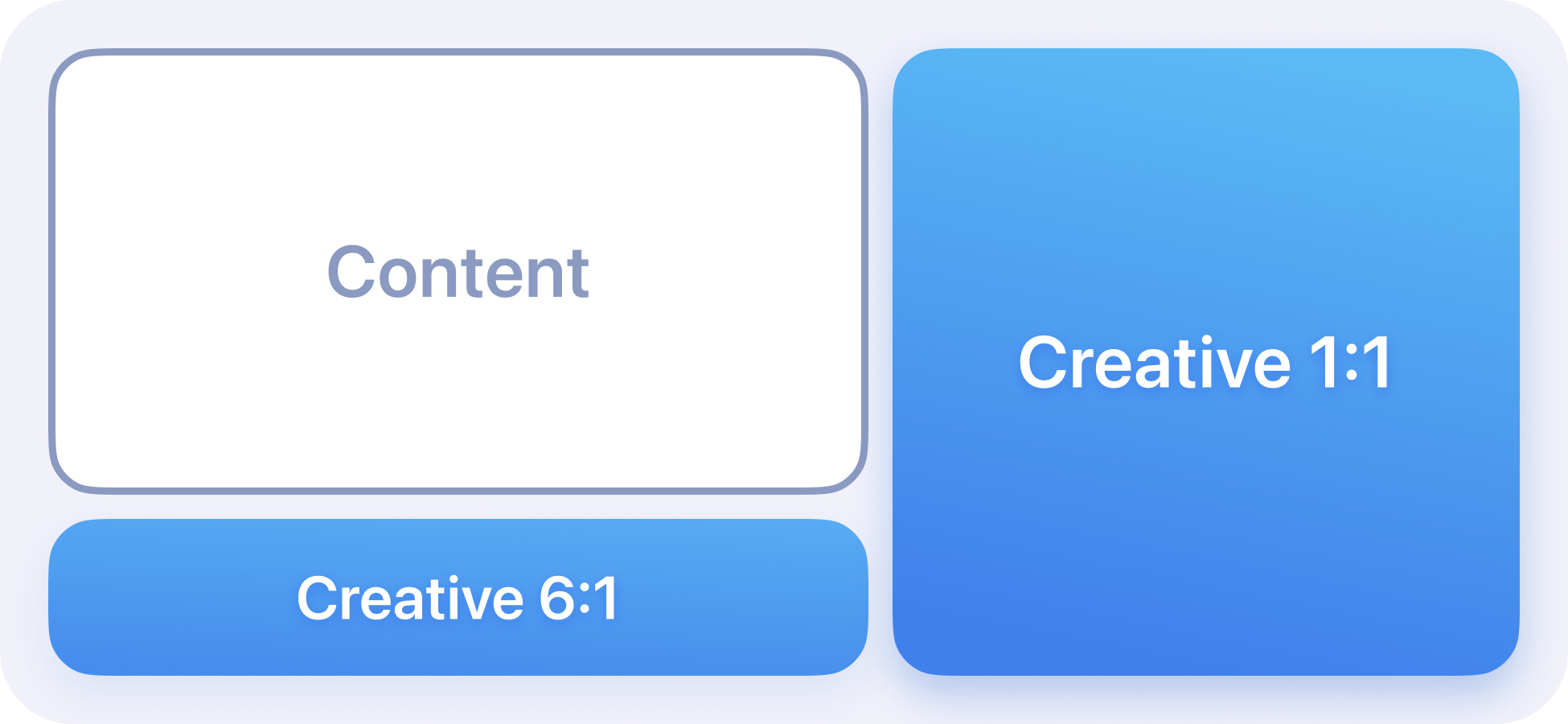
-
SLRAppHost.LBarMode.SIDE_BAR:
Use this mode when you want the L-bar to only occupy space when a banner exists. If no banner is present, the lower space will not be shown, allowing the content to fully utilize the space.
withStreamLayerUI { lbarMode = SLRAppHost.LBarMode.FULL }
7. Set up SDK AudioDucking
To ensure the best user experience, Games overlay may require a decrease in the main video's audio level. The SDK will request the host app lower the volume of the current stream when users start to play video in Games or Insight/Tweet overlays. The StreamLayer class provides an interface with a callback function to notify when audio ducking is required. This will require you to implement SLRAppHost.Delegate. Don’t forget to add and remove your listener when it’s needed. Check this code as example:
class GamificationActivity : AppCompatActivity() {

    // exo player helper
    private val exoHelper: ExoPlayerHelper by lazy {
        ExoPlayerHelper(this, getString(R.string.app_name))
    }

    // app host delegate
    private val appHostDelegate = object : SLRAppHost.Delegate {

        override fun requestAudioDucking(level: Float) {
            exoHelper.notifyDuckingChanged(true, level)
        }

        override fun disableAudioDucking() {
            exoHelper.notifyDuckingChanged(false)
        }

        override fun setAudioVolume(value: Float) {
            exoHelper.player.volume = value
        }

        override fun getAudioVolumeListener(): Flow<Float> = exoHelper.getAudioVolumeListener()
    }


    override fun onCreate(savedInstanceState: Bundle?) {
        super.onCreate(savedInstanceState)
         // set host app player
        withStreamLayerUI { delegate = appHostDelegate }
    }


   override fun onDestroy() {
        withStreamLayerUI { delegate = null }
        super.onDestroy()
        // release player
        exoHelper.release()
   }

}
Code of the GamificationActivity can be found here.
Code of the ExoPlayerHelper can be found here.
Updated 6 months ago