
Managing Events
Create and manage events in StreamLayer Studio. Search by date or name, toggle features per event, and navigate Overview, Moderation, and Analytics tabs.
To manage extensions and StreamLayer Elements for a stream for your users, you will need to configure a new Event. Log into StreamLayer Studio. To find the events you have access to and want to manage, click the Events icon on the left menu. Events are scheduled streams, games, or other coverage for your viewers.
Selecting the Event
You can find your event via the Calendar or via the Search Bar. Click on the date to bring up a calendar interface to select the appropriate date or use the Search Bar and enter a team name or name of the event.
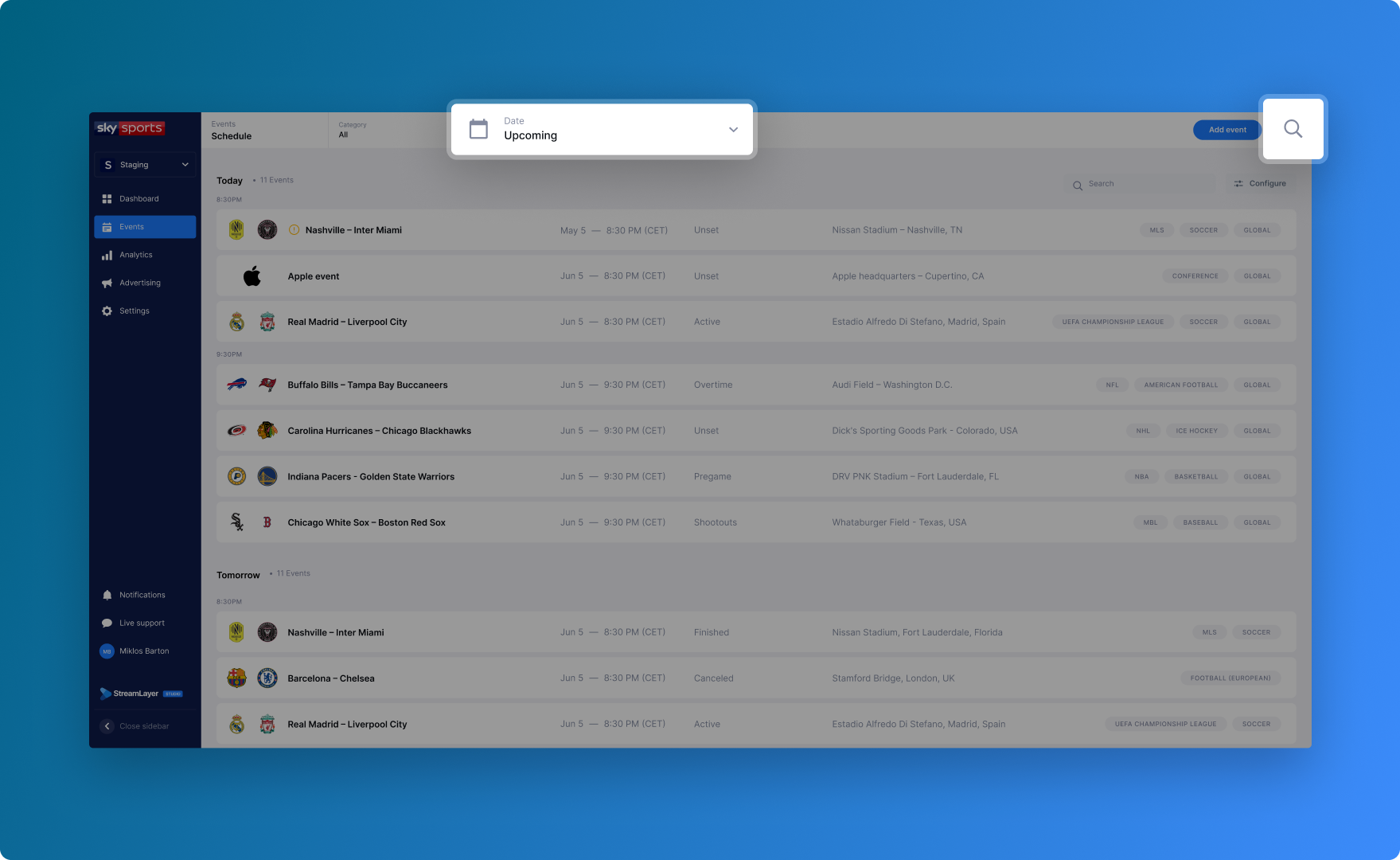
Managing Event Features
Once you find the right date, you will see a list of all events that are currently set up.
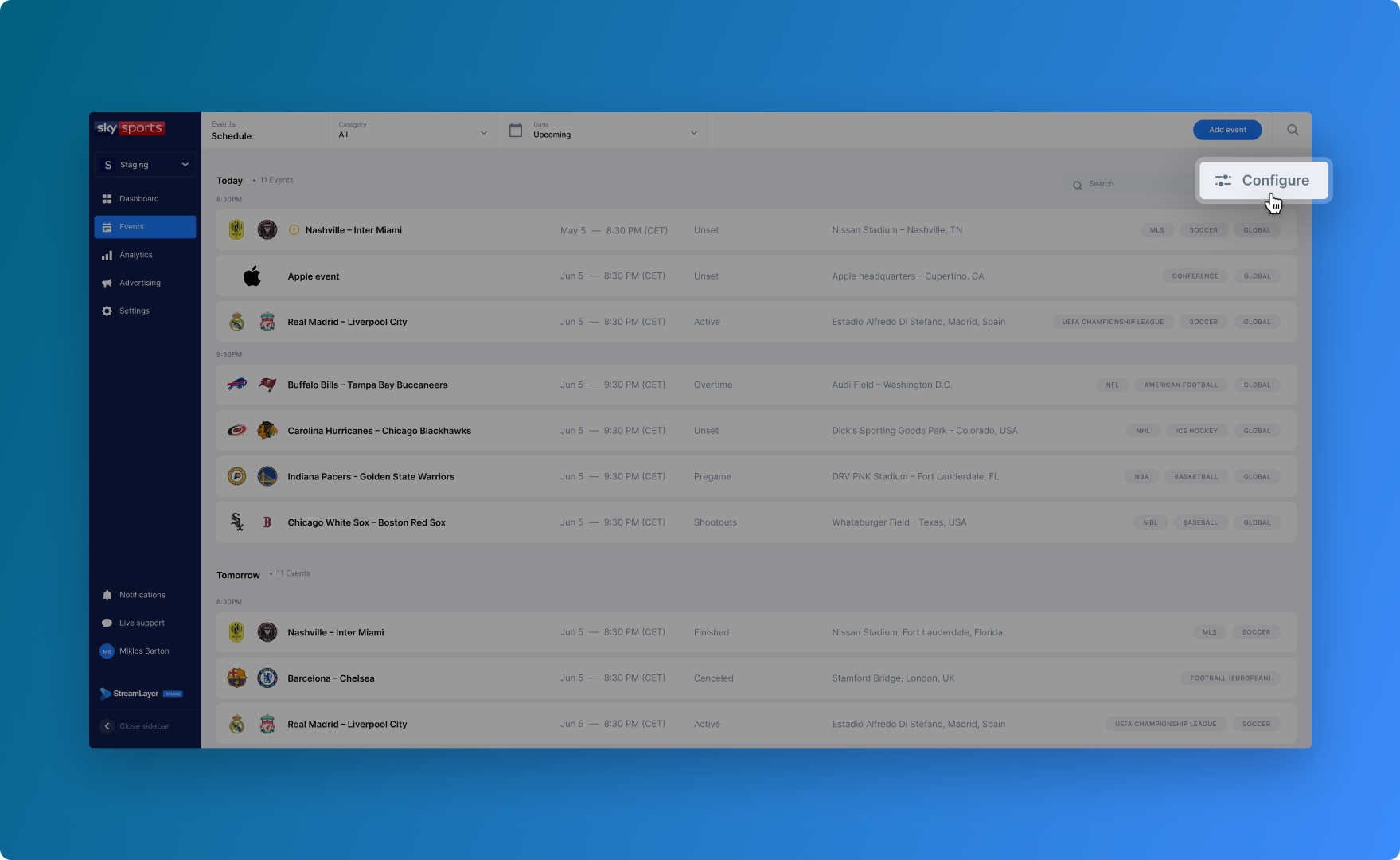
If you click on the Configure button on the top right above the list of events, you can manage the features you want to turn on for all events within your organization You can enable feature like Messaging, Stats, Twitter, Odds, and Games. Any features with the toggle turned on will be included in the viewer's menu and automatically applied for all events. Only features that have been selected will be available to the users of your application.
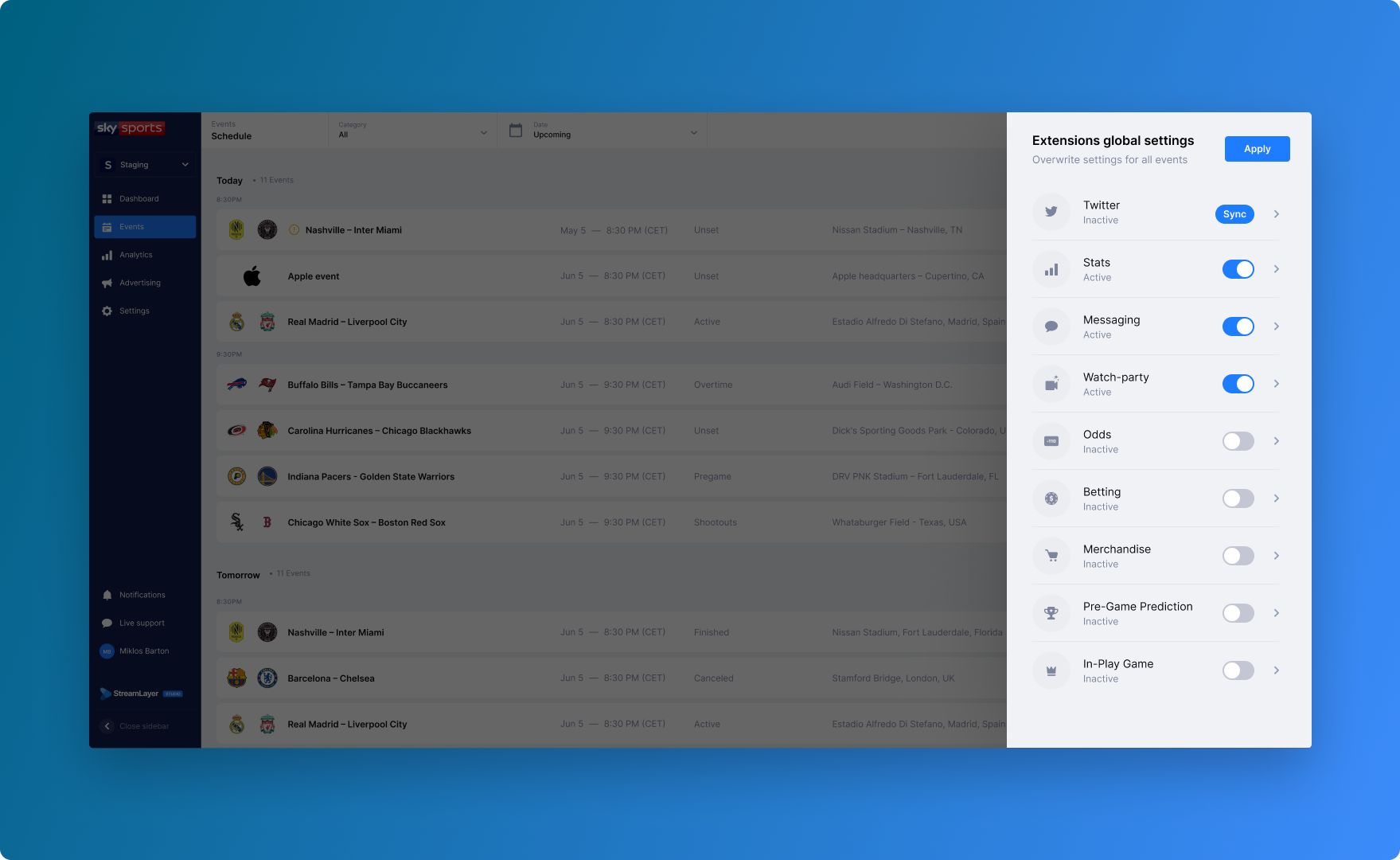
If you want to change this global setting for a specific event, find the row for the event you wish to change and click 'Global.' This will pull up the same feature settings modal with the default selections toggled on or off. Here you can change which features you want to enable or remove for this specific event.
General Navigation
If you click into an individual event, there are 3 primary components to an event page: Overview, Moderation, and Analytics.
Overview: This tab includes generic information about the event like the event name, time, location, and teams or participants. You can find two sub-tabs in the middle left of your screen: General and Features. You also can configure feature availability as seen above by selecting the 'Features' sub-tab.
Moderation: This tab is where admins will spend the majority of their time creating and managing questions and insights they want to push to viewers during the event.
Analytics: This tab is where admins track viewer engagement metrics for a specific event across features like Gamification.
Related
- Moderation - Games — Create and manage interactive content for events
- Analytics — Track viewer engagement and performance metrics
- About StreamLayer Studio — Platform overview and capabilities
Updated 22 days ago